Victron software
Which Victron software does what, which interface it uses to connect to the device, and how to use it — from the VictronConnect app, through VEConfigure and assistants for MultiPlus and Quattro, to Venus OS, Node-RED and remote access via VRM. All based on the manufacturer’s documentation.
6step-by-step software guides
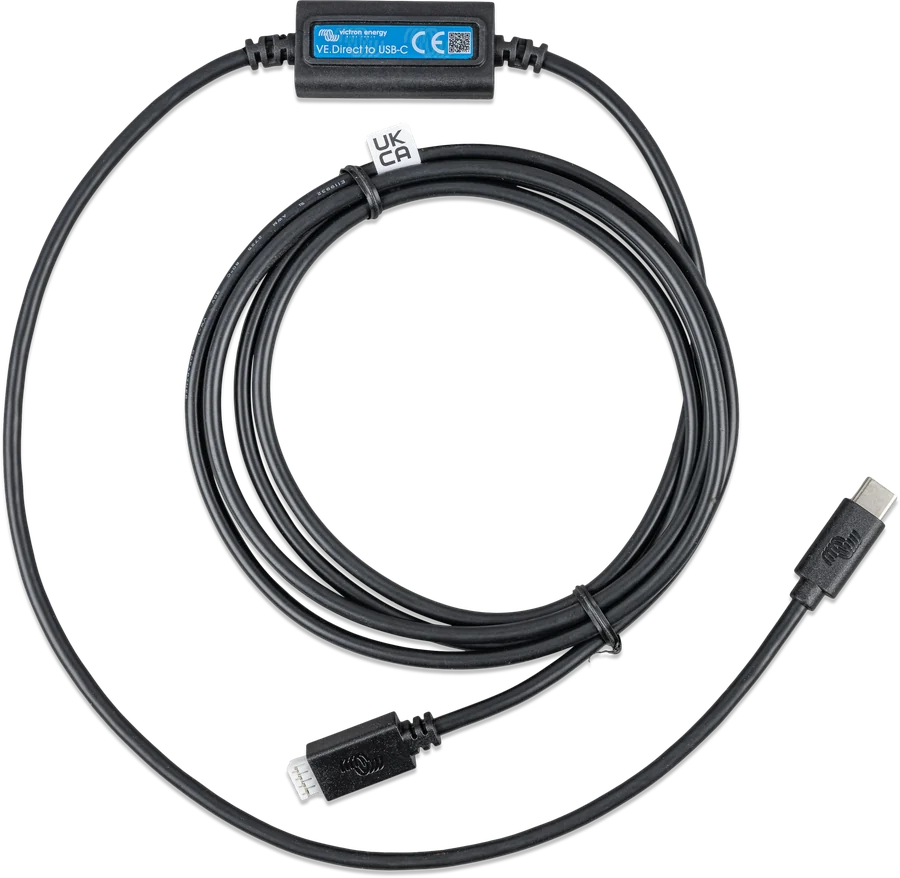
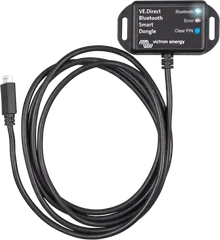
4interfaces: VE.Direct-USB, dongle, MK3-USB, VE.Bus Smart
Victronbased on the manufacturer’s documentation
Getting started
Which software for which device
| Device | Software | Connection |
|---|---|---|
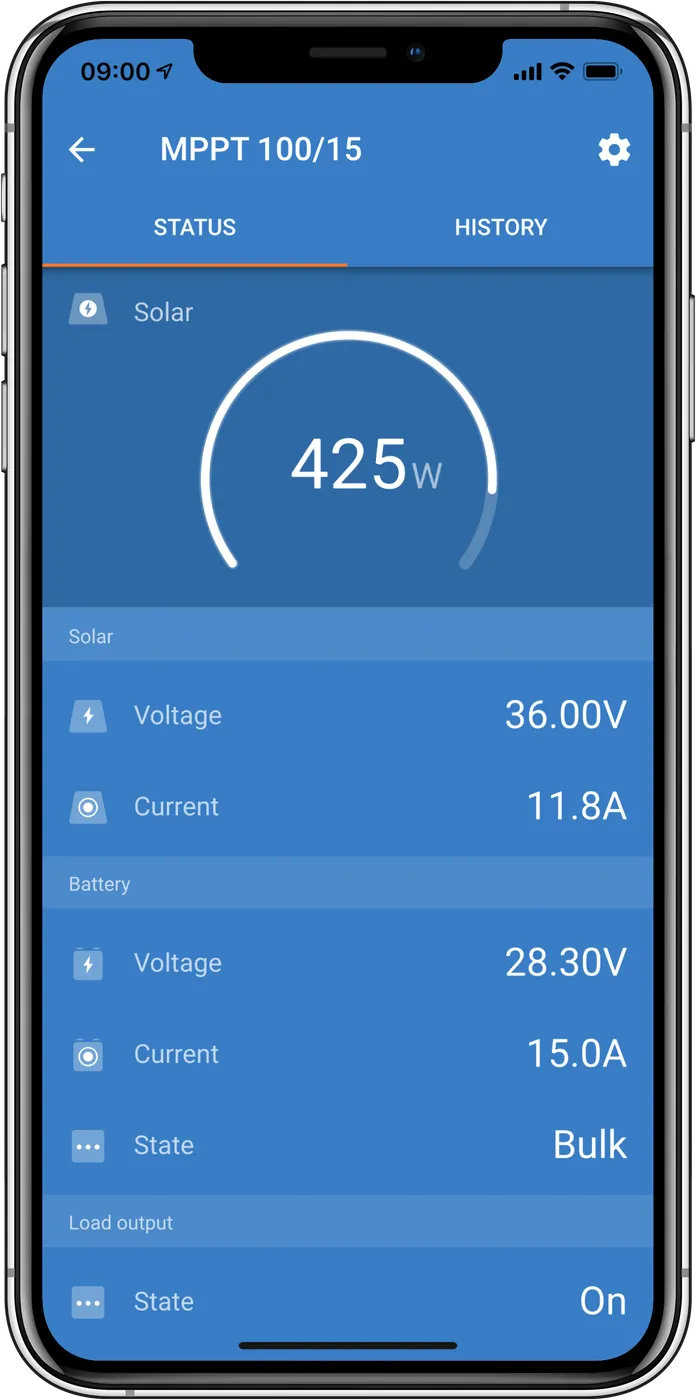
| MPPT controllers, battery monitors, Blue Smart chargers, Orion, Smart batteries, VE.Direct inverters, RS line | VictronConnect | Bluetooth, VE.Direct-USB or VE.Direct Bluetooth Smart dongle |
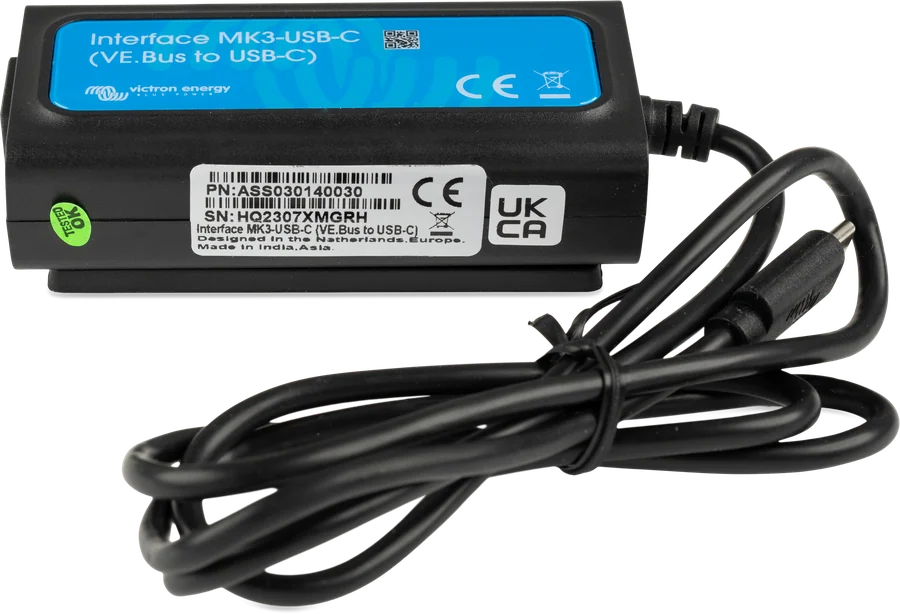
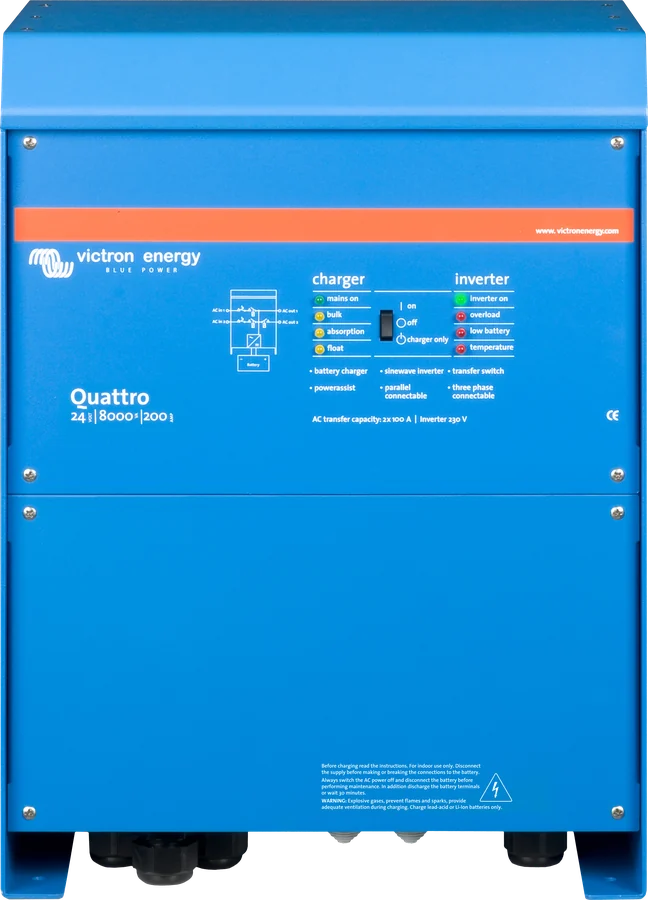
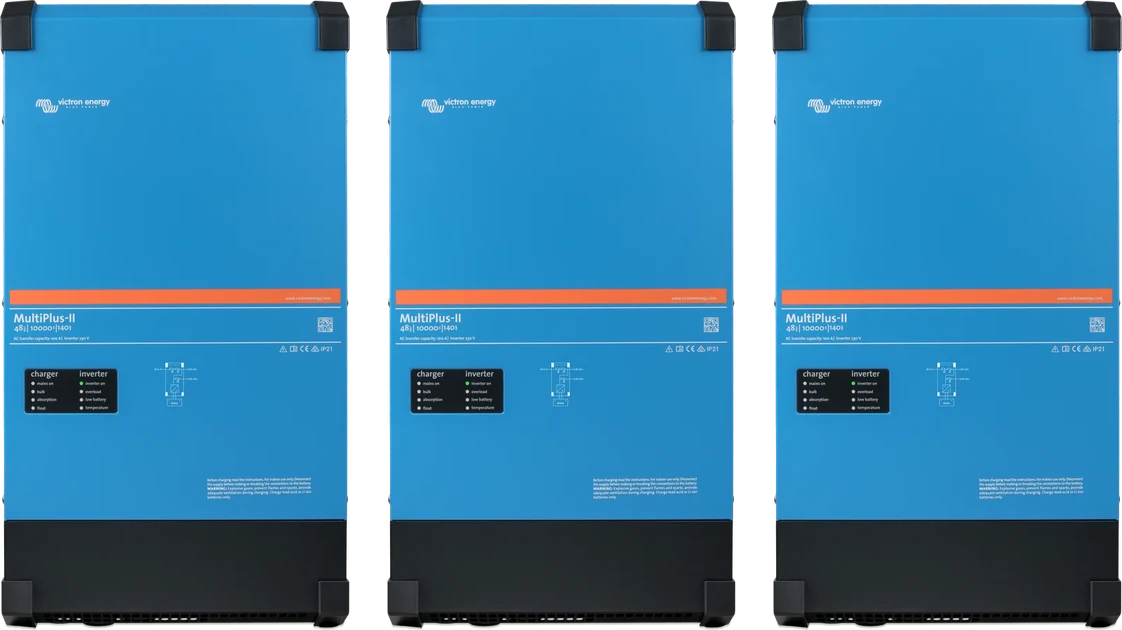
| MultiPlus, MultiPlus-II, Quattro, EasySolar — view and basic settings | VictronConnect | MK3-USB (settings) or VE.Bus Smart dongle (view and control) |
| MultiPlus and Quattro — assistants (ESS), Virtual Switch, grid code | VEConfigure + assistants | MK3-USB from a Windows computer or remotely via VRM |
| Several MultiPlus or Quattro units in parallel or in 3 phases | Quick Configure / System Configurator | MK3-USB from a Windows computer |
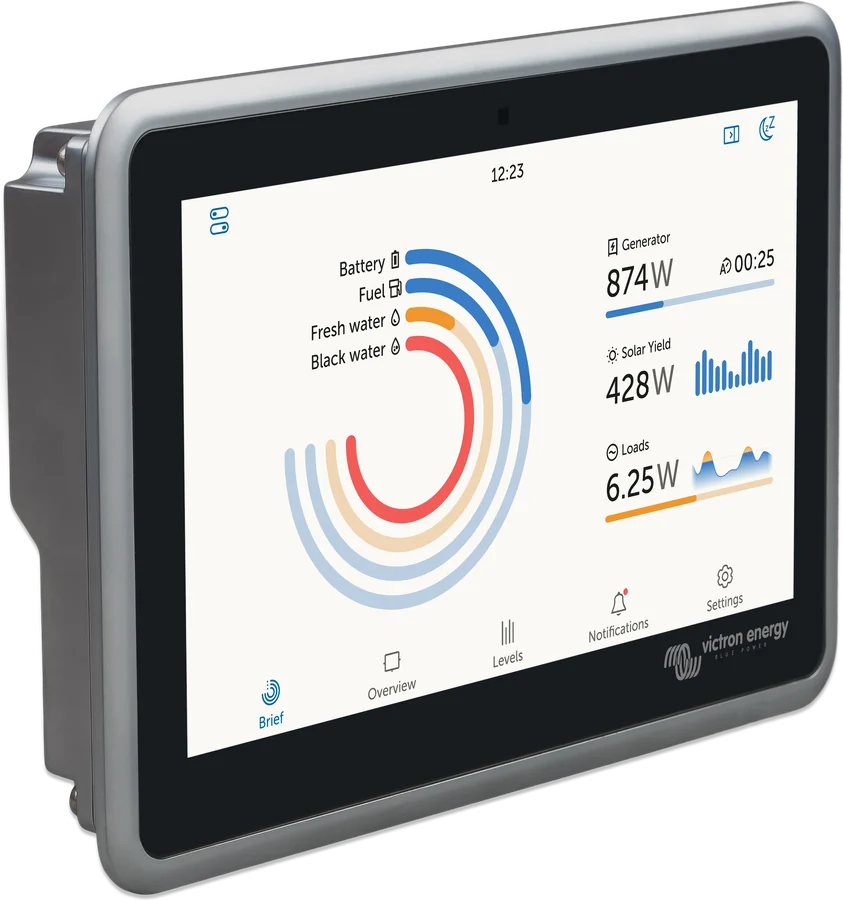
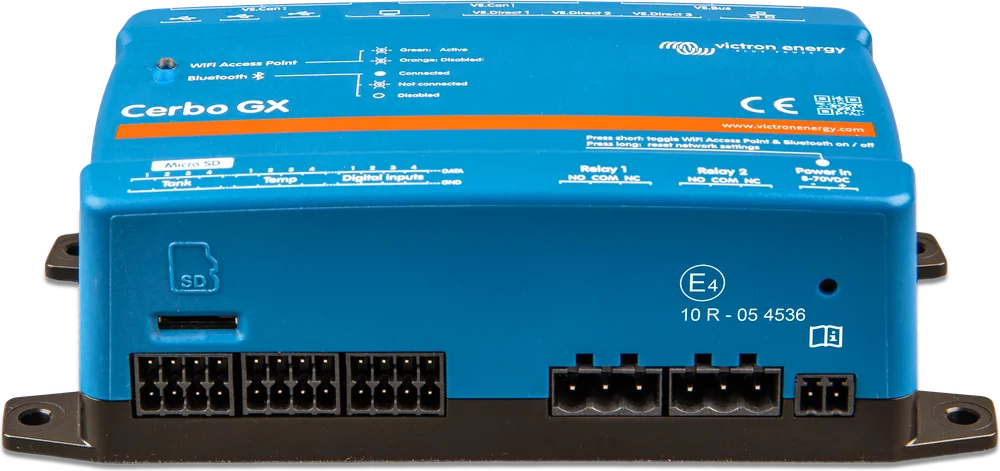
| GX devices: Cerbo GX, Ekrano GX, MultiPlus-II GX | Remote Console (Venus OS) | GX Wi-Fi, local network or VRM |
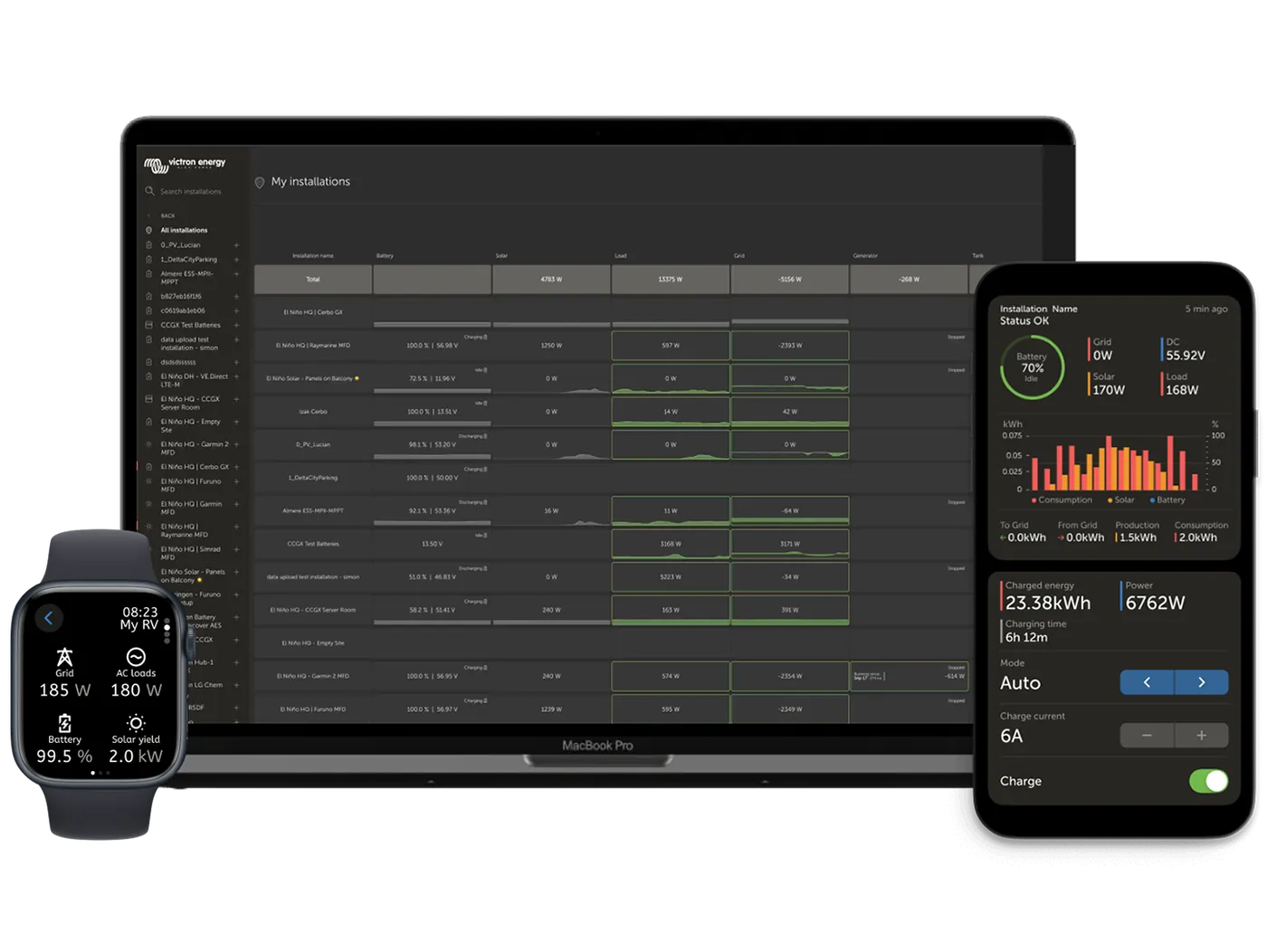
| VE.Can devices (VE.Can MPPT, Lynx Smart BMS) and remote control | VictronConnect-Remote, VRM | via a GX device with internet access |
| Automation: relays, schedules, custom dashboard | Node-RED | GX device with Venus OS Large |
Software
Step-by-step guides
Device configurationVictronConnect app, remote access and firmware updates
MultiPlus and Quattro (VE.Bus)VEConfigure, assistants (ESS, generator), parallel and 3-phase systems
VEConfigure
Full configuration of MultiPlus and Quattro on Windows via MK3-USB — with assistants, grid code and remote access through VRM.
OpenVE.Bus assistants
Small programs inside MultiPlus and Quattro — ESS, PV inverter, generator start, BMS. How to add them and what to watch out for.
OpenParallel and 3-phase systems
Several MultiPlus or Quattro units in parallel or in 3 phases — requirements, wiring and programming step by step.
Open