
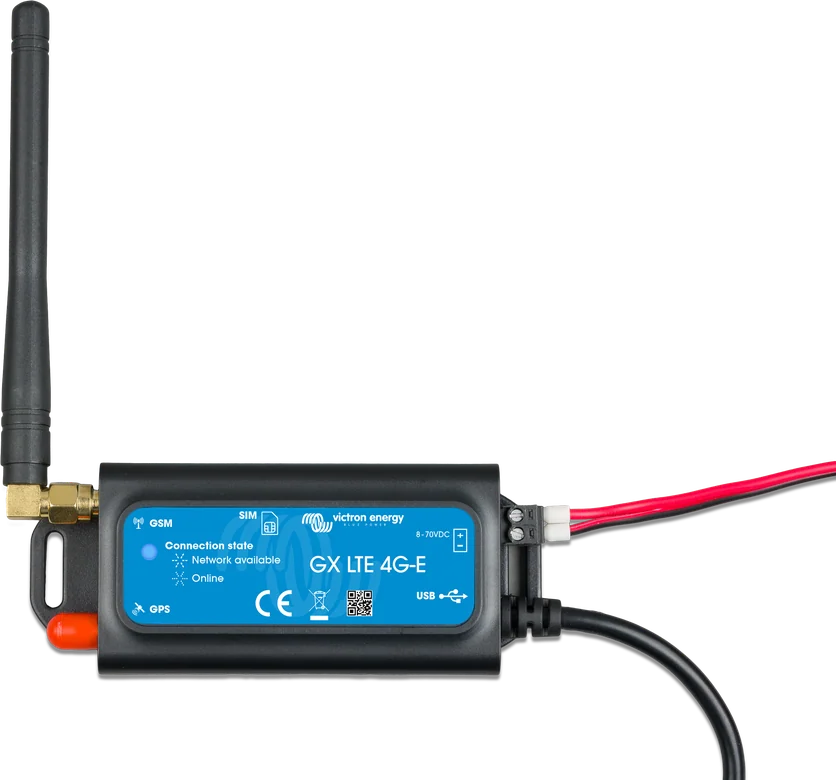
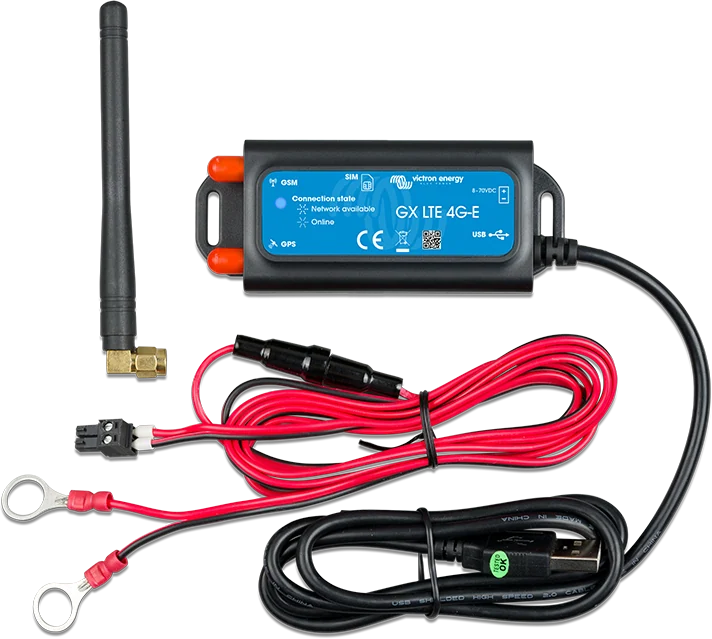
GX LTE 4G-E — modem with rod antenna and power cable
GX LTE 4G
A 2G, 3G and 4G cellular modem that gives the GX device internet access and access to the VRM portal where there is no Wi-Fi or cable — in a campervan, on a boat and in an off-grid system. It also has a built-in GPS receiver: with the optional antenna, the system’s location is shown in VRM.
- 2G / 3G / 4G
- Mini-SIM card
- SMA antenna + GPS
- 8–70 V DC supply
- USB to GX device
Internet for the system where there is no Wi-Fi
The GX device sends data to the VRM portal over the internet. At home, a cable or Wi-Fi is enough, but in a campervan, on a yacht and in an off-grid installation that network usually does not exist. GX LTE 4G plugs into the GX device’s USB socket and gives it its own cellular connection.
The modem supports 2G, 3G and 4G networks, accepts a standard Mini-SIM card and has a built-in GPS receiver — after fitting the optional active antenna, the system location is visible in VRM, together with geofencing.
- works with any GX device running Venus OS 2.60 or later,
- includes an indoor rod antenna and a fused power cable,
- uses 2.5 W during transmission and less than 1 W at rest.
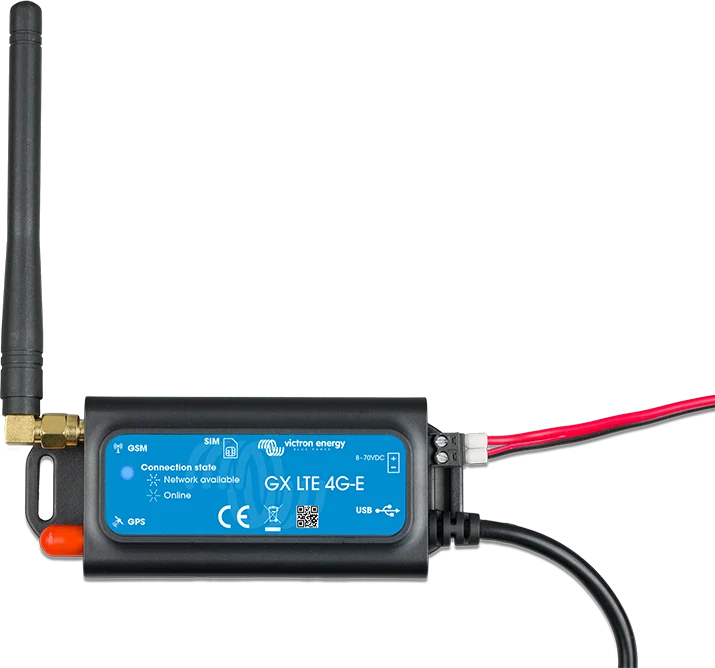

What the GX LTE 4G can do
2G, 3G i 4G
LTE Cat-1 up to 10 Mb/s download and 5 Mb/s upload, 3G (HSPA+) 42 / 5.76 Mb/s, 2G (EDGE) 236.8 kb/s. One signal bar is enough to log into VRM.
Control from the GX
The modem is configured only in the GX device menu: SIM card PIN, APN name and roaming permission. Connection status is shown on the status bar and on the GSM page.
Built-in GPS
The GNSS receiver supports GPS, Beidou, GLONASS, GALILEO and QZSS. After fitting the active GPS antenna (GSM900200100), location and geofencing appear in the VRM portal.
Two SMA sockets
One marked LTE — for the cellular antenna, the other GPS — for the navigation antenna. An external antenna usually raises the received signal by 15–25 dB.
Powered directly from the battery
8–70 V DC, so the modem works in 12, 24 and 48 V systems. Consumption is 2.5 W during transmission, below 1 W at rest and an additional 0.4 W with GPS enabled.
Mini-SIM card
A standard Mini-SIM card, supported in 1.8 V and 3 V versions. The tray is ejected with a pin — it sits slightly recessed in the housing, so you need to push it all the way in.
Automatic restart
In the GX device VRM menu you can enable “Reboot device when no contact” — the GX will restart if it does not send data for a set period. While travelling, it is better to turn this off or set a long delay.
Built for harsh conditions
Operating range from −40 to +50 °C, dimensions 106 × 42.5 × 22 mm and mass 80 g. The 1 m USB cable is permanently attached.
Three versions for different regions
| Model | Part number | Region | Supported LTE bands |
|---|---|---|---|
| GX LTE 4G-E | GSM100100400 | Europe, Middle East, Africa, Korea, Thailand | 1, 3, 5, 7, 8, 20, 38, 40, 41 |
| GX LTE 4G-A | GSM100200400 | North America | 2, 4, 12 |
| GX LTE 4G-SA | GSM100300400 | Australia, New Zealand, South America | 1, 2, 3, 4, 5, 7, 8, 20, 28, 40, 66 |
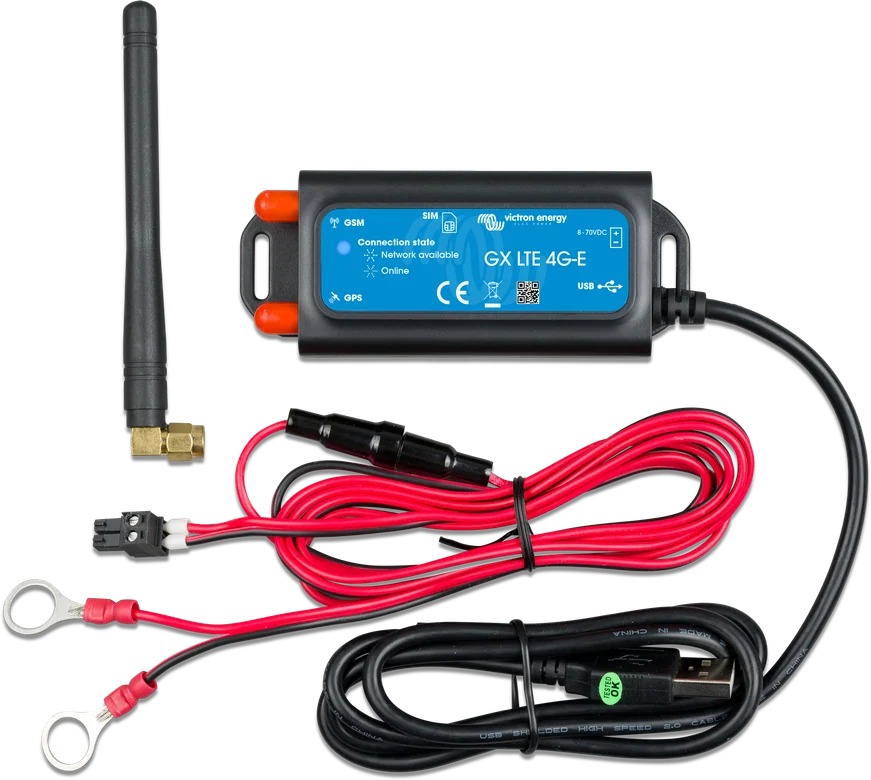
In Poland the correct model is GX LTE 4G-E. The others differ only in the radio module and supported bands — functions, power supply and operation are the same. Included in the box are: modem with built-in USB cable, indoor 2G/3G/4G rod antenna and a power lead with fuse, terminal block and 10 mm ring terminals.
How to connect GX LTE 4G
Plug the modem into the GX device’s USB port and power it directly from the battery through the supplied fused lead. Screw the antenna onto the SMA socket marked LTE. Hover over the schematic element or tap it to see details. Simplified diagram.
- Supply voltageFused lead directly to the battery; the modem works from 8 to 70 V DC.
- AntennaRod antenna for the SMA “LTE” socket; in a metal enclosure, it is worth adding an external antenna.
- SIM cardMini-SIM in a tray ejected with a pin — push it fully home, the tray sits slightly deeper.
- USB to GXBuilt-in 1 m USB cable to a GX device running Venus OS 2.60 or later.
- SettingsOn the GX: Settings → GSM modem → PIN and APN; roaming is enabled separately.
Step by step
The mounting location must not be covered by metal parts. In a closed metal enclosure, in a car or in a van, the manufacturer recommends fitting an external antenna — it usually raises the received signal by 15–25 dB.
Eject it with a pin or another thin object. After inserting the card, you must push the tray fully in — an incompletely seated tray is the most common cause of the “SIM not inserted” message.
The supplied lead has a T3.15 A / 250 V fuse. For your own wiring, the manufacturer recommends 500 mA at 12 V, 250 mA at 24 V and 100 mA at 48 V, with a conductor cross-section of 0.5–1.5 mm².
- Order: mount the modem, screw the antenna onto the SMA socket marked LTE (optional GPS antenna to the GPS socket), insert the SIM card, connect the power supply and only then the USB cable to the GX device.
- The USB cable is permanently built in and is 1 metre long — when planning the mounting position, you need to stay within this range of the GX device.
- Operating range from −40 to +50 °C. The modem is powered from the battery (8–70 V DC), so it also works when mains power is not available.
What to set on the GX device
- SIM card PIN — if the card has PIN lock enabled, enter the PIN in Settings → GSM modem → PIN. A card with no PIN works without any configuration, but a set PIN reduces the risk of a stolen card being used.
- APN — Settings → GSM Modem → APN. Some networks require the access point name to be entered manually, especially when roaming; the operator provides the value.
- Roaming — Settings → GSM modem → Allow roaming. Without this permission, the modem will register on a foreign network but will not establish an internet connection.
- Restart if there is no contact — the “Reboot device when no contact” option in the VRM menu restarts the GX device if data cannot be sent for the set time. In a moving vehicle or on a boat going to sea, it is better to turn it off or set it to several hours.
- SIM card status is shown on the GSM page: “Ready” means correct network registration; other states are “SIM not inserted”, “PIN required”, “PUK required” (after too many wrong PIN entries, an eight-digit PUK is needed), “SIM failure”, “SIM busy” and “SIM wrong”.
When to use GX LTE and when to use a cellular router
GX LTE 4G
Internet only for the GX device — the simplest and cheapest solution when you only need VRM and remote monitoring of the installation.
one device · USBCellular router
If the internet is also to be available to phones, tablets and laptops, or if switching between Wi‑Fi and the mobile network is needed, the manufacturer recommends a standard router with Ethernet or Wi‑Fi.
many devices · failoverEthernet or Wi‑Fi
In the GX device, wired and Wi‑Fi connections have higher priority than the modem. However, there is no automatic switch to the modem when the local network is working but has no internet access.
priority over the modemGX LTE 4G does not share the internet with other devices — this connection is only for the GX device.
When there is no connection
Troubleshooting starts with power and goes step by step: LED, USB port, SIM card status, signal strength, network registration, internet, and finally the connection to the VRM portal.
Blue LED off
The modem has no power. Check the power cable, the T3.15 A fuse and the voltage at the terminals — the allowed range is 8–70 V DC.
The modem does not appear in the GX menu
Check the USB cable and whether the GX device has Venus OS 2.60 or newer. The modem must be visible in Settings → GSM modem.
SIM status: “SIM not inserted”
Most often the card tray is not pushed all the way in — it sits slightly deeper in the housing. Eject it with a pin, reseat the card and push it fully home.
SIM status: “PIN required” or “PUK required”
The card has PIN lock enabled. Enter the PIN in Settings → GSM modem → PIN; after several failed attempts you will need the eight-digit PUK code from the operator.
Weak signal
One bar is enough for logging in to VRM, but Remote Console needs two or three. An external antenna usually improves the signal by 15–25 dB.
No operator name in the “Carrier” field
The modem has not registered on the network. Check the signal, then the card itself — the easiest way is to put it in a phone and see whether it works and whether the subscription is active.
Network registered, but internet is not “Online”
Three typical causes: APN not set, roaming disabled when working on a foreign network, or a signal that is good enough for registration but too weak for data transmission.
The connection drops every so often
Enable the “Reboot device when no contact” option in the VRM menu — the GX device will restart after the set time without contact with the portal. While moving, set a long time or turn this option off.
The modem is connected, but data is going another way
Ethernet and Wi‑Fi have higher priority than the cellular connection. When the local network is available but has no internet, the GX device will not switch to the modem automatically.
Most common questions about GX LTE 4G
Which model should you buy in Poland?
GX LTE 4G-E (part number GSM100100400) — the version for Europe, the Middle East, Africa, Korea and Thailand, with a SIMCom SIM7600E module. The other versions differ only in the supported bands.
Will the modem share the internet with phones in the campervan?
No. It provides a connection only for the GX device. If the internet is also to be available to phones, tablets or laptops, the manufacturer recommends a standard cellular router — it also switches between Wi‑Fi and the mobile network.
Which SIM card is needed?
A standard Mini-SIM card, in 1.8 V or 3 V version. If PIN lock is enabled, enter it in the GX device menu; a card with no PIN works immediately.
Do you need to buy an external antenna?
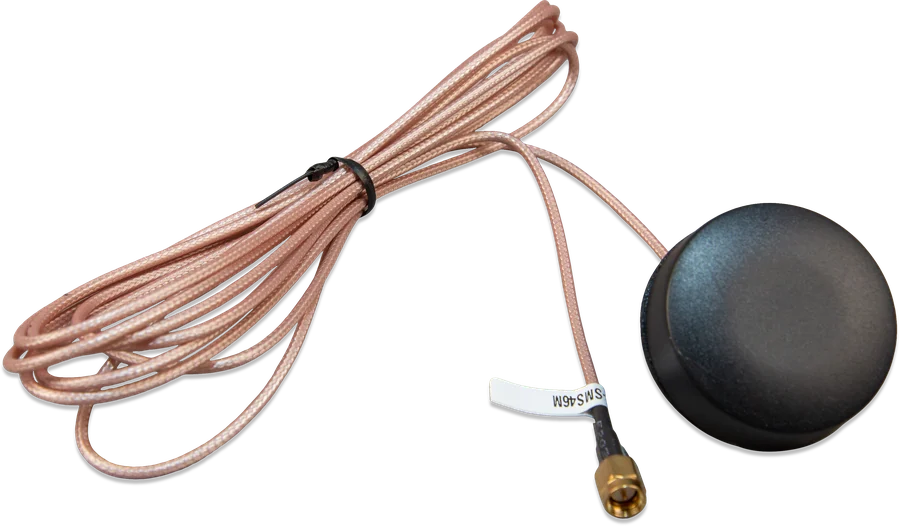
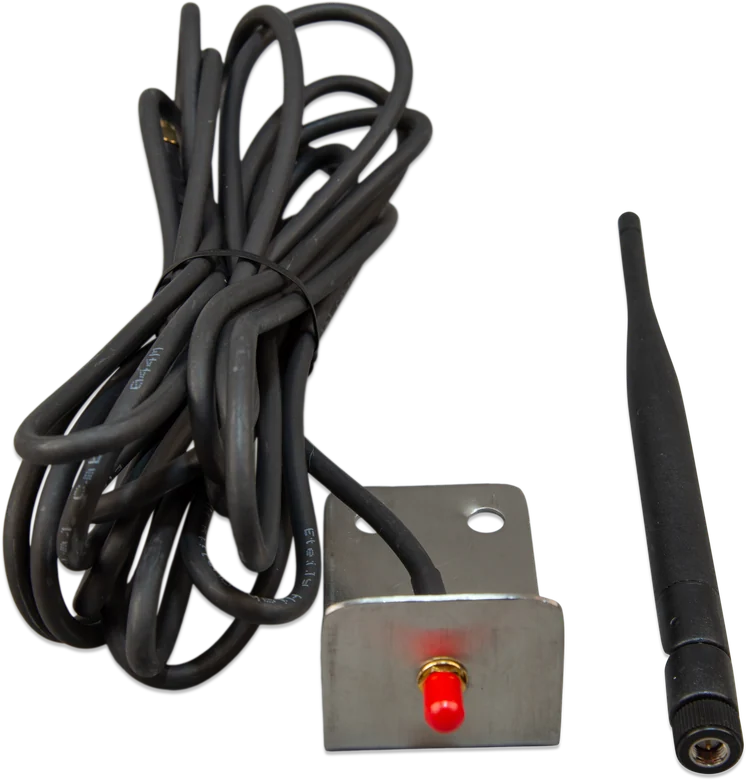
No — an indoor rod antenna is included. An external antenna (GSM900100400) makes sense in a metal enclosure, in a car or in a van: it usually increases the received signal by 15–25 dB.
How does GPS work in this modem?
The receiver is built in and supports GPS, Beidou, GLONASS, GALILEO and QZSS, but it requires the optional active antenna (GSM900200100) screwed into the SMA connector labelled GPS. Then the system location is visible in the VRM portal and you can set up geofencing. With GPS enabled, consumption increases by 0.4 W.
How much power does the modem use?
2.5 W during data transmission, below 1 W at idle, and an additional 0.4 W with GPS enabled. At 12 V that is about 0.2 A at peak — low enough for the modem to run continuously.
Will the modem work together with Ethernet?
Yes, but wired and Wi‑Fi connections have higher priority. The GX device will not switch automatically to the modem if the local network is available but has no internet.
What does the GX device need?
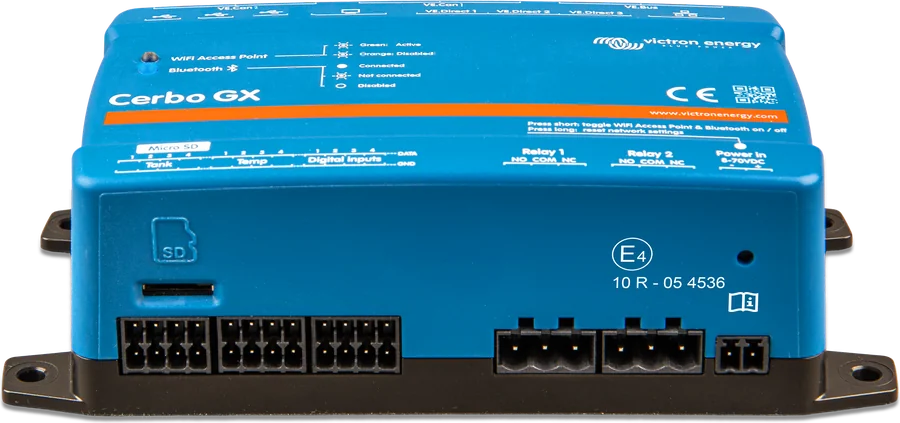
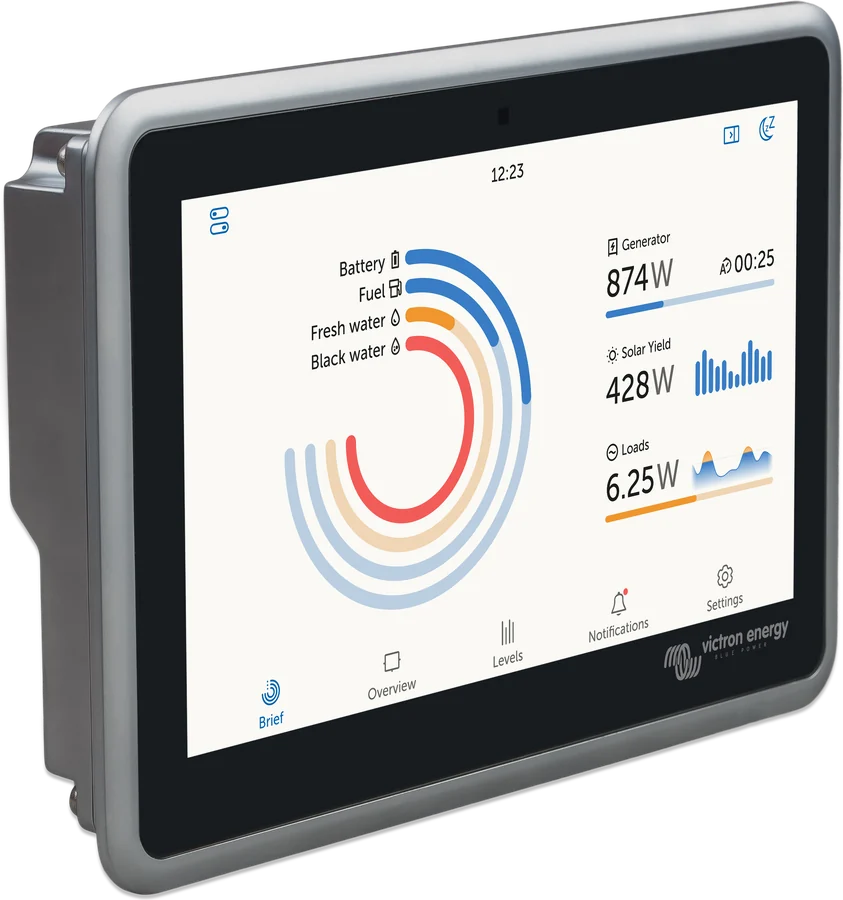
Venus OS version 2.60 or newer and a free USB port. The modem works with every GX device — including Cerbo GX, Ekrano GX and MultiPlus-II GX.
Devices it works with most often

Content compared with Victron Energy documentation (datasheets and manuals) — current as of 20 September 2026. Report a content error · Correction log