
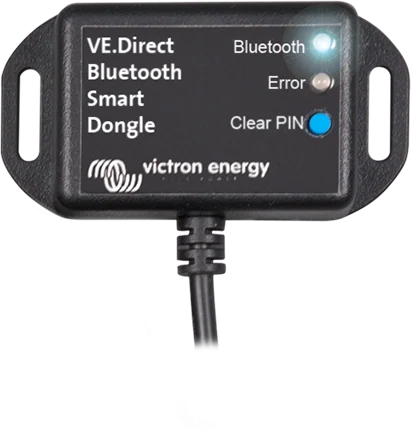
Close-up of the VE.Direct Bluetooth Smart dongle — Bluetooth and Error LEDs plus the Clear PIN button
VE.Direct Bluetooth Smart dongle
A small plug-in dongle for the VE.Direct port. It adds Bluetooth to devices that do not have it — older BlueSolar MPPT charge controllers, BMV-700 and BMV-702 monitors, and Phoenix Inverter VE.Direct inverters. From then on, you can view status, change settings and install updates in the VictronConnect app.
- VE.Direct port
- Bluetooth
- 1.5 m cable
- Instant Readout
- VE.Smart
Bluetooth for devices that do not have it
New Victron devices have built-in Bluetooth, but older ones do not. This dongle plugs into their VE.Direct port and acts as a gateway: your phone connects to the dongle, and through it to the device itself.
In the VictronConnect app, you can then see the device status, change settings and update the firmware. The dongle is powered from the VE.Direct port — it does not need a separate supply.
- works with almost any Victron device with a VE.Direct port,
- Instant Readout: you can see the key data on the device list without connecting,
- supports VE.Smart networking — devices can exchange battery data.
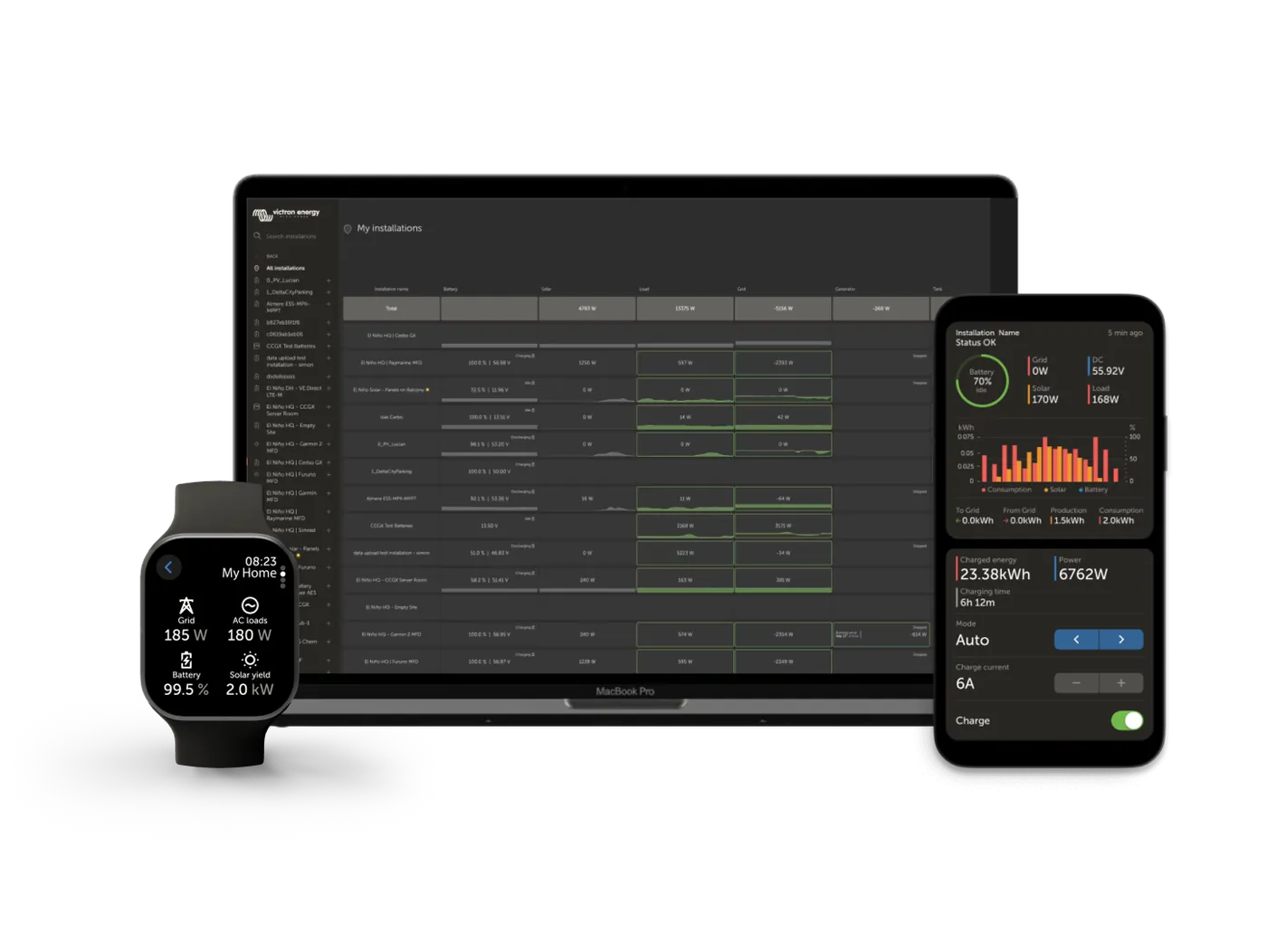
What the Bluetooth dongle gives you
View on your phone
Battery state, solar power and other device data in the VictronConnect app on Android, iOS and macOS — wirelessly.
Settings and updates
Through the dongle, you can not only view data, but also change the settings of the connected device and update its firmware.
Instant Readout
After updating the dongle to version 2.41 or later, key data — including warnings, alarms and errors — is visible on the device list without making a connection.
VE.Smart network
The connected device can take battery voltage and temperature from the VE.Smart network — for example from Smart Battery Sense or SmartShunt.
Powered from the port
The dongle is powered directly from the VE.Direct port — it does not need batteries or a separate cable. When the device is on, the dongle is on too.
Two status LEDs
The blue LED shows Bluetooth connection status, the red one shows errors and the progress of the update. Their combinations clearly indicate what is happening.
Clear PIN button
Erases the saved pairing code — useful when the phone will not connect or the device changes owner. Erasure is confirmed by both LEDs flashing twice.
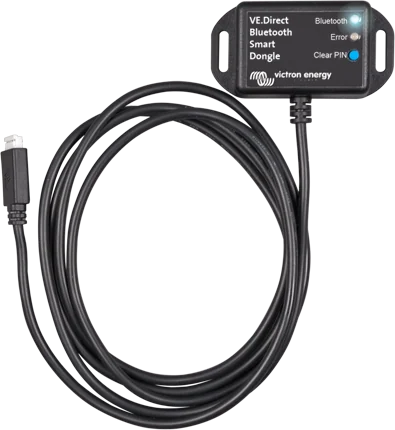
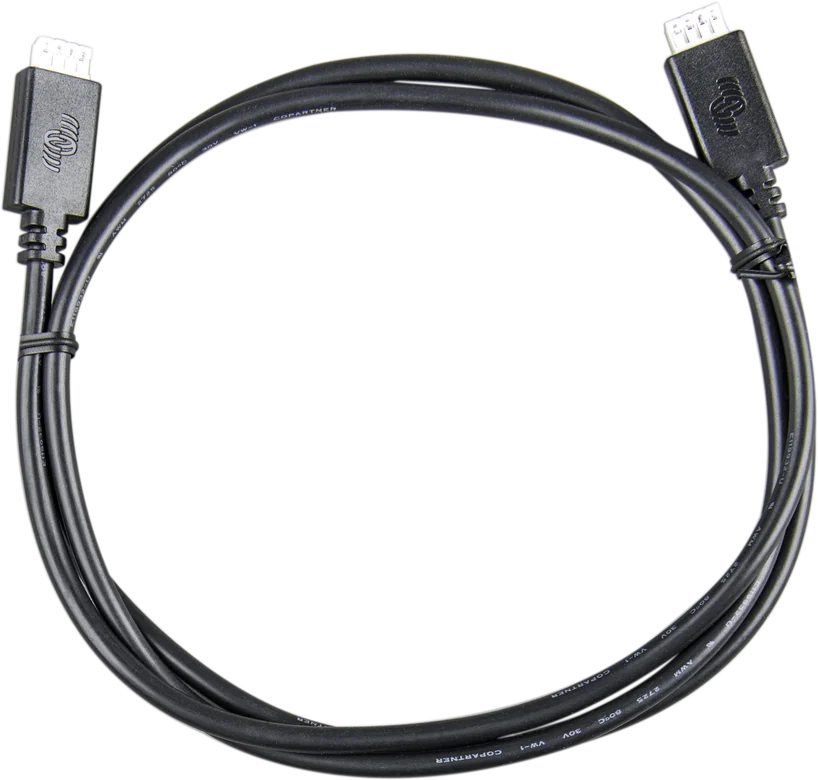
1.5 m cable
Built-in 1.5 m VE.Direct cable. The manufacturer states that it must not be extended.
Devices with a VE.Direct port
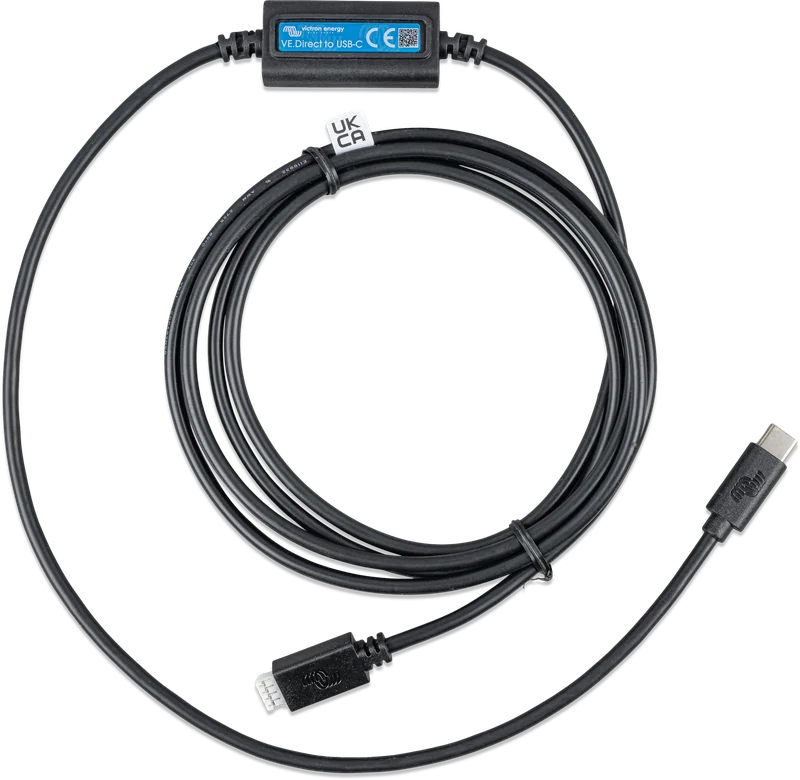
The dongle works with almost all Victron devices fitted with a VE.Direct port. It is most often used with equipment without built-in Bluetooth:
- BlueSolar MPPT charge controllers — an older, lower-cost series without Bluetooth; once you add the dongle, you can use them just like SmartSolar.
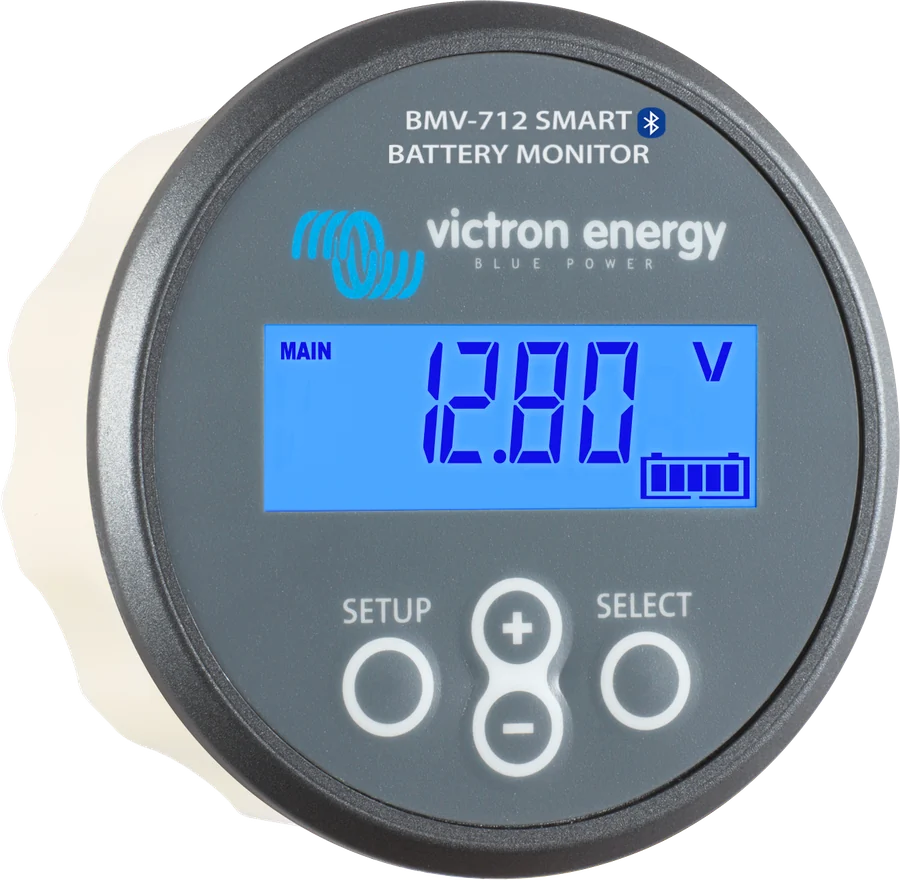
- BMV-700 and BMV-702 battery monitors — predecessors to the BMV-712 Smart.
- Phoenix Inverter VE.Direct inverters, which do not include Bluetooth as standard.
You cannot connect the dongle to a GX device or to a GlobalLink — these have their own communication methods. The manufacturer’s VictronConnect app manual gives the full list of compatible products.
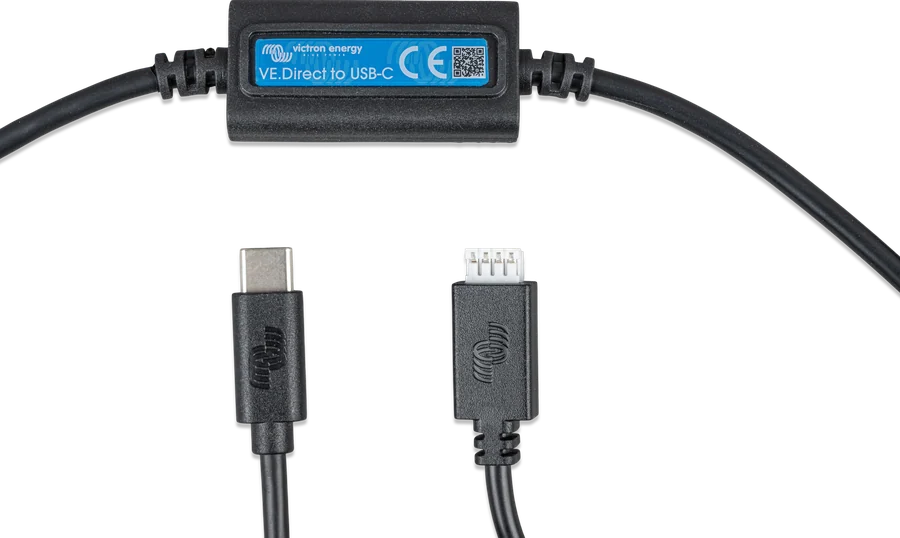
How to connect the Bluetooth dongle
Plug the dongle into the device’s VE.Direct port and it is powered immediately. Your phone connects to it via Bluetooth, and the VictronConnect app shows the device data. Hover over or tap the diagram element. Schematic illustration.
- ConnectionThe dongle cable goes into the device’s VE.Direct port — power comes through the same cable.
- First setupThe blue LED flashes, the red LED flashes once to confirm it is working.
- UpdateIf the LEDs flash alternately, the app will update the dongle firmware automatically.
- ConnectionThe device list shows “VE.Direct smart” with the name of the connected product.
- Instant ReadoutFrom version 2.41, data is visible on the device list without connecting to the product.
First setup
On first connection, the LEDs often flash alternately — this means the dongle firmware needs updating. VictronConnect will do this automatically after connecting; as part of the process, it usually also updates the device firmware.
The dongle has a permanently attached 1.5 m VE.Direct cable. You need to choose the device mounting position so that your phone can reach it — in open space, about 20 metres.
Only one phone or tablet can be connected to the dongle. If the app will not connect, check whether the device is already in use by someone else.
- Order: make sure the VE.Direct device is powered, plug in the dongle, wait until the blue LED starts flashing, then connect with the app.
- Name in the list: the device appears as “VE.Direct smart” together with the name of the connected product — you can change the name later.
- Pairing problem: remove the “VE.Direct LE” device from the phone’s Bluetooth list, refresh the list in the app, press the button on the dongle to enter pairing mode, and connect again.
Bluetooth dongle, USB interface or GX device
VE.Direct Bluetooth Smart dongle
Wireless viewing and settings on your phone. The simplest solution for a single device without built-in Bluetooth.
Android, iOS, macOSVE.Direct–USB interface
Cable connecting the VE.Direct port to a computer. Required when you work on Windows — the dongle does not support this system.
cable · no BluetoothGX device
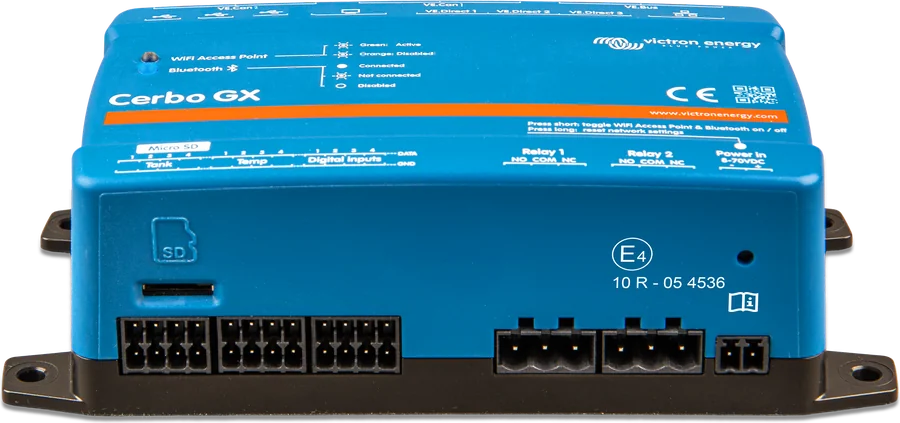
Cerbo GX collects data from all devices at once and sends it to the VRM portal. You cannot connect the dongle to it — a GX device connects to products with a standard VE.Direct cable.
multiple devices · VRMWhat the dongle cannot do
- Does not work with Windows. The VictronConnect app on this system does not support Bluetooth — you need a VE.Direct–USB interface.
- No charge synchronisation in the VE.Smart network — voltage and temperature data are passed on, but the charge controllers do not synchronise charging stages with each other.
- No stored trends and no “Keep SOC” option when setting state of charge after a reset.
- You cannot connect it to a GX device or to GlobalLink — these devices have their own communications.
What the LEDs mean
When power is applied, the blue LED starts flashing and the red LED flashes once — this is a self-test. Below are all the combinations from the manual.
Blue flashes slowly, red off
The dongle is ready to pair — it is waiting for a phone with the VictronConnect app.
Blue on, red off
The app connection works; the device is available for viewing and settings.
Blue on, red on
There is a communication problem on VE.Direct. The connected device is not visible — through the app you can update only the dongle itself.
Both LEDs flash slowly
There is also a VE.Direct communication problem: the dongle appears in the app, but the connected device is not visible.
Both LEDs flash twice
Confirmation that the PIN code has been cleared after pressing the “Clear PIN” button.
The LEDs flash quickly alternately
The dongle firmware needs updating — connect with the app and it will carry it out automatically.
Blue on, red flashes quickly or slowly
Firmware update in progress: fast flashing means transfer, slow flashing means programming.
Cannot connect to the dongle
Check that the device is powered (the dongle draws power from the VE.Direct port), that you are within range (about 20 m in open space), and that another phone is not already connected. Unplugging the dongle and pairing again also helps.
The phone cannot see the device after changing
Remove “VE.Direct LE” from the Bluetooth list on the phone, refresh the list in the app, press the button on the dongle and confirm pairing.
Most common questions about the VE.Direct Bluetooth dongle
Which devices is the dongle compatible with?
With almost all Victron products with a VE.Direct port — most often older BlueSolar MPPT charge controllers, BMV-700 and BMV-702 monitors, and Phoenix Inverter VE.Direct inverters. You cannot connect it to a GX device or to GlobalLink.
Does the dongle need its own power supply?
No. It is powered from the VE.Direct port, so it works whenever the connected device is on.
Will it work with a computer?
Yes on macOS, no on Windows — the VictronConnect app on Windows does not support Bluetooth. In this case you need to use the VE.Direct–USB interface.
What is the range?
About 20 metres in open space. Metal enclosures and water reduce it a lot — in such places a GX device with a VE.Direct cable may be a better solution.
What is Instant Readout?
A mode in which the device’s key data are visible in the app list, without making a connection — together with warnings and alarms. It requires dongle firmware version 2.41 or later and enabling “Bluetooth live data advertisement”.
Does the dongle support the VE.Smart network?
Yes, but with limitations: it passes battery voltage and temperature data, but charge synchronisation between controllers through the dongle does not work. It also does not support saved trends or the “Keep SOC” option.
I’ve lost the PIN code — what now?
Press the “Clear PIN” button on the case. A double flash of both LEDs confirms that the code has been cleared; then you need to pair the phone again.
Can I extend the cable?
No. The manufacturer explicitly forbids it — the 1.5 m VE.Direct cable is part of the dongle.
Content compared with Victron Energy documentation (datasheets and manuals) — current as of 20 September 2026. Report a content error · Correction log