
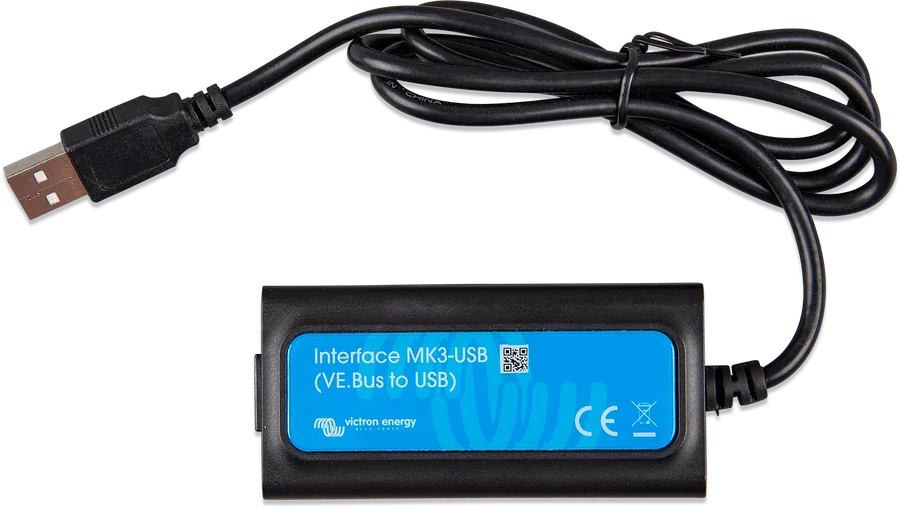
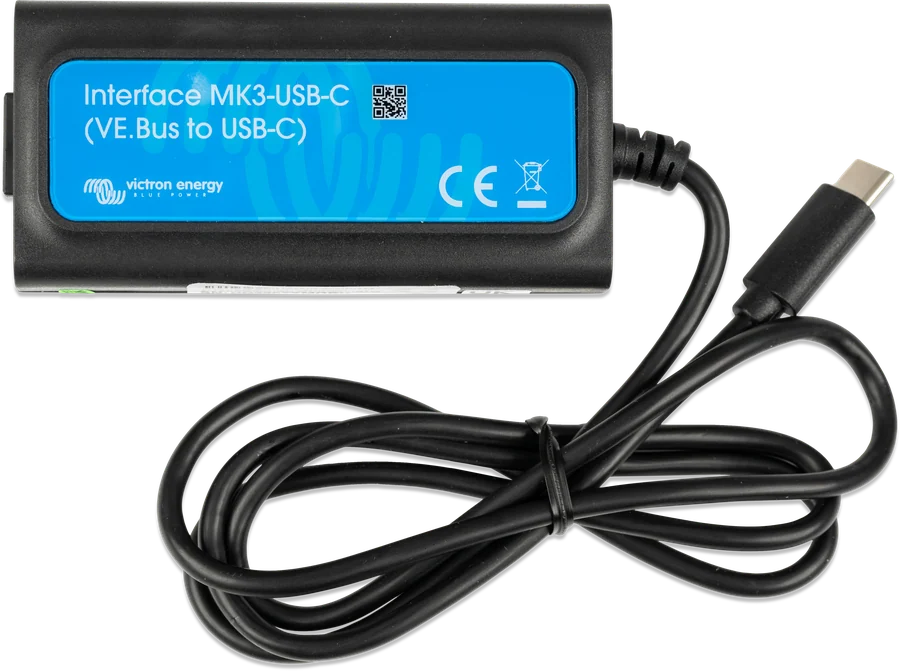
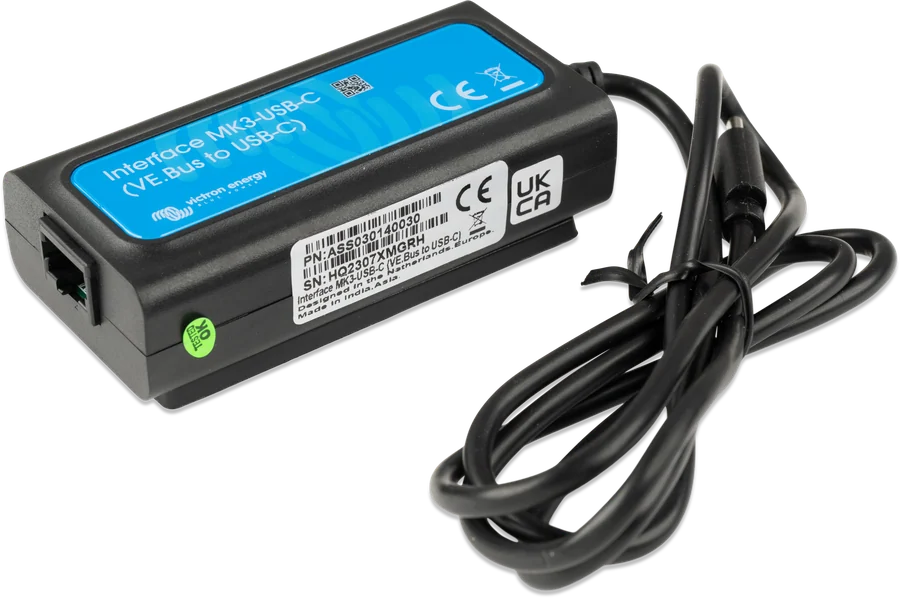
MK3-USB interface seen from above — RJ45 plug and USB cable
MK3-USB interface
A small adapter between the inverter’s VE.Bus port and the computer’s USB socket. Installers use it to enter the settings of MultiPlus-II, Quattro or EasySolar-II, configure parallel and three-phase systems and update their firmware. Without it, you can only view data.
- VE.Bus (RJ45)
- USB
- VictronConnect
- VEConfigure
- firmware updates
Inverter settings key
Devices with a VE.Bus port — MultiPlus, MultiPlus-II, MultiGrid, Quattro, EasySolar and Phoenix inverters with this port — do not have built-in Bluetooth for configuration. To change anything other than switching them on and off, you need to connect them to a computer by cable. That is what the MK3-USB is for.
On the other side, you use the VictronConnect app (Settings mode) or the older VEConfigure program. This is how you set input current, charge curve, ESS, relay and everything else — and also update inverter firmware.
- VictronConnect Settings mode works only through MK3-USB,
- inverter firmware updates also require this interface,
- parallel, three-phase and split-phase systems are now configured from VictronConnect via MK3.
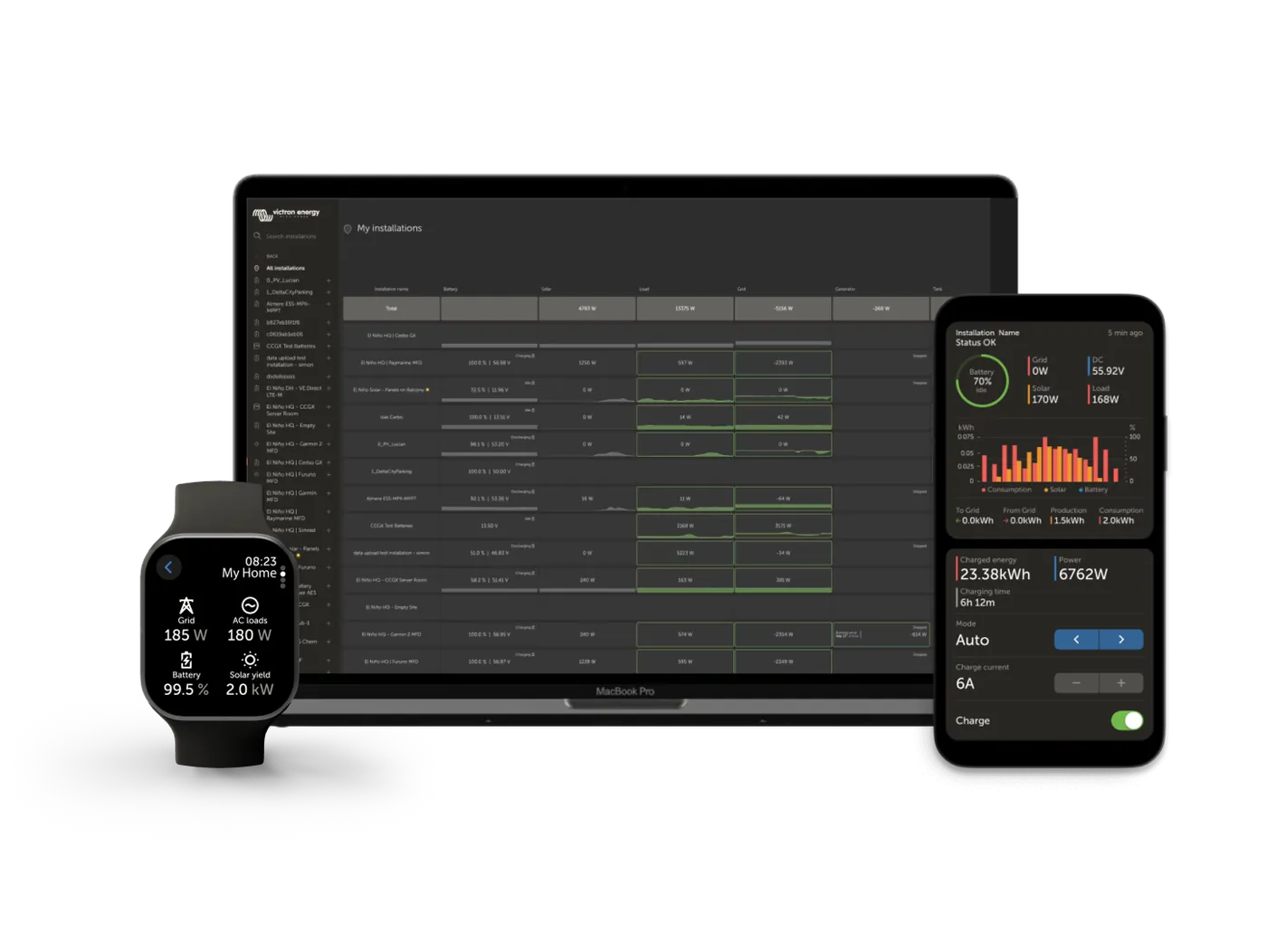
What the MK3-USB interface provides
Settings mode
Full access to inverter configuration in VictronConnect: currents, charge voltages, relay, AC input control. You cannot do this over Bluetooth.
Firmware update
VictronConnect has firmware versions built into the app — no internet is needed. After updating, the settings return to factory defaults, so save the configuration first.
Multi-device systems
Configuration of parallel, three-phase and split-phase operation — up to three devices when creating the system. Existing systems can be handled with up to twelve or fifteen units, depending on the model.
Copy settings
Settings from one device can be copied to the others, or the whole system configuration can be saved to a file — as a backup or as a template for a similar installation.
Works with VEConfigure
Features that VictronConnect does not yet have — assistants (AC PV, ESS), Virtual Switch, grid code, lithium battery wizard — are set in VEConfigure, also via MK3-USB.
View and control
Status mode shows voltages, power and device status; it is also where you switch the inverter to On / Off / charger only and change the input current limit.
Powered by the inverter
The interface has no separate power supply — it draws power from the VE.Bus port. The Multi and Quattro must have AC or DC applied, Multi Compact and inverters require DC voltage.
Diagnostic tool
You can check a working MK3 on a GX device: after plugging it into the control unit’s USB port (firmware 2.23 or later), the inverter should appear there.
Devices and systems
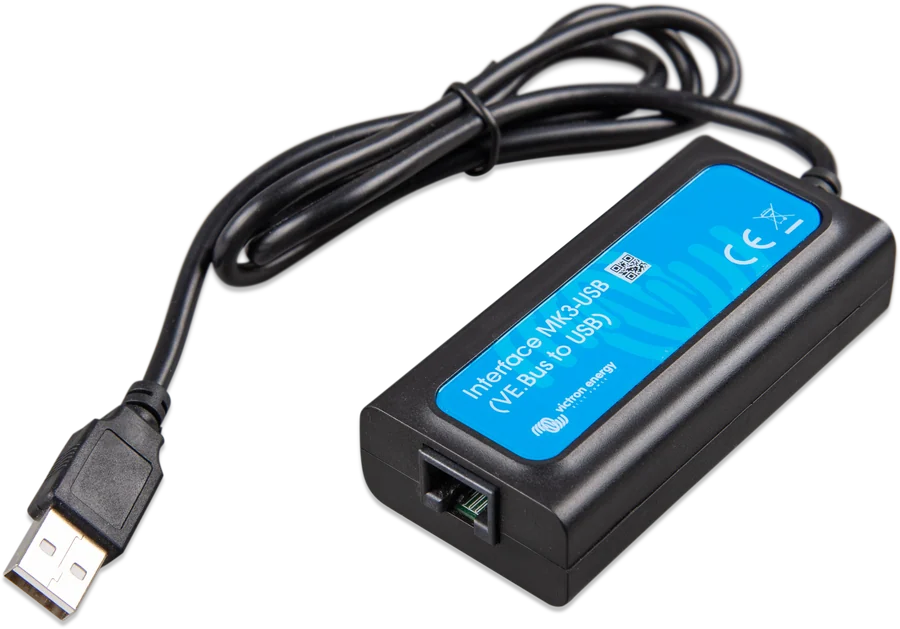
The manufacturer lists the devices that connect to a computer via MK3-USB for configuration and firmware updates:
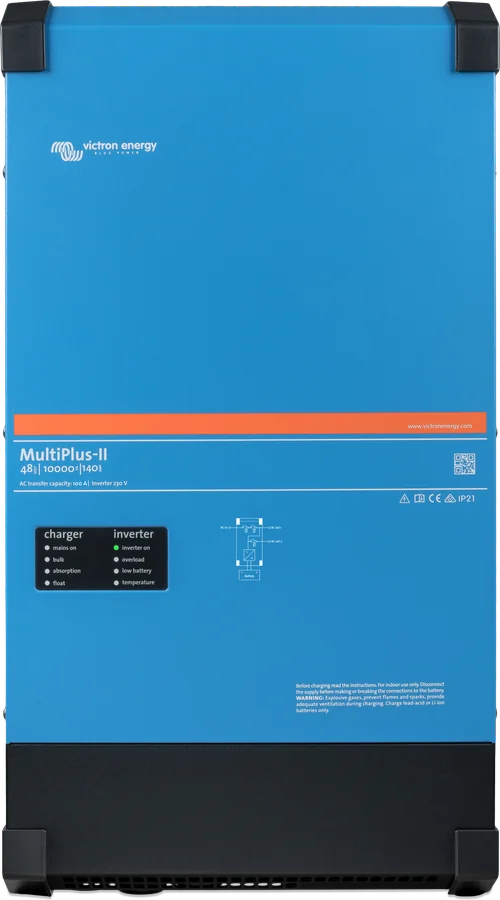
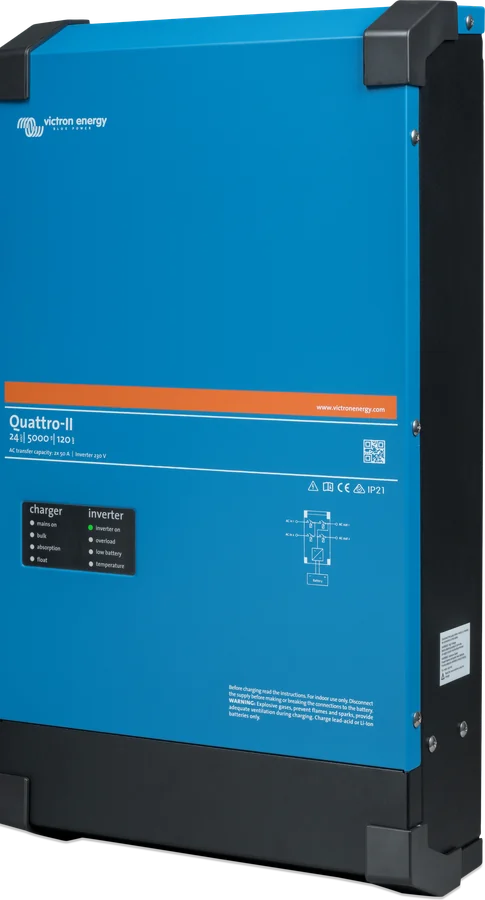
- Inverter/chargers: MultiPlus (including Compact), MultiPlus-II, MultiPlus-II GX, MultiGrid, Quattro and Quattro-II.
- Systems: EasySolar, EasySolar-II and EasySolar-II GX, EasyPlus and inverter settings in ECOmulti.
- Phoenix inverters with a VE.Bus communication port.
- VE.Bus BMS V2 — its configuration also goes this way.
The MK3 component in the VictronConnect app is available for Android, Windows and macOS — but not for iOS. iPhone and iPad do not support OTG connections over USB, so they cannot connect to the MK3-USB.
How to connect the MK3-USB
The computer connects to the inverter through the MK3-USB interface and a straight network cable plugged into the VE.Bus port. Hover over the diagram element or tap it. Schematic diagram.
- Powering the deviceThe inverter must be powered — without that, the MK3 will not communicate.
- VE.Bus cableStraight UTP patch cord from the interface’s RJ45 socket to the inverter’s VE.Bus port.
- USB to computerOn Android, an OTG adapter is also fitted between the MK3 and the phone.
- Settings modeIn VictronConnect, select the device and go to Settings — the password for this mode is “zzz”.
- Save configurationBefore updating, save the settings to a file: firmware resets them to factory defaults.
Before you enter settings
After a firmware update, the inverter returns to factory settings. First save the configuration to a file, and in parallel and three-phase systems remember that after an update you need to programme them again.
A standard straight UTP (Ethernet/LAN) patch cord is required. The manufacturer discourages hand-crimped cables — even if they work in computer networks, they can be too poor in quality for Victron devices.
Access to settings and updates in VictronConnect is protected by the password zzz. You can get the password for configuring parallel and three-phase systems from your Victron supplier.
- Power supply: Multi and Quattro must have AC or DC; Multi Compact and inverters need DC voltage. Without power, the interface has nothing to communicate with.
- Android: you need an additional OTG adapter from USB to the phone port (micro-USB or USB-C). It is not included.
- Software version: full support requires firmware 415 or later — that is, devices with the new microcontroller (the number on the label starts with 26 or 27).
MK3-USB, VE.Bus Smart dongle or GX device
MK3-USB interface
Configuration, firmware updates and multi-device systems. The installer’s tool — the only way into Settings mode.
Windows · macOS · AndroidVE.Bus Smart dongle
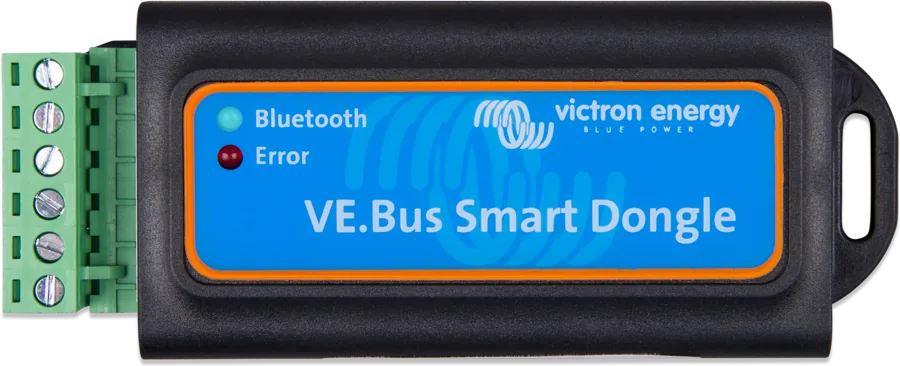
Bluetooth to the same VE.Bus port. Shows status, lets you switch On / Off / charger only and change the current limit — but does not change settings.
Android · iOS · macOSGX device
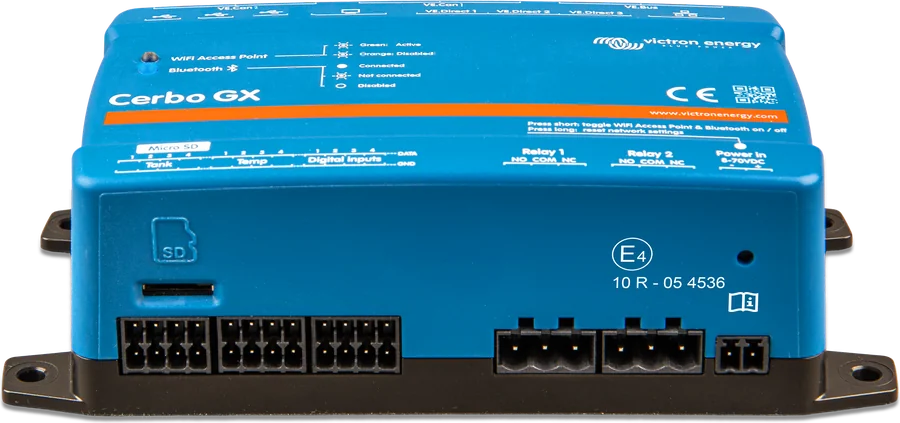
Collects data from the whole system and sends it to the VRM portal. Remote VE.Bus configuration is also done through it — but the first commissioning still requires MK3.
VRM · entire systemWhat you cannot do with the MK3-USB alone
- You cannot connect from an iPhone or iPad. iOS does not support OTG connections over USB — you need a computer or Android.
- Some settings are not yet in VictronConnect: assistants (AC PV, ESS), Virtual Switch, grid code change, lithium battery wizard and the external MultiPlus-II current sensor — for that you need VEConfigure.
- Old devices are only partly supported. With the old-type microcontroller (the number starts with 19 or 20), you can only read data — changing settings and updating are not possible. 18xxxxx models are not supported at all.
- The older MK2-USB is no replacement. VictronConnect does not work with the MK2-USB interface.
Typical problems
Most MK3-USB problems are either no device power or the wrong cable. Below are the symptoms and fixes straight from the manufacturer’s documentation.
The app cannot see the inverter
Check that the device is powered and switched on. Multi and Quattro need AC or DC; Multi Compact and inverters need DC voltage.
The connection drops or does not start
Test the cable with a tester or try another one. It must be straight, not crossed — network cables can have different core arrangements.
I do not know whether the MK3 is working
Test it on a GX device: disconnect the inverter from the central unit’s VE.Bus port, plug the MK3 into the central unit’s USB socket (firmware 2.23 or later) and connect the inverter to the MK3 with a network cable. If the inverter does not appear, the interface is probably faulty.
The update on macOS stops at 5%
A known issue on some Apple laptops since VictronConnect 5.9. Manufacturer’s workaround: as soon as the progress bar appears, minimise the app window, then after about 20 seconds restore it to see the update status.
The update failed
Try again. If the device still does not recover, the manufacturer refers you to the emergency method using VEFlash.
The settings got mixed up
The device can be restored to factory settings — every firmware update from the product information screen does this.
An Android phone does not connect
You need an OTG adapter between the interface’s USB cable and the phone socket. Victron does not supply one.
The app asks for a password
The Settings and updates mode is opened with the password “zzz”. The password for configuring parallel and three-phase systems is provided by your Victron supplier.
Most common questions about the MK3-USB
Do I need the MK3-USB if I have a GX device?
Not for everyday use — the GX device shows data and lets you control the inverter. But initial configuration, assistants and some updates go through the MK3-USB, which is why the installer always carries one.
What cable do I need?
A standard straight UTP patch lead (Ethernet/LAN) — not crossed. The manufacturer recommends a factory-made cable; hand-crimped ones often cause problems, even if they work on a computer network.
Will it work with an iPhone?
No. iOS does not support OTG connections over USB, so you cannot connect to the MK3-USB from an iPhone or iPad. For viewing and control, use the VE.Bus Smart dongle.
How does the MK3-USB differ from the VE.Bus Smart dongle?
The dongle provides only reading and basic control — On / Off / charger only and input current limit. Settings changes and firmware updates are only possible via the MK3-USB.
Do I need internet for updates?
No. VictronConnect has current firmware versions built into the app — you only need to connect to the device.
Is the old MK2-USB enough?
No. VictronConnect does not work with the MK2-USB interface — you need the MK3 to configure through the app.
How many devices can I configure in a system?
VictronConnect creates a new parallel, three-phase or split-phase system for up to three devices. Existing systems are supported for up to twelve or fifteen units, depending on the inverter model.
Is the MK3-USB-C a different device?
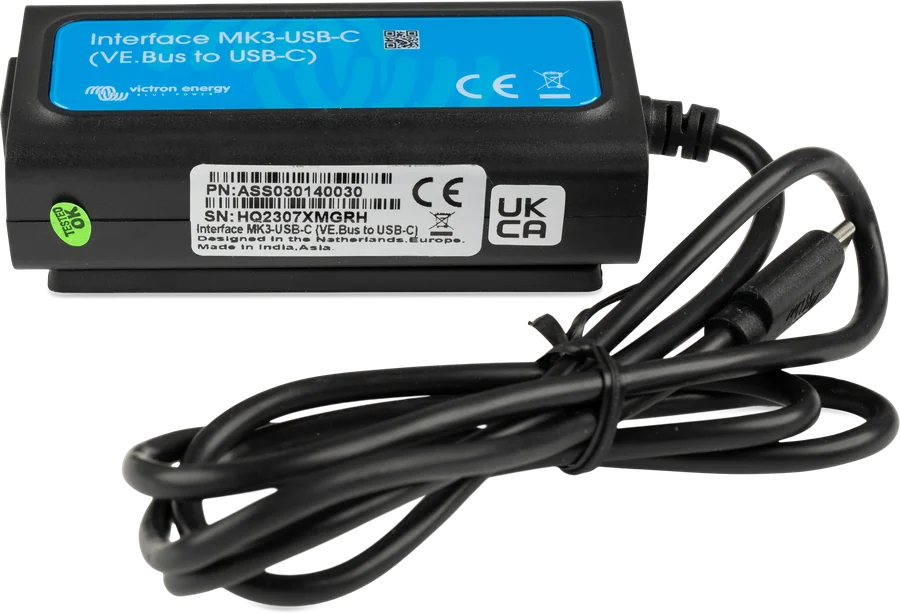
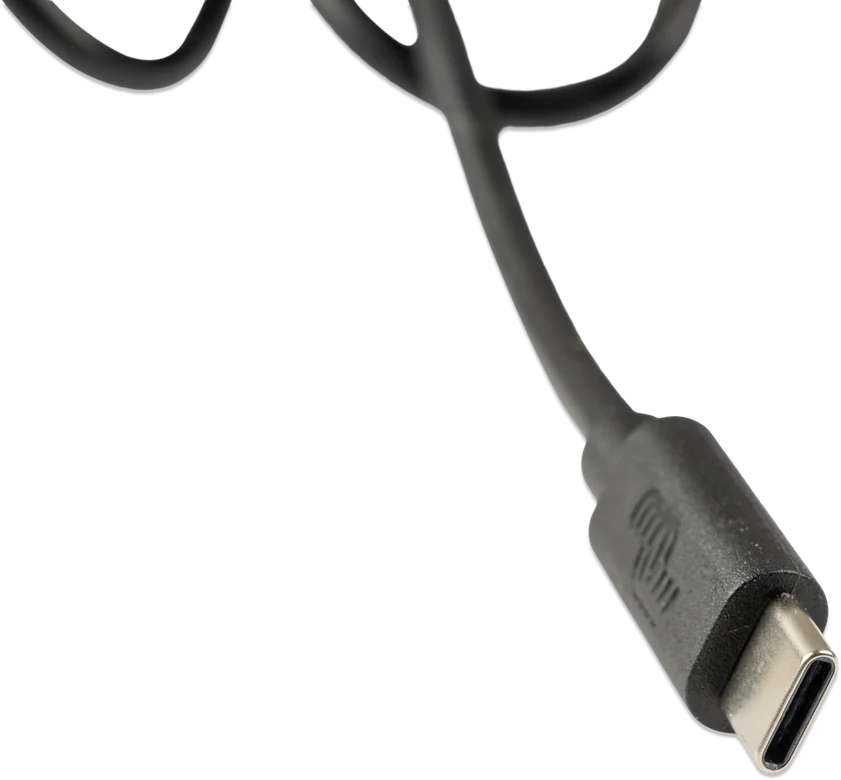
It is the same function in a newer version — the difference is the computer-side connector (USB-C instead of USB-A). On the inverter side, both versions have an RJ45 socket and a VE.Bus port.
Devices configured with this interface
Content compared with Victron Energy documentation (datasheets and manuals) — current as of 20 September 2026. Report a content error · Correction log