
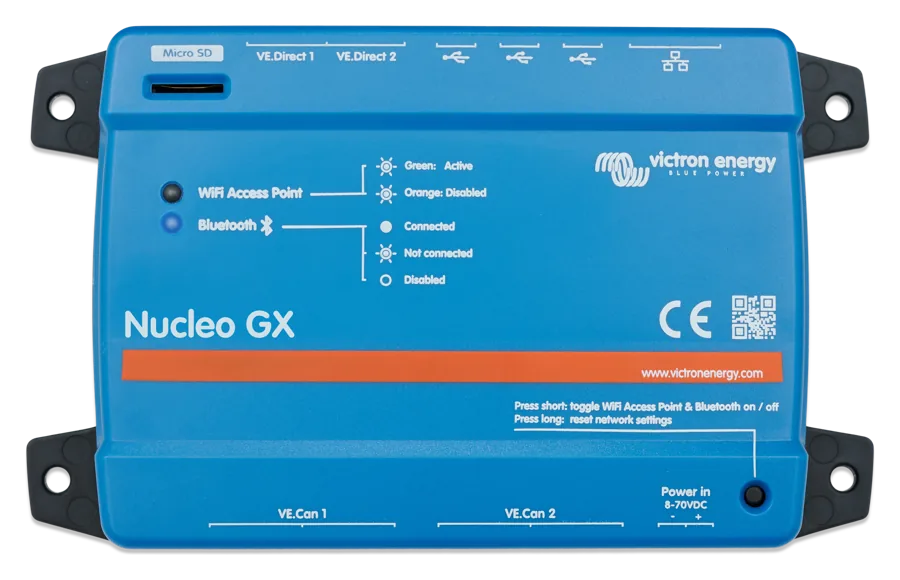
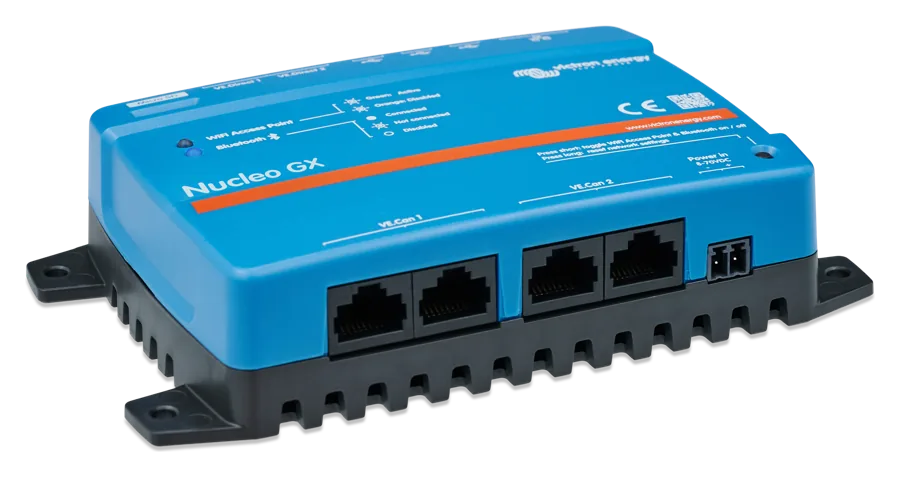
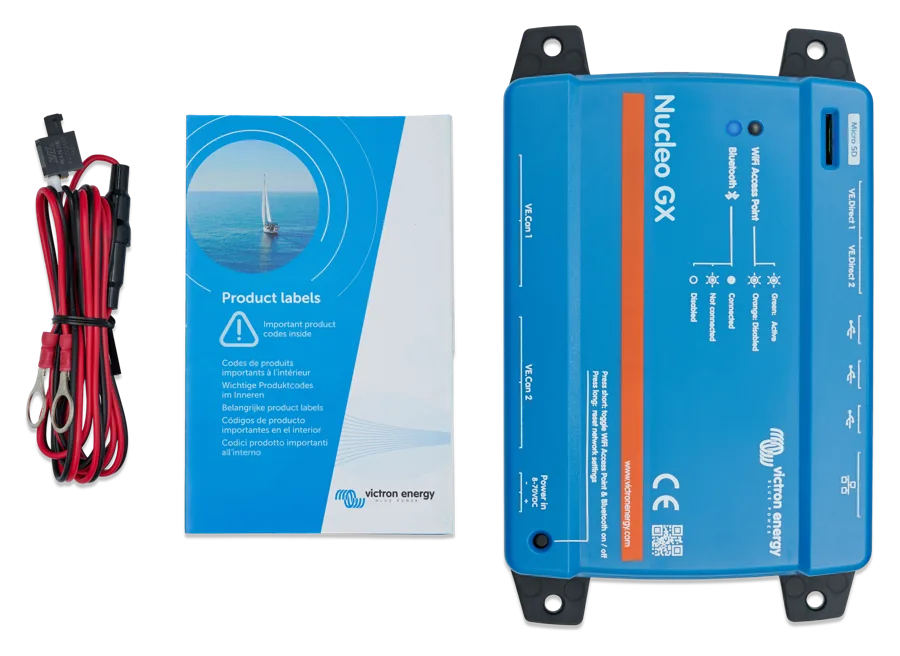
Nucleo GX from above — microSD socket, VE.Direct, USB and Ethernet port labels, Wi-Fi Access Point and Bluetooth LEDs, button above the Power in connector
Nucleo GX
The simplest member of the GX family: the same quad-core processor as in Ekrano GX, Venus OS and the VRM portal, but without a display, relays, analogue inputs or a VE.Bus port. The manufacturer mainly aims it at VE.Can-based installations, such as RS systems. Missing functions are added via USB.
- 8–70 V DC
- 2 × VE.Direct
- 2 × VE.Can
- Wi-Fi · Ethernet · Bluetooth
- 3 × USB
- IP20
Full GX features in a small enclosure
Nucleo GX does the same as other GX centres: it collects data from charge controllers, battery monitors, inverters and BMSs, coordinates charging and sends everything to the VRM portal. From afar, you can change settings, update firmware and view the system through Remote Console — as if you were standing by the device.
The difference is what it does not have. The manufacturer has deliberately kept only communications: there is no VE.Bus port, relays, digital and analogue inputs (tanks, temperature) or HDMI output. Locally, you operate the system from a phone, tablet or browser.
- up to 25 VE.Direct devices in total (ports and USB adapters), more via VE.Can,
- two independent VE.Can ports — each can be set as VE.Can, BMS-Can or another CAN profile,
- 2.4 GHz Wi-Fi with its own access point, Ethernet and Bluetooth for initial setup,
- wall mounting or 35 mm DIN rail mounting (with adapter available separately).
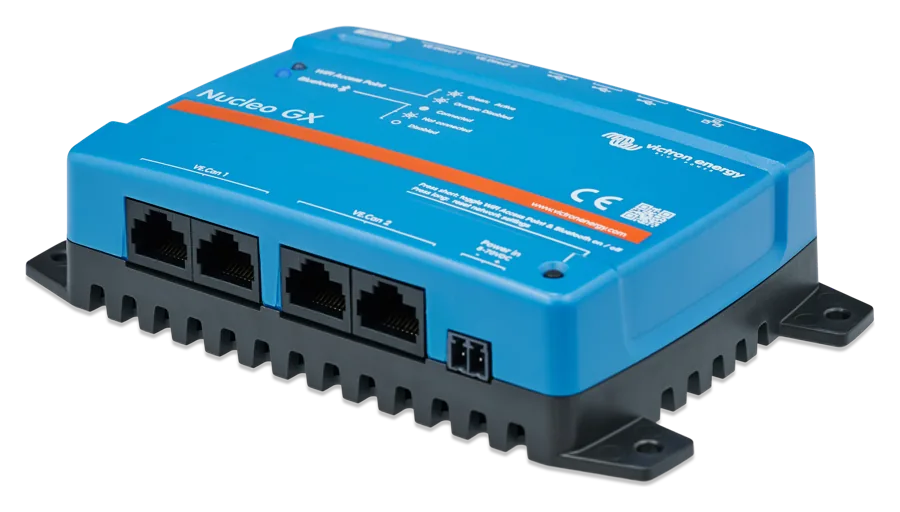

What Nucleo GX can do
Ekrano GX processor
Quad-core processor, the same as in Ekrano GX. The manufacturer states that processor performance is the main limit on the number of supported devices.
VRM portal and Remote Console
Viewing, alarms, settings changes and firmware updates remotely. Locally, the same via LAN or the built-in Wi-Fi access point.
Two VE.Can ports
VE.Can 1 is galvanically isolated, VE.Can 2 is not. Each works independently and can be set as VE.Can (250 kbit/s), BMS-Can (500 kbit/s), CAN-bus BMS or, for example, RV-C.
Two isolated VE.Direct ports
For MPPT charge controllers, battery monitors, Orion XS or Smart IP43 chargers. Additional devices are connected with VE.Direct–USB adapters.
Expansion via USB
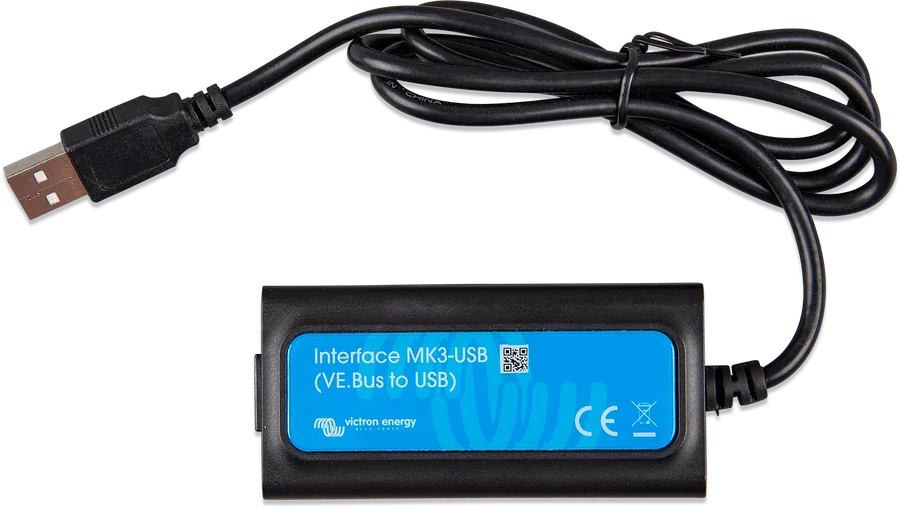
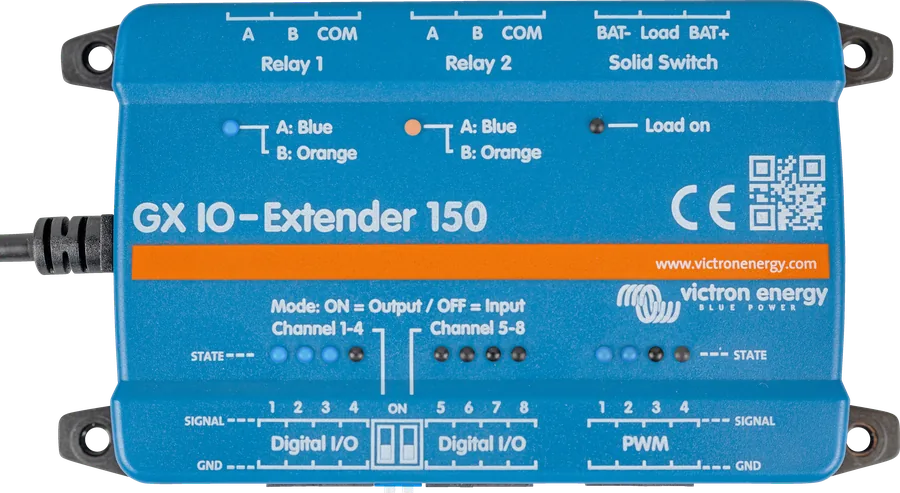
Three USB-A ports (up to 1.5 A at 5 V in total): MK3-USB adds VE.Bus, GX IO-Extender 150 adds relays and digital inputs, GX Tank 140 adds tank sensors.
Without a display
There is no HDMI output, so you cannot connect GX Touch. Locally: browser (IP address or venus.local), VictronConnect app or an Android tablet as a permanent display.
Venus OS and integrations
The same system as in other GX devices: DVCC, MQTT, Modbus TCP, integration with MFD displays. After flashing the Venus OS Large image — also Node-RED (without official Victron support).
Buzzer, two LEDs, button
The LEDs show the status of the Wi-Fi access point and Bluetooth. The button switches both on and off, or restores the network factory settings.
What connects where
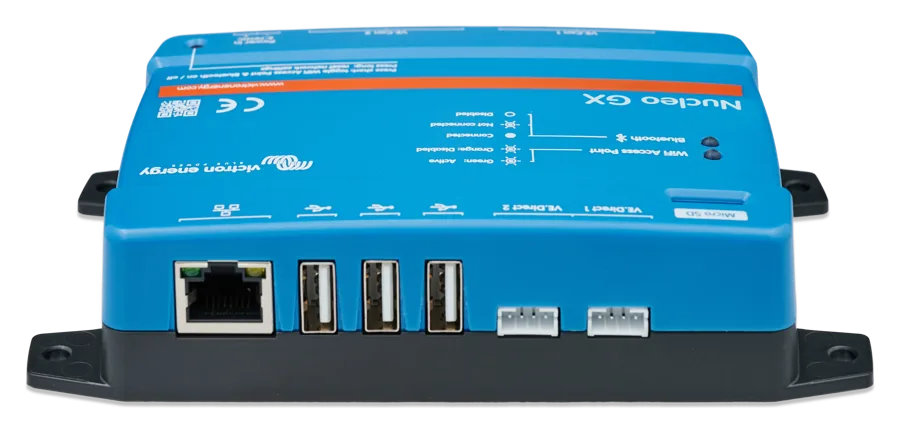
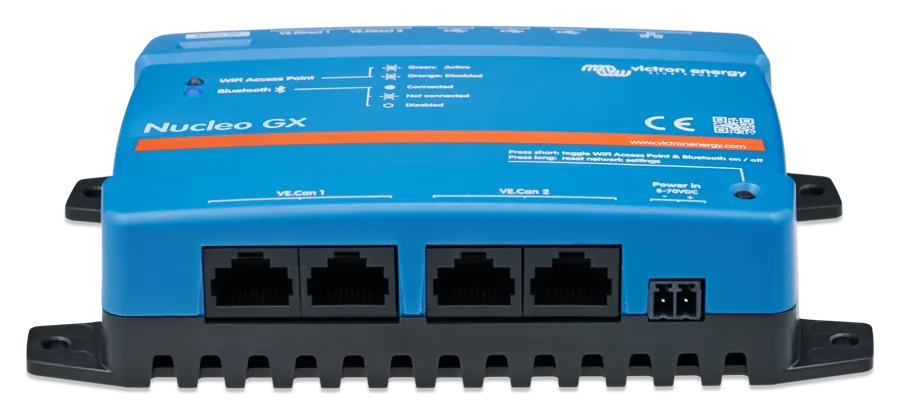
| Connector | How many | Isolation | What it is for |
|---|---|---|---|
| VE.Direct | 2 | isolated | MPPT, BMV, SmartShunt, Orion XS, Smart IP43; up to 25 devices in total including USB adapters |
| VE.Can 1 | 1 (2 sockets) | isolated | VE.Can 250 kbit/s, BMS-Can 500 kbit/s, CAN-bus BMS 250 kbit/s, other profiles (for example RV-C) |
| VE.Can 2 | 1 (2 sockets) | non-isolated | as VE.Can 1 — the ports are independent of each other |
| Ethernet | 1 | isolated apart from the display socket | local network and internet; the manufacturer recommends unshielded UTP twisted pair |
| USB-A | 3 | non-isolated | MK3-USB, GX IO-Extender 150, GX Tank 140, VE.Direct–USB, GX LTE 4G, GPS; up to 1.5 A at 5 V in total |
| Wi-Fi | — | — | 2.4 GHz (802.11 b/g/n), also as an access point |
| Bluetooth Smart | — | — | initial connection and network setup in VictronConnect |
| microSD | 1 | — | SDHC cards up to 32 GB — data logging without internet, updates |
| Power in | 1 | — | 8–70 V DC; this is the only power supply path (not via USB or Ethernet) |
Bluetooth in Nucleo is only for the initial connection and network setup. You cannot connect a SmartSolar controller or SmartShunt to the GX with it — you need a VE.Direct or VE.Can cable.
In complex systems — with several PV inverters or synchronised inverters — the limit may be lower. The manufacturer recommends designing with a margin.
Standard USB modems are not supported — the exceptions are GX GSM and GX LTE 4G. You can also connect an external router via Wi-Fi or Ethernet.
Nucleo GX at the centre of the system
Each device connects to the Nucleo with the appropriate cable; MultiPlus or Quattro — via the MK3-USB interface. Hover over a diagram element or tap it. Schematic illustration.
- MPPT, SmartShunt → VE.DirectTwo isolated ports; more devices via VE.Direct–USB adapters.
- MultiPlus, Quattro → MK3-USBNucleo has no VE.Bus port — the MK3-USB interface plugs into USB.
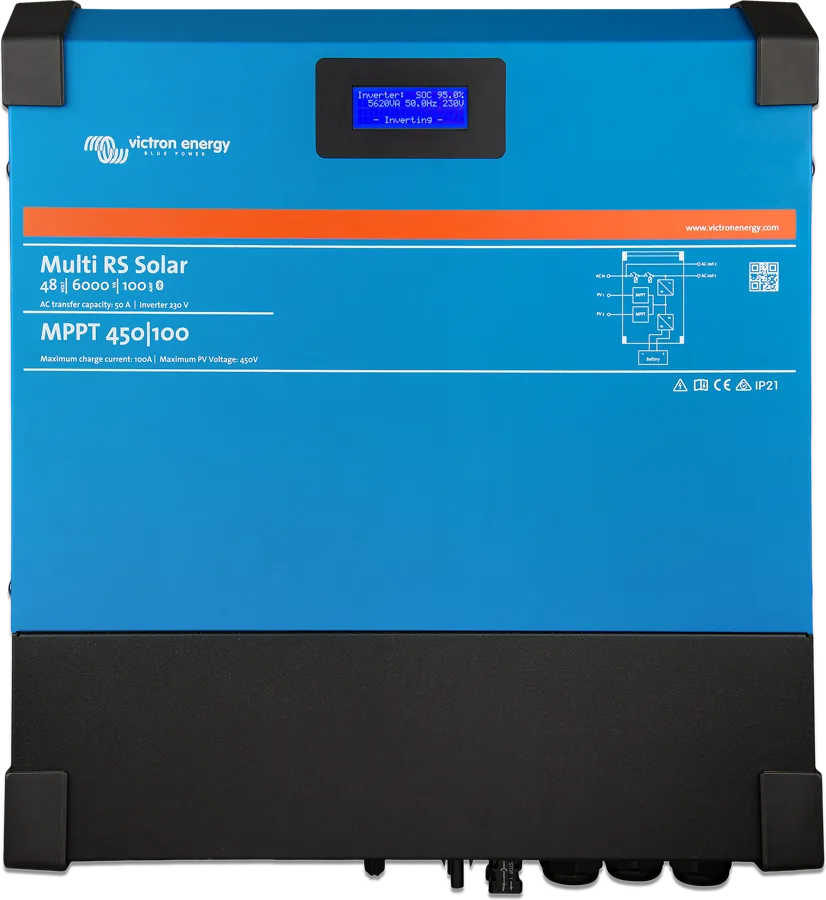
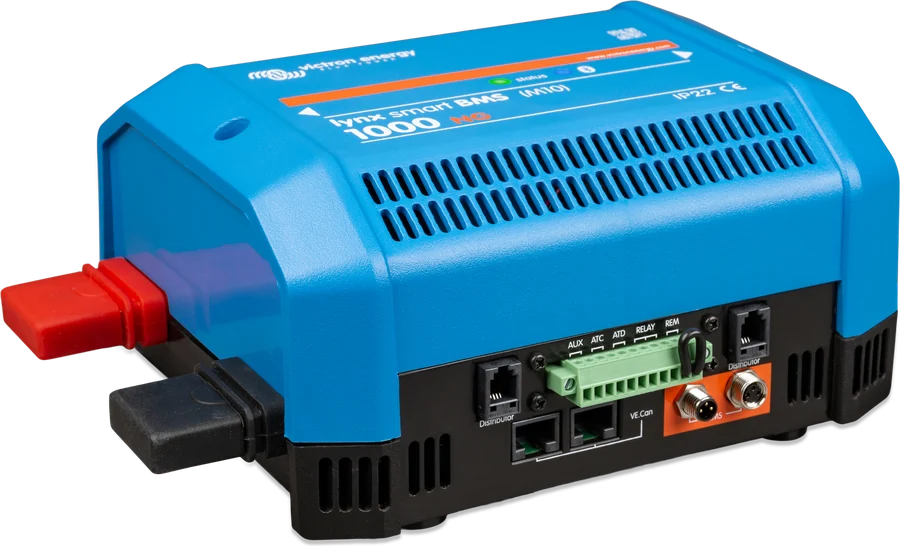
- Multi RS, Inverter RS, Lynx Smart BMS → VE.Can250 kbit/s, terminators at both ends of the bus.
- Third-party battery → BMS-CanSecond VE.Can port set to 500 kbit/s, terminator at the GX end.
- Internet → VRMWi-Fi 2.4 GHz, Ethernet or GX LTE 4G.
- Power in → Power in8–70 V DC, via a cable with a 3.15 A fuse, preferably from the battery.
Power supply, location and first start-up
Nucleo is powered only through the Power in connector (8–70 V DC). The box includes a cable with a 3.15 A slow-blow fuse in a holder and M8 ring terminals for a battery or DC busbar. The manufacturer advises against powering it from the inverter’s AC output: if the inverter shuts down because of overload, temperature or low battery voltage, monitoring and remote access will also be lost.
At a supply voltage above 60 V DC, Nucleo is treated as a built-in device: the installation must prevent contact with the terminals.
IP20 enclosure, operating from −20 to +50 °C. The manual says to install the device in a heat-resistant place, away from chemicals, plastics, curtains and fabrics, not in damp conditions and not in an area at risk of gas or dust explosion. Regardless of voltage, the GX device must be placed where unauthorised persons cannot access it.
- Mounting: on a wall — four Ø 4 mm holes at 135 × 64 mm centres (dimension drawing BPP900453100) — or on a 35 mm DIN rail with a separately purchased DIN35 adapter. Note: the datasheet gives dimensions of 78 × 154 × 48 mm, while the dimension drawing shows 146.1 × 87 × 34.5 mm including the ears; use the drawing when planning space and drilling.
- VE.Can bus: terminators at both ends of the network; two are included in the box. For BMS-Can, fit the terminator at the GX end and at the battery end according to the manufacturer’s instructions. VE.Can devices (250 kbit/s) and BMS-Can batteries (500 kbit/s) must not be connected to the same bus — each goes to a separate port.
- VE.Direct: the cable may be no longer than 10 m and must not be extended. For a longer distance, use a VE.Direct–USB adapter and an active USB extension lead.
- Ethernet: unshielded UTP twisted pair — the socket shield is not isolated, and a shielded cable may create a ground loop.
- USB: the ports are not isolated and together provide up to 1.5 A. For multiple accessories, the manufacturer recommends a good USB hub with its own power supply.
- First connection: the VictronConnect app via Bluetooth or the built-in Wi-Fi access point. Then connect Nucleo to the internet and check the software in Settings → General → Firmware.
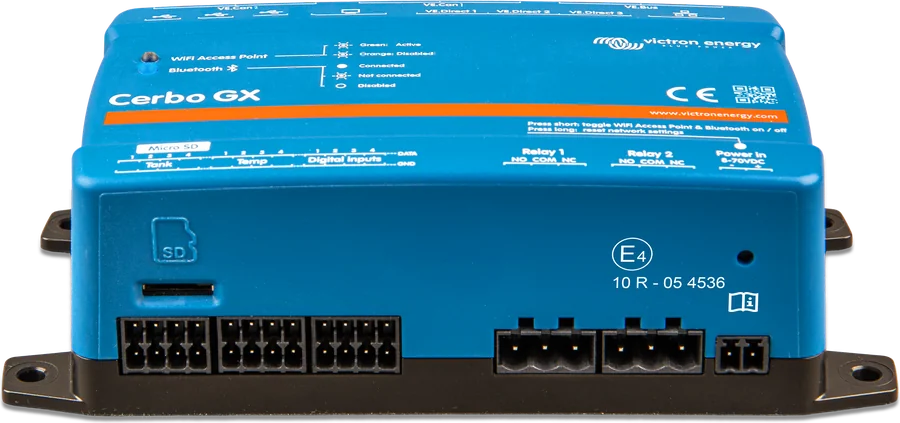
Nucleo GX, Cerbo GX or Ekrano GX?
Nucleo GX
Installations based on VE.Can (RS, Lynx Smart BMS, batteries with BMS-Can), with no need for a display or relays. Smallest enclosure, processor from Ekrano GX.
2 × VE.Can · no VE.BusCerbo GX
Built-in VE.Bus port, two relays (e.g. generator start), digital, tank and temperature inputs, HDMI for the GX Touch display. Cerbo GX datasheet.
VE.Bus · relays · GX TouchEkrano GX
GX centre with a built-in 7" touchscreen — one device instead of two. Ekrano GX datasheet.
display in the enclosureAnything Nucleo lacks can be added via USB: MK3-USB (VE.Bus), GX IO-Extender 150 (relays and digital inputs/outputs), GX Tank 140 (wired tank sensors) or Bluetooth sensors, for example Ruuvi. The manufacturer’s manual also points to the other route: if you need analogue inputs, digital inputs or relays, choose Cerbo GX or Ekrano GX.
The Nucleo GX manual (Rev 00, 06/2026) repeats in many sections text common to the GX family — at times it mentions a VE.Bus port ‘on the back of the device’, which Nucleo does not have. The decisive points are the connector list and the compatibility note at the start of the manual: VE.Bus, analogue inputs, digital inputs/outputs and generator control require USB accessories.
What the LEDs mean and what the button is for
Nucleo has two LEDs (Wi-Fi access point and Bluetooth) and a small button above the Power in connector. You can turn the LEDs off in Settings → General → Enable status LEDs.
Start-up: about a minute
For about 4 s both LEDs are off, then the Wi-Fi LED flashes red for about 40 s, then green for about 10 s (if the access point is enabled), and finally the Bluetooth LED flashes blue.
Wi-Fi LED flashes green
The built-in Wi-Fi access point is on — this is the factory setting.
Wi-Fi LED flashes red
Access point off. Note: the label on the enclosure describes this state as orange, while the manual says red.
Bluetooth: flashing, lit, off
Flashing blue — Bluetooth on, waiting for connection. Steady on — connected to VictronConnect. Off — Bluetooth off.
Short press of the button
Turns the Wi-Fi access point and Bluetooth on or off together. Both off: Wi-Fi flashes red, Bluetooth off.
Hold for at least 4 s
Restores the factory network settings and Bluetooth PIN, and also disables the Remote Console password. Release when the Wi-Fi LED starts flashing green rapidly; the LEDs will light for 2 s. Then disconnect and reconnect the power to turn Bluetooth and the access point on again.
MultiPlus not visible
Nucleo has no VE.Bus port. Check that the MultiPlus or Quattro is connected through the MK3-USB interface, not with a standard RJ45 cable to the VE.Can socket.
No devices on VE.Can
Check the terminators at both ends of the bus and the port profile: Victron devices work at VE.Can 250 kbit/s, batteries such as BYD and Pylontech at BMS-Can 500 kbit/s, and some BMS units in the CAN-bus BMS 250 kbit/s profile.
Frequently asked questions about Nucleo GX
Does Nucleo GX work with a MultiPlus or Quattro?
Yes, but through an MK3-USB interface plugged into the USB port — Nucleo has no built-in VE.Bus port. The manual, in the text common to the GX family, notes that a Multi connected via MK3-USB as an additional unit is not controlled by DVCC by default, and the Nucleo documentation does not clarify how a Multi connected this way is treated if it is the only one. Therefore, for a system based on a MultiPlus or Quattro — especially with ESS — a Cerbo GX with a built-in VE.Bus port is the safer choice.
Can I connect a GX Touch display?
No — Nucleo has no HDMI output. You operate the system locally in a browser (the device IP address or venus.local), in the VictronConnect app or on an Android tablet as a permanent display. Remote Console on a phone switches to portrait orientation automatically.
Can Nucleo start a generator?
Not on its own, because it has no relays. The manual lists generator control among functions that require an accessory — relays are provided by GX IO-Extender 150 — these are low-power signal contacts for control, not for powering loads. The other option is a Cerbo GX with two relays.
How many devices can you connect?
Up to 25 VE.Direct devices in total — those on the two ports and those via USB adapters — and more via VE.Can. The manufacturer notes that in complex systems, for example with several PV inverters, the limit may be lower, and recommends allowing a margin.
Can I connect a battery with a BMS from another brand?
Yes, if it is GX-compatible. Set one of the VE.Can ports to the BMS-Can profile (500 kbit/s), fit the terminator at the Nucleo, and terminate the battery side according to the battery manufacturer’s manual. The other port remains free for Victron devices on VE.Can.
Can I connect Nucleo to a SmartSolar controller via Bluetooth?
No. Bluetooth in Nucleo is for first connection and network setup only. Controllers, battery monitors and other Victron devices are connected with VE.Direct or VE.Can cables.
How do I connect Nucleo to the internet on a plot with no Wi-Fi?
Via the GX LTE 4G accessory (or GX GSM) in the USB port, or through an external mobile router over Wi-Fi or Ethernet. Standard USB modems with a SIM card are not supported.
Where do I power Nucleo from?
Directly from the battery or DC bus, using the cable supplied in the box (3.15 A time-delay fuse), with 8–70 V DC. Not via USB or Ethernet. Powering it from the inverter’s AC output is not recommended by the manufacturer — if the inverter were switched off, you would lose monitoring and remote access.
Accessories and devices it works with most often
Manufacturer documentation
- Nucleo GX — datasheet: connections, power supply, dimensions, standardsvictronenergy.com · PDF · EN
- Nucleo GX — manual (Rev 00, 06/2026): safety, connections, power supply, port isolation, VE.Can, LEDs and button, technical datavictronenergy.com · EN
- Nucleo GX — dimensional drawing BPP900453100victronenergy.com · PDF
- Nucleo GX — product pagevictronenergy.com · EN
Content compared with Victron Energy documentation (datasheets and manuals) — as of 10 October 2026. Report an error in the content · Change log