
01What it is for
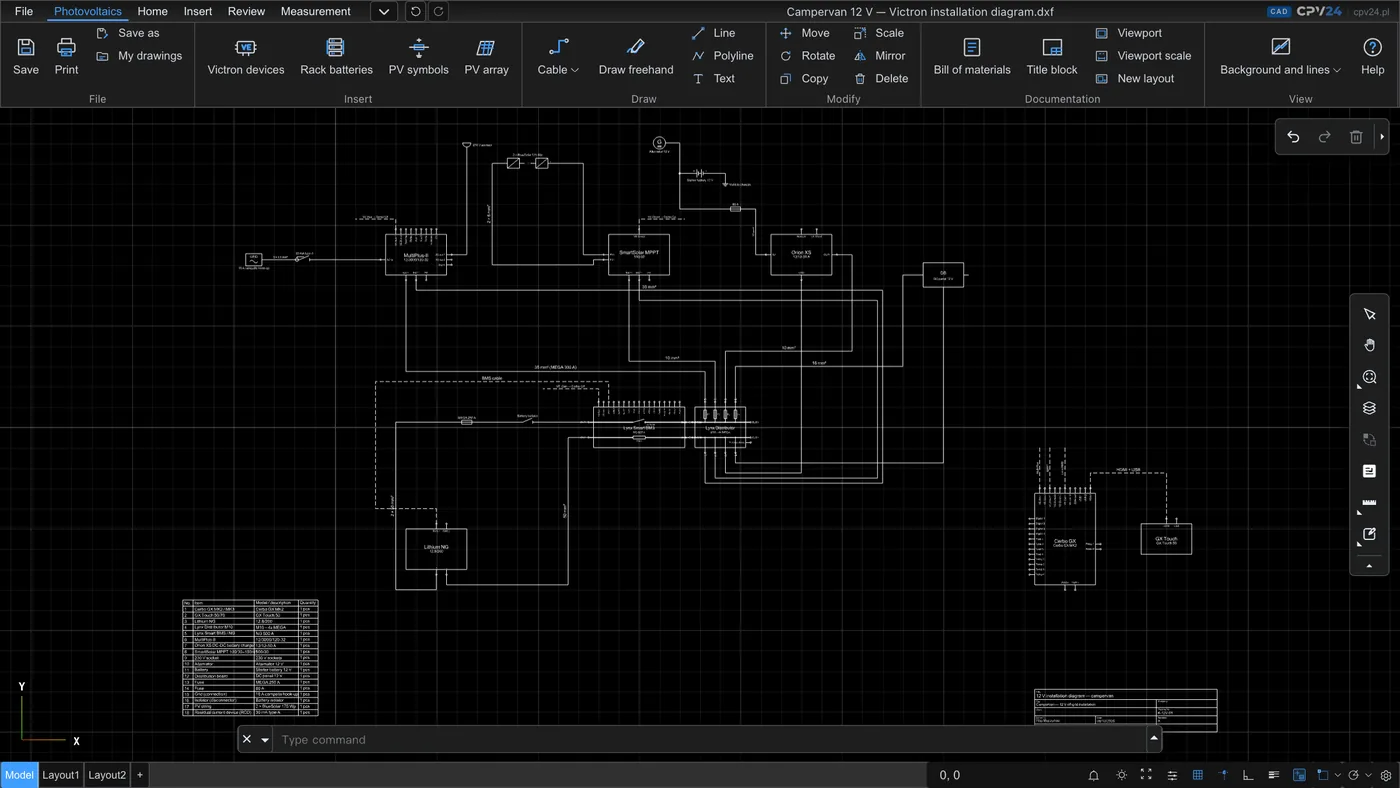
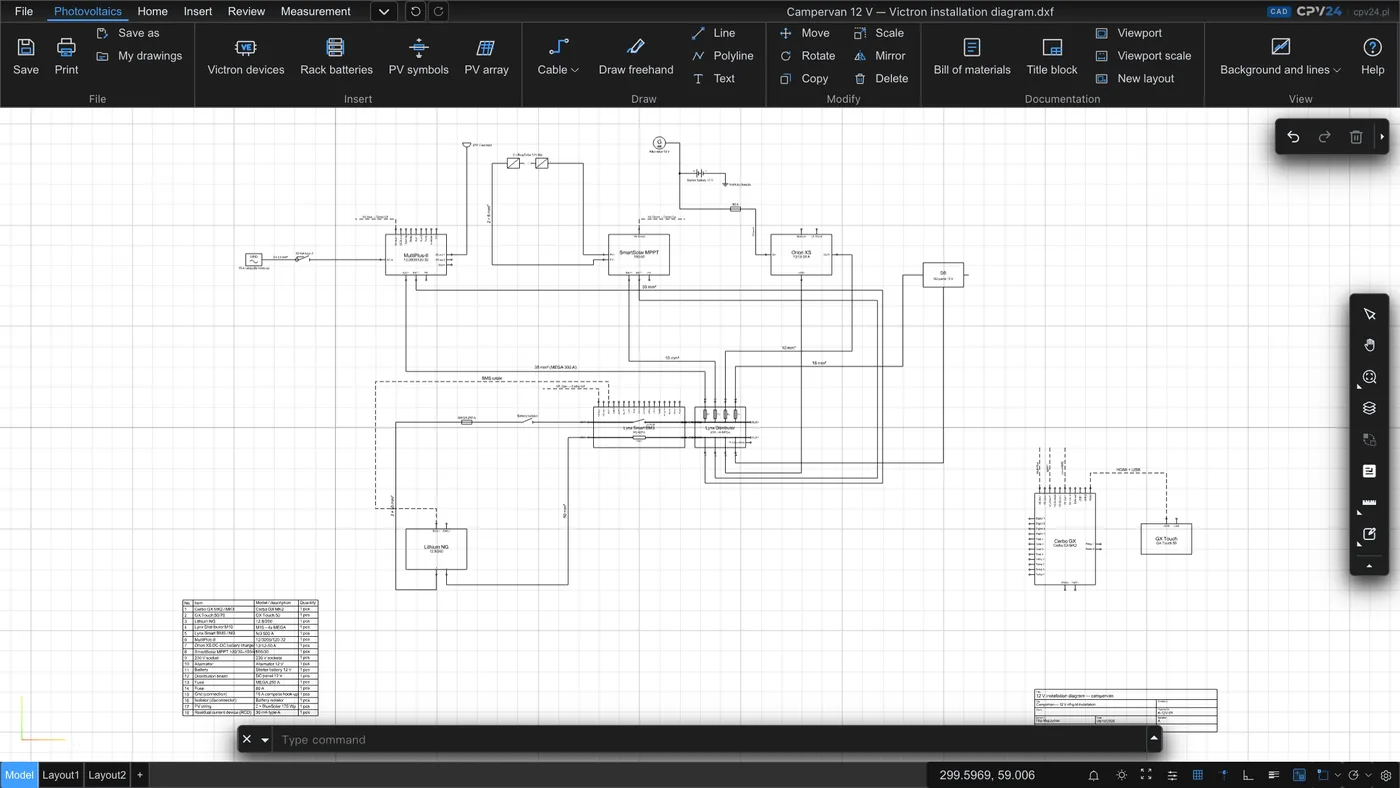
CAD CPV24 is browser-based CAD software designed for installations with Victron Energy devices: campervans and yachts, off-grid cabins, energy storage systems and photovoltaic installations. You build the diagram from ready-made device symbols with labelled terminals, such as AC-in, AC-out, VE.Bus or BAT+ and BAT−. You connect them with cables by type (DC, PV, AC, PE, communication), and the software calculates the bill of materials automatically.
Drawings are saved on the server, with version history. You can also open a DWG or DXF file from a customer, for example a roof plan, and place PV modules on it. You can print the finished drawing or save it as a PDF, and for work in another CAD program you can download it as DXF.
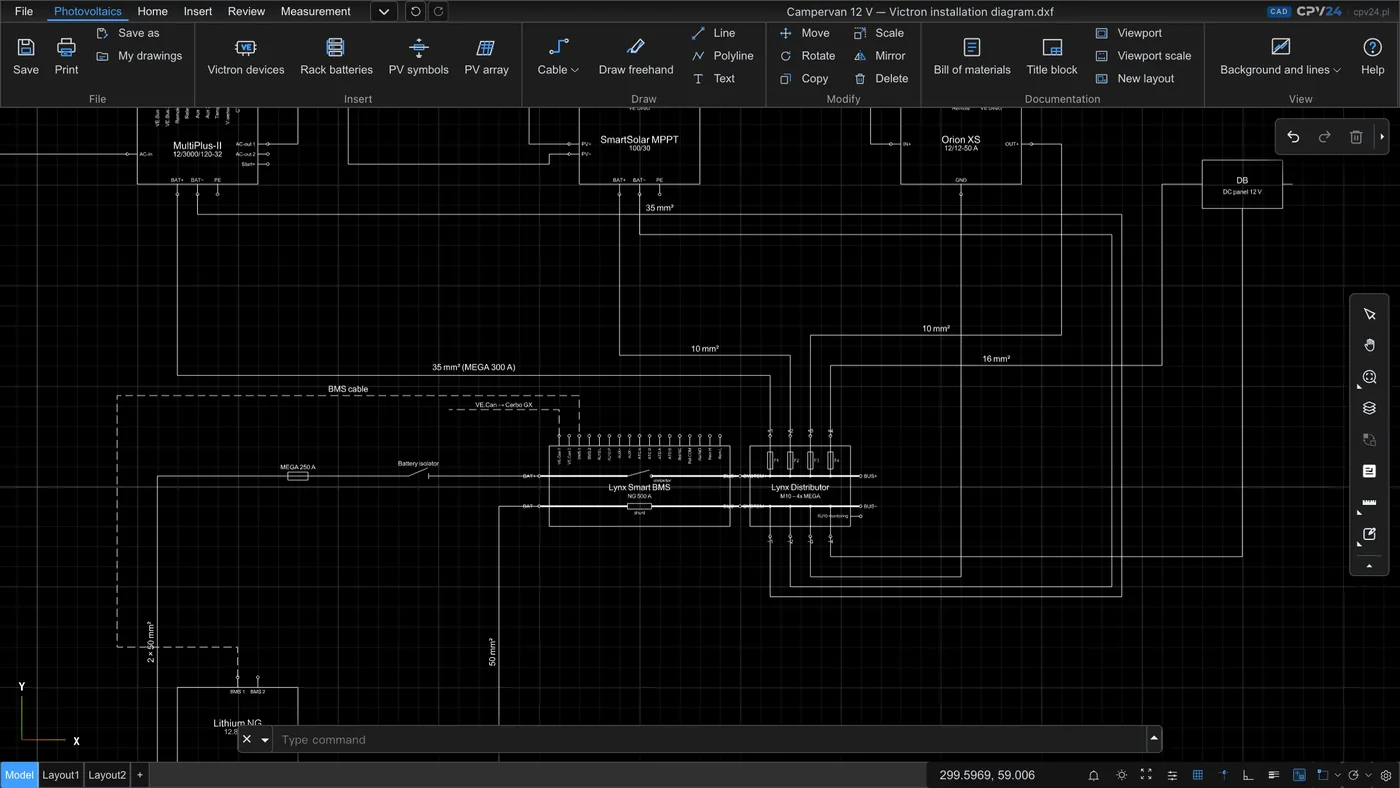
The drawing is useful for a quotation, a discussion with the customer and planning purchases. The final wiring diagram, cable cross-sections and protection devices must be checked by a designer or installer, according to the Victron device manuals. You can calculate cross-sections and fuses in the cable and fuse calculator.
02Victron device library
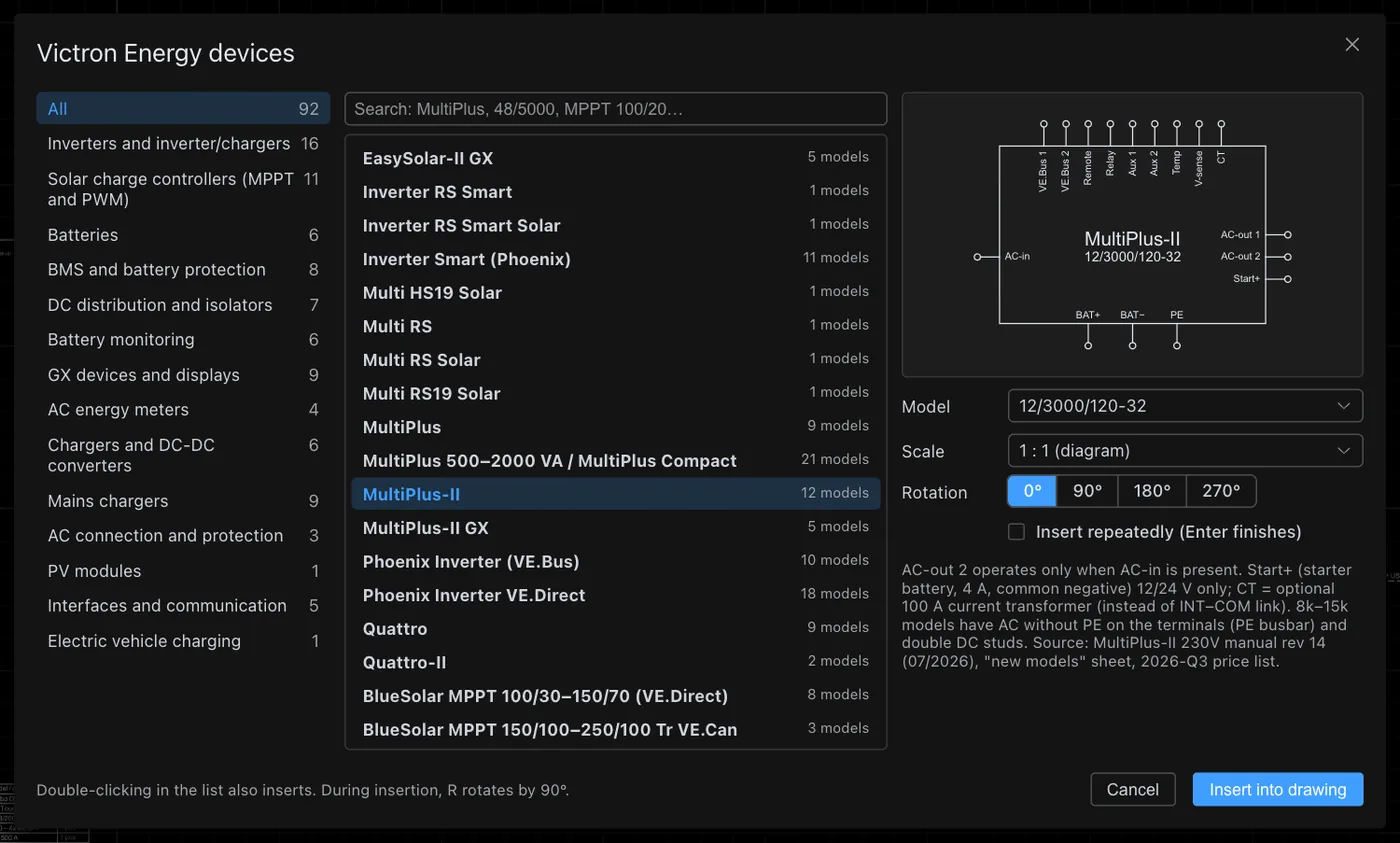
The Victron Devices window contains 92 device families in 14 groups. It includes inverter/chargers (MultiPlus, MultiPlus-II, Quattro, Multi RS, EasySolar-II GX), SmartSolar and BlueSolar controllers, Lithium NG, LiFePO4 Smart and AGM batteries, Lynx and BMS systems, battery monitors, GX devices, chargers, DC-DC converters, energy meters and EV charging stations. Each family has a model list, so you insert a specific device, for example MultiPlus-II 12/3000/120-32.
- The preview shows the symbol with labelled terminals and a short note from the manual, for example when AC-out 2 is active.
- The search box accepts a name or model, for example “48/5000” or “MPPT 100/20”.
- Scale 1 : 1 for the diagram, rotation in 90° steps (press R while inserting) and multiple insertion, finished with Enter.
03PV symbols, protection devices and busbars
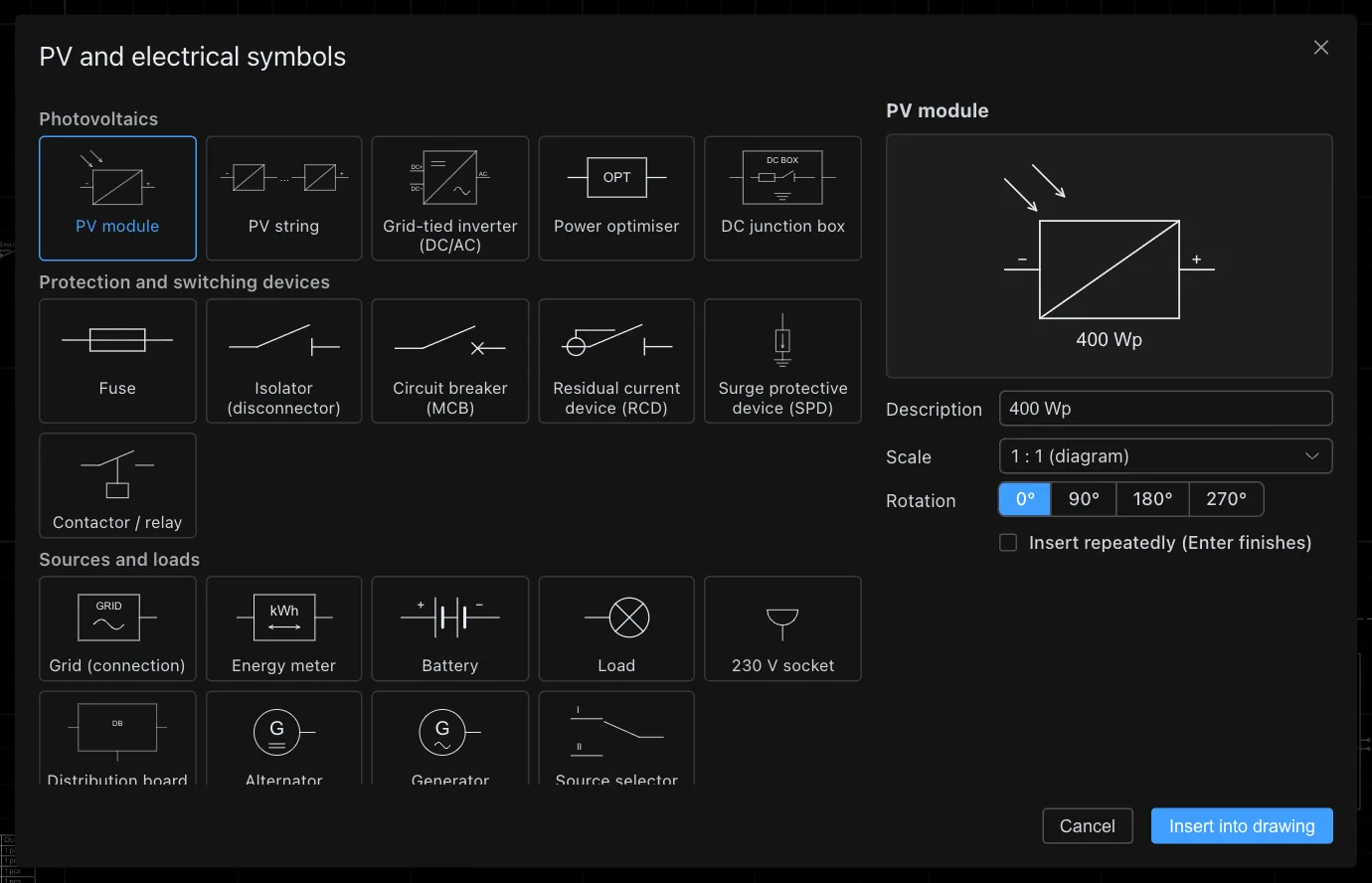
The PV Symbols window supplements the library with items that are not Victron devices:
- Photovoltaics: PV module, string, grid-tie inverter, power optimiser, DC combiner box.
- Protection and switching: fuse, isolator switch, miniature circuit breaker, residual current device (RCD), surge protection device (SPD), contactor or relay.
- Sources and loads: grid (shore power), energy meter, battery, load, 230 V socket, distribution board, alternator, generator, source selector switch.
- Busbars and connections: DC+, DC− and PE busbars, earthing, node, terminal.
The terminals of symbols are small circles at the ends of the lines, and the cables snap to them automatically.
0451.2 V rack batteries
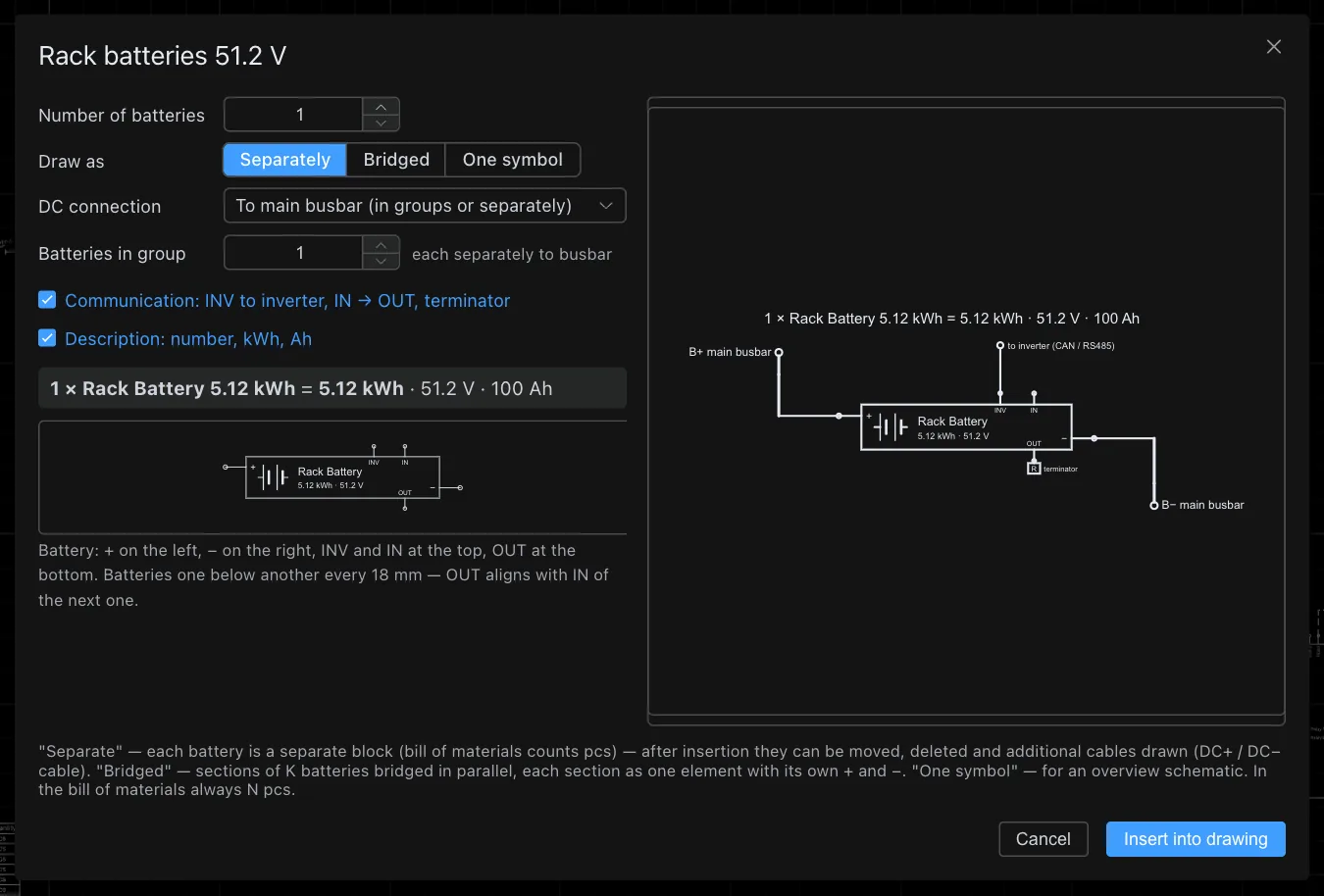
You can insert a rack battery bank (Rack Battery 5.12 kWh, 51.2 V, 100 Ah) in a single window. You enter the number of batteries and choose the drawing method:
- Separate: each battery is a separate block that can be moved, deleted and connected with cables.
- Bridged: sections of several batteries connected in parallel, each with its own + and −.
- Single symbol: for the overall diagram.
The software draws the B+ and B− busbars, battery communication connections (INV to inverter, IN → OUT between batteries, terminator at the end) and a label with the total capacity, for example 4 × 5.12 kWh = 20.48 kWh, 51.2 V, 400 Ah. In the bill of materials, batteries are always counted as pieces.
05Cables and drawing
- Cable types: DC+ and DC− (battery), PV+ and PV− (panels), AC 230/400 V, PE (protective earth) and communication (VE.Bus, VE.Can, VE.Direct). You click successive points, Enter finishes, then you enter a label, for example “DC+ 35 mm²”.
- Drawing: freehand sketch, line, polyline and text, and for edits move, rotate, copy, scale, mirror and delete commands.
- Drawing aids: F3 turns on object snap, F7 grid, F8 ortho, and F10 polar tracking. The mouse wheel zooms in and out, pressing the wheel pans the view, and Esc cancels the command.
- You can also type commands in the command line, as in classic CAD software.
06Panel layout on the roof plan
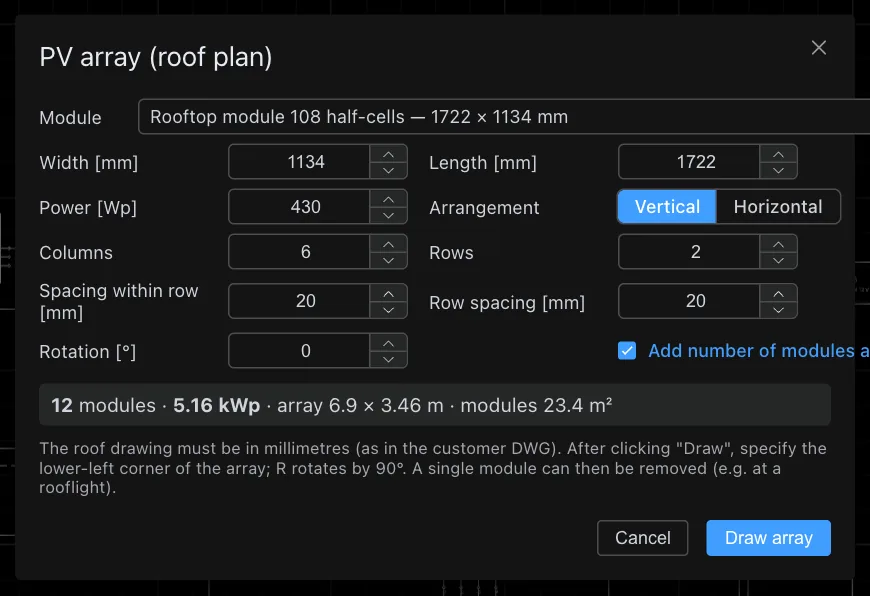
To arrange the modules, open the customer’s roof plan (DWG or DXF in millimetres) and choose Panel layout. You enter the module dimensions and power, orientation (portrait or landscape), number of columns and rows, spacing and rotation. The software immediately shows the result, for example 12 modules · 5.16 kWp · area 6.9 × 3.46 m, and draws the field from the selected corner. You can then delete an individual module, for example near a rooflight.
Place device symbols on the roof plan at scale × 20 or × 50 so that they remain legible.
07Bill of materials, title block and printout
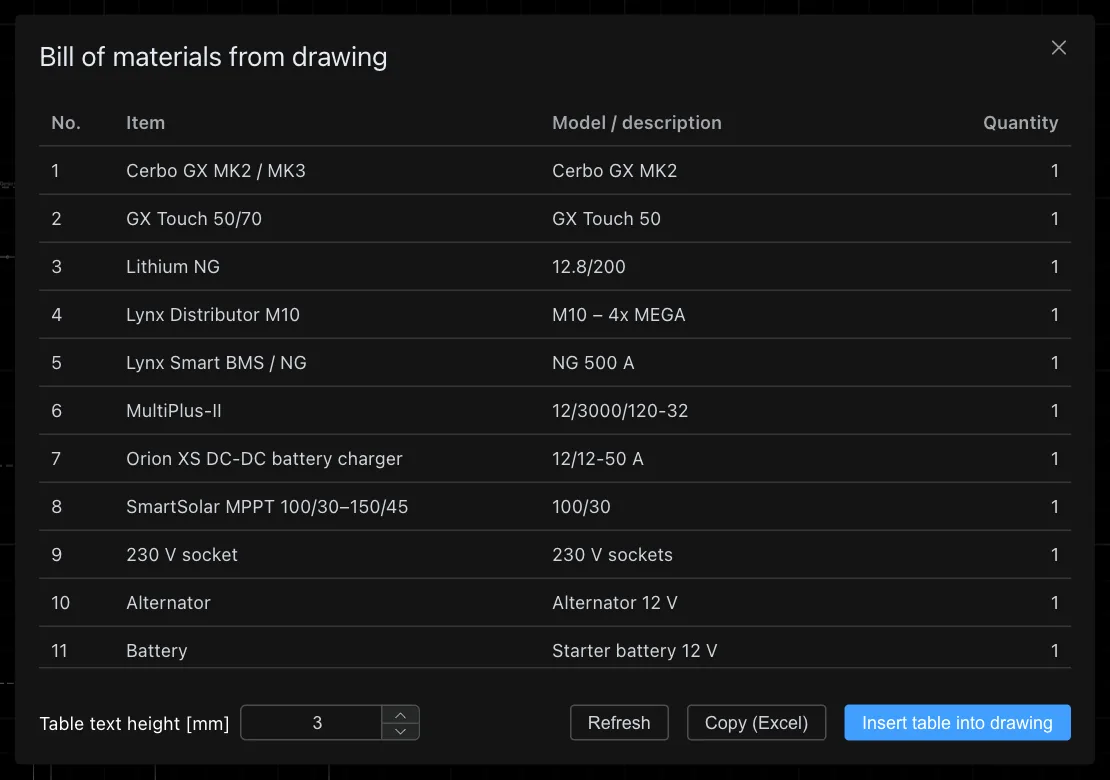
- The Bill of materials counts the devices and modules in the drawing: item, model and quantity. You can copy the list into Excel or insert it into the drawing as a table.
- The title block contains the title, project, customer, author, date, company, drawing number, revision and status.
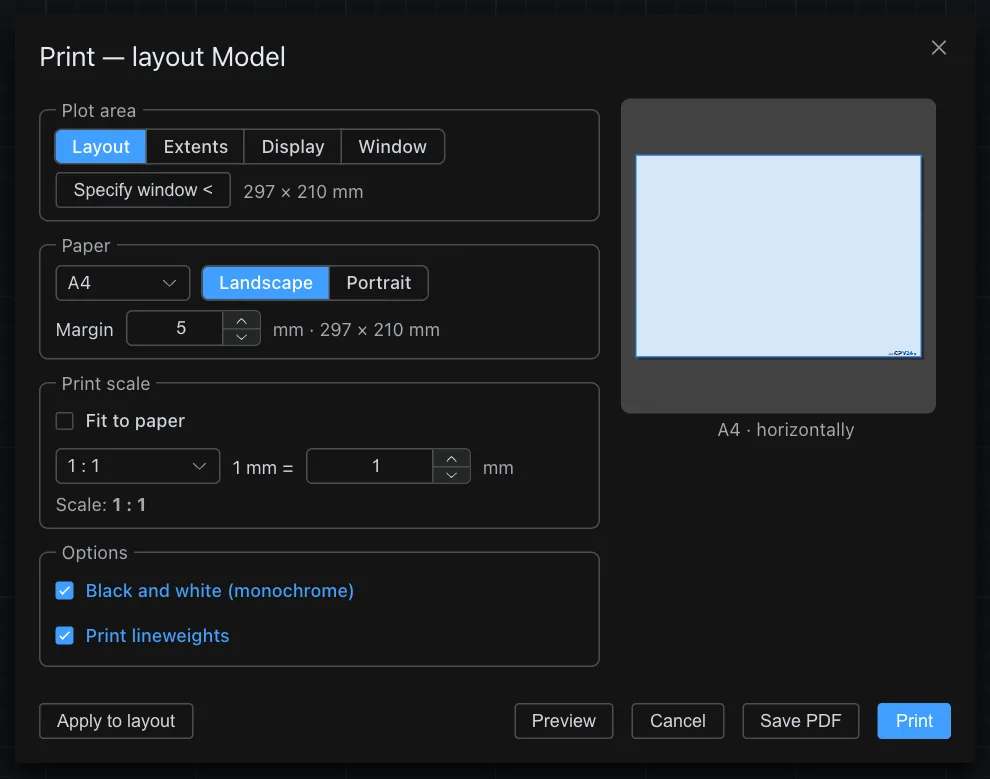
- Print lets you choose the area (layout, extents, screen or selected window), paper and orientation, margins and scale (fit to paper or fixed, for example 1 : 1). The printout can be black and white and include line weights. Instead of printing, you can save a PDF.
- Sheets (layouts) with viewports and viewport scale, as in classic CAD.
08Background and lines
You have three themes: black background with white lines, blue background with white lines and white background with black lines. You can also show the original drawing layer colours.
09Save, versions and files
- Save (Ctrl+S) stores the drawing on the server. Each save creates a new version, and the previous ones remain in the history.
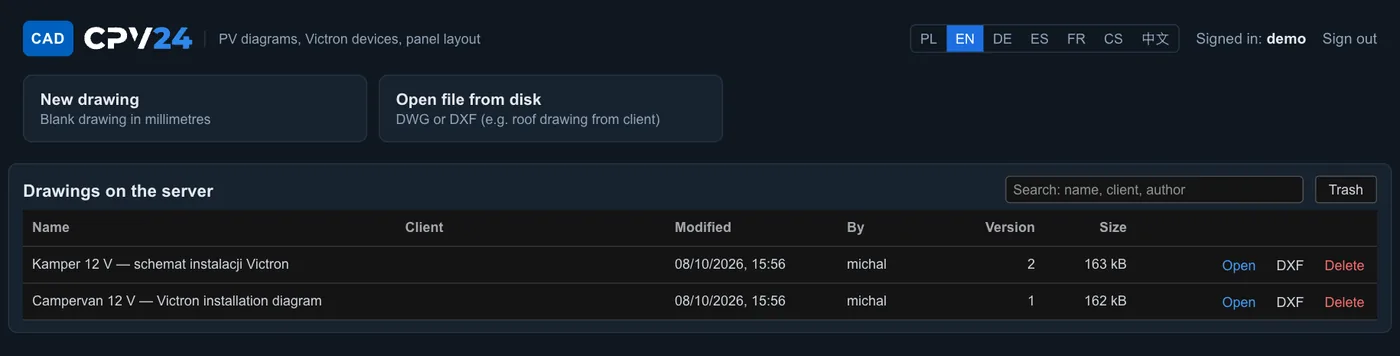
- My drawings is a list with name, client, modified date, author, version number and size, with a search field. Each drawing has Open, DXF (download) and Delete buttons. Deleted drawings go to the bin.
- Open file from disk accepts DWG or DXF, for example a roof drawing from a client.
- Export to DXF, PDF, SVG, HTML or an image (File → Export).
10Account, limits and languages
- Registration: email and password (min. 8 characters). An activation link is sent by email. If you do not see it, check the SPAM folder.
- Free account: a total of up to 1 hr 59 min of work per day from one IP address and no more than 8 users logged in at the same time. The account can store up to 30 drawings and 500 MB of data (all versions together).
- Examples: everyone has access to a ready-made 12 V campervan diagram, in Polish and English. A modified example is saved as your copy.
- No time limit: unlimited access is provided by a subscription, and you can find the details in the programme.
- Languages: Polish, English, German, Spanish, French, Czech and Chinese. The switch is on the login page and in the drawing list.
- The programme runs in a web browser on a computer, so nothing needs to be installed. The connection is encrypted.
Open CAD CPV24Create a free account
Related
- Diagrams: ready-made reference diagrams for a campervan, yacht, home with ESS and an off-grid cabin.
- Cables and fuses: cable cross-sections and protection devices for labels on the diagram.
- Campervan installation from scratch: the sequence of work for a 12 V installation.
- Node-RED flow generator: cpv24.pl’s second online tool, for automation on Cerbo GX.