
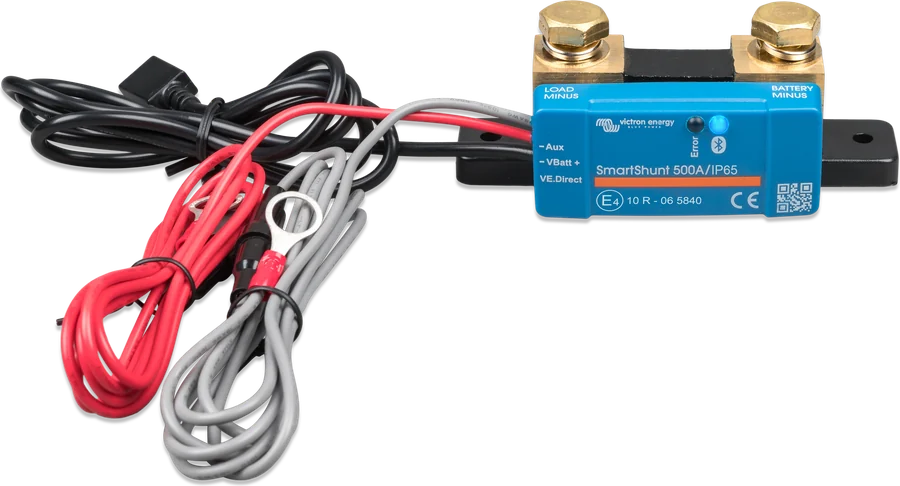
01How the monitor calculates SoC
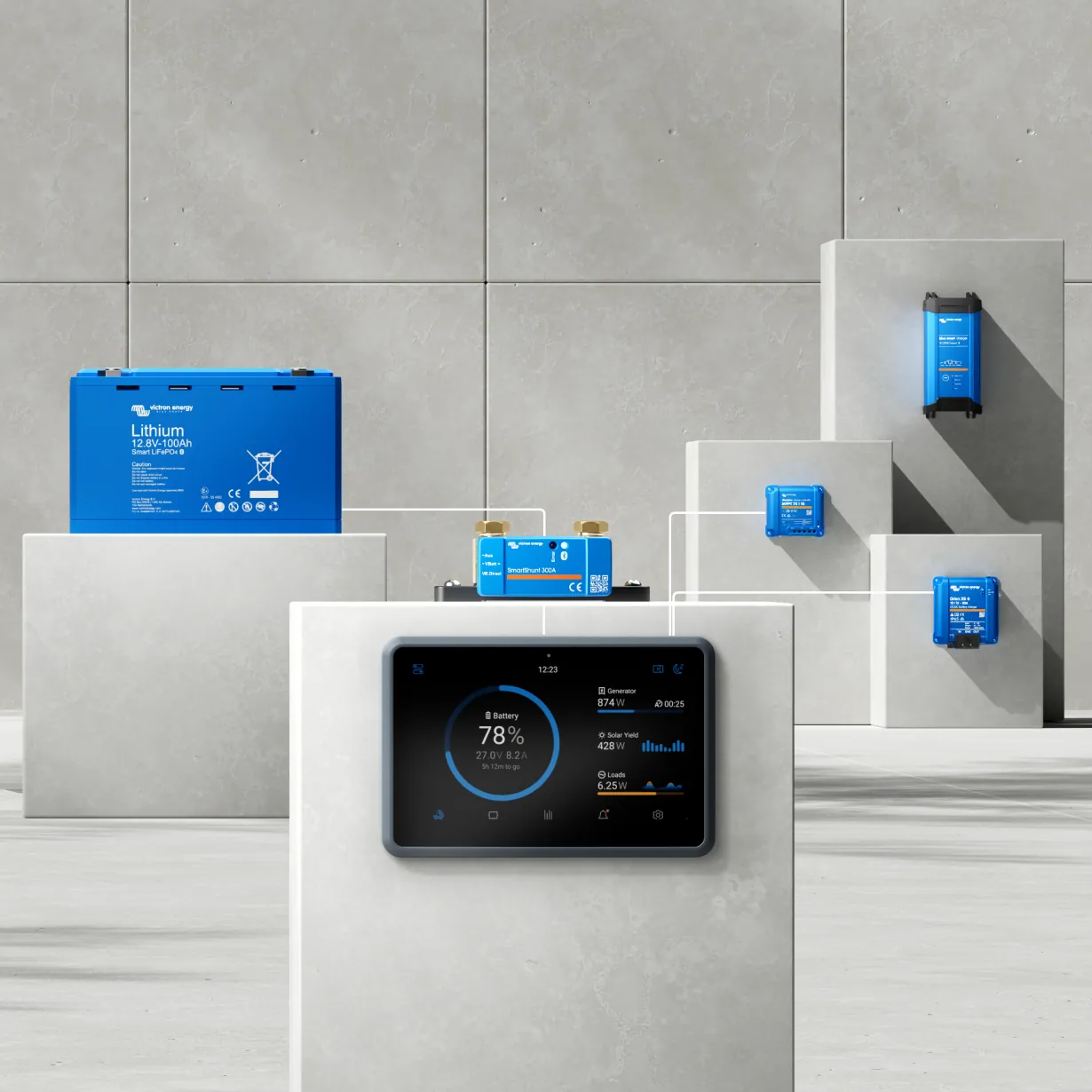
The monitor measures the current flowing to and from the battery and uses this to calculate state of charge. This is a calculated value, so over time it drifts — because of small measurement inaccuracies and the Peukert exponent approximation. That is why the monitor must regularly synchronise: when it decides the battery is full, it sets SoC to 100%.
The battery is considered full when all three conditions are met at the same time for the set time:
- Charged voltage — voltage above the set threshold (recommended 0.2–0.3 V below the charger float voltage),
- Tail current — charge current below the set percentage of capacity (factory setting 4%; for 200 Ah it is 8 A),
- Charged detection time — both conditions are met for the set time (factory setting 3 minutes).
02Step-by-step diagnosis
Before moving or disconnecting wires, remember: working near a lead-acid battery is dangerous because batteries can produce explosive gases. Ensure ventilation, do not smoke, do not allow sparks or flames, use eye and protective clothing, and be careful with metal tools that could cause a short circuit and an explosion.
1Is the current sign correct?
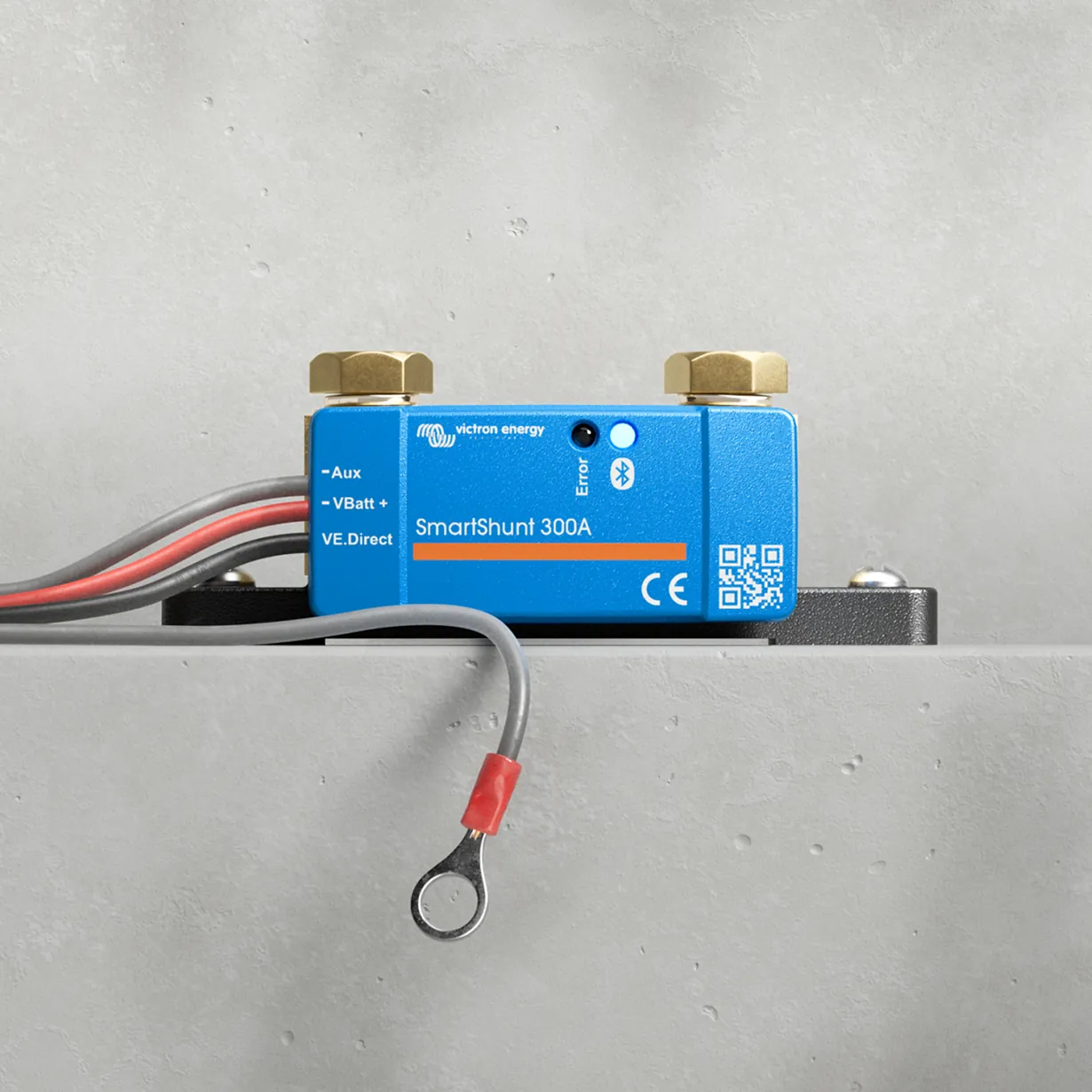
Charge current should be positive (e.g. 1.45 A), and discharge current negative (e.g. −1.45 A). If it is the other way round, the negative wires on the shunt are swapped — you need to move them. Swapped wires are also one of the reasons SoC stays at 100%.
2Does all current flow through the shunt?
The negatives of all loads and charging sources must be connected on the “system minus” side of the shunt. If the negative of a load or charger is connected directly to the battery terminal or to the “battery minus” side of the shunt, its current bypasses the monitor. The monitor then shows an SoC higher than reality. How to wire it correctly: SmartShunt — connection.
3The monitor shows current even though nothing is switched on?
First check whether current really is not flowing — small standby currents (fridge, alarm, electronics) are normal. If it is noise in the hundredths of an amp range, the “Current threshold” setting helps (factory setting 0.10 A; below this the monitor calculates 0 A).
The manual says that zero current calibration “(almost) never needs to be done”. If you do perform it, only when you are certain that no current is flowing; the only reliable way is to unscrew and disconnect all wires from the “system minus” side of the shunt. Simply switching off loads is not enough.
4SoC does not reach 100% (no synchronisation)?
- The battery is never fully charged — charge it fully (until the charger goes to float) and check whether SoC reaches 100%.
- “Charged voltage” is too high or “Tail current” is too low — the manual then recommends lowering the voltage threshold and/or increasing “Tail current”. Set Charged voltage 0.2–0.3 V below your charger’s float voltage. For lead-acid batteries, the manual gives 13.2 V (12 V), 26.4 V (24 V), 52.8 V (48 V).
- The charger ends charging at a set current — some chargers (including ones for lithium batteries) switch off when current falls below their threshold. Tail current must then be higher than that threshold, otherwise the monitor will never see the “full” condition.
If you know the battery is full, you can synchronise the monitor manually: in VictronConnect “Settings → Battery settings → Synchronise”. This is only a workaround, however — correct the settings so synchronisation works automatically.
5Instead of SoC you see “--”?
The monitor is not synchronised — this can happen just after installation or after a power interruption (for example after switching off the main DC isolator). Charge the battery fully and the monitor will synchronise itself; if not, check the settings from step 4. Behaviour after a power loss is determined by the “Battery SOC on reset” setting: Keep SOC (factory setting — returns to the last saved value), Clear (SoC unknown until synchronisation) or Set to 100%.
6SoC changes too quickly or too slowly?
The monitor “thinks” the battery is larger or smaller than it really is. Check the set capacity (factory setting 200 Ah; for lead-acid batteries the manual recommends entering the 20-hour capacity C20). The calculations are also affected by the Peukert exponent and charge efficiency.
LiFePO4 batteries — the manual recommends changing some factory settings and checking “Tail current” in a specific case:
Important: lithium batteries can be irreparably damaged by very deep discharge or overcharge; small standby loads and the monitor’s own consumption (<12 mA) can also discharge them slowly. If a system with Li-ion batteries is left unattended long enough for the battery to be fully discharged by the monitor’s consumption, disconnect the monitor’s positive supply or isolate the battery.
| Setting | Default | LiFePO4 |
|---|---|---|
| Peukert exponent | 1.25 | 1.05 |
| Charge efficiency factor | 95% | 99% |
| Discharge floor | 50% | 10–20% |
| Tail current | 4% | if the lithium charger ends charging after current falls below a set threshold — set it above that threshold |
Use these settings in all cases unless the battery manufacturer recommends otherwise. Discharge floor only affects “time to discharge” and the default SoC alarms, not SoC itself.
7Is the battery voltage or the second battery voltage wrong?
- Battery voltage: check the Vbatt+ wire (fuse, wire, terminals, loose connection). It must be connected to the positive of the whole bank, not to the middle of the bank; the same applies to the temperature sensor.
- Starter battery (Aux) voltage too low: check the Aux wire and its fuse.
- No Aux reading: both batteries must share a common negative, and the starter battery negative must be on the “system minus” (loads) side of the shunt.
03The GX device shows a different SoC than the monitor
SoC on the GX display comes from the source selected in “Settings → System Setup → Batteries → Battery monitor”. In automatic mode, GX selects a separate monitor (BMV, SmartShunt, Lynx Smart BMS, Lynx Shunt VE.Can or a battery with a built-in monitor), and when there are several it uses any of them; in that case, select the correct one manually. Without a separate monitor, GX shows SoC calculated by the MultiPlus or Quattro (VE.Bus SoC). According to the manual, this may be inaccurate if other loads or DC chargers not included in the measurement are connected to the battery.
Devices this applies to
 SmartShuntBattery monitor with 300–2000 A shunt, read on your phone or on a GX device.
 BMV-712 SmartBattery monitor with display, alarm and programmable relay.
 Lynx Smart BMS / NGBMS with contactor and current measurement for Smart LiFePO4 or Lithium NG banks.
 Lynx Shunt VE.Can1000 A battery monitor with main fuse holder in the Lynx system — read via a GX device.
 MultiPlusInverter/charger 800 VA–20 kW: PowerAssist, UPS under 20 ms, parallel and three-phase operation.
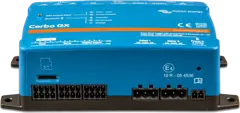 Cerbo GXSystem control centre and gateway to the VRM portal.