
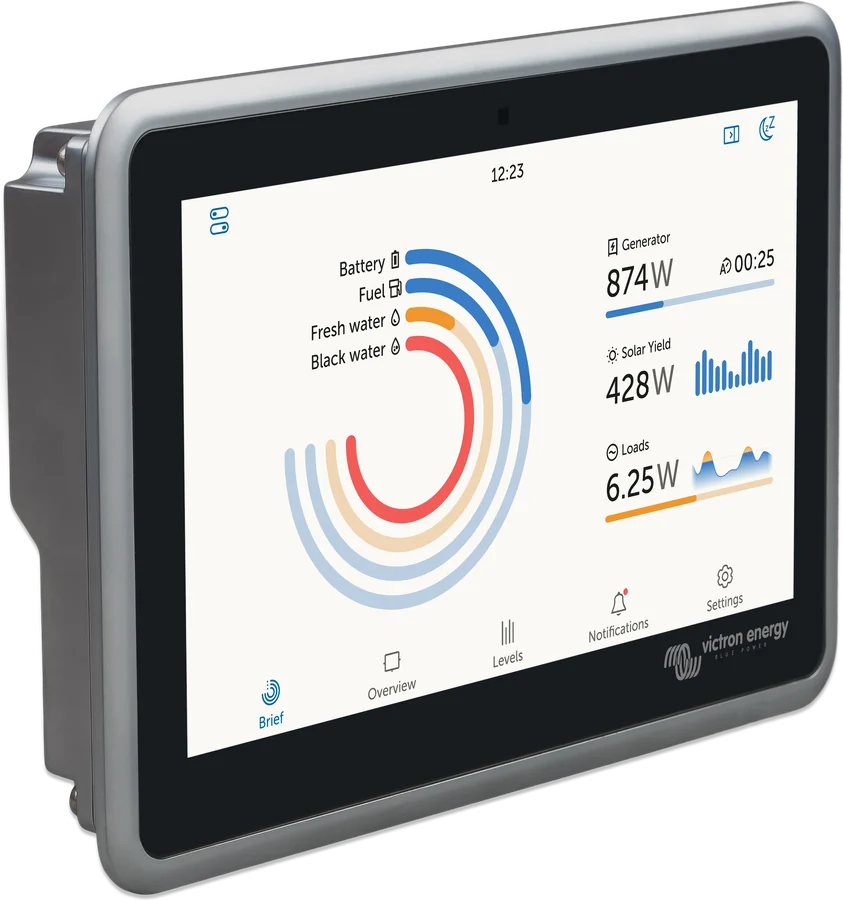
01First check
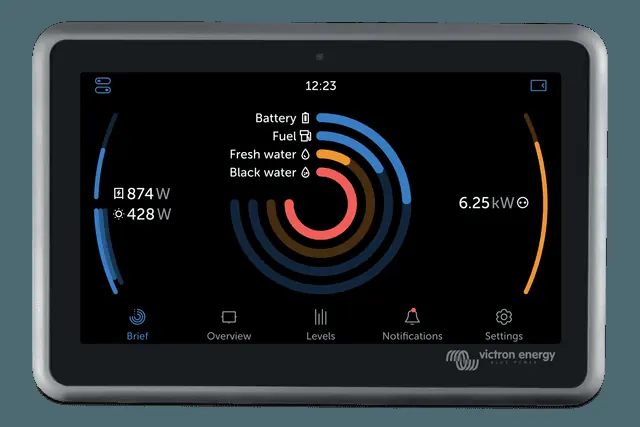
- Last contact (Settings → VRM → Last contact) — last contact marker with the VRM portal. Dashes (“--”) mean that since power-up the GX device has not connected to the portal.
- Stored records — a value of 0 means that all data has been sent successfully. A value greater than 0 means unsent logs caused by connectivity problems; they are usually accompanied by an error message.
- Connection error — Ekrano GX cannot communicate with the VRM database.
- Access to the VRM portal must be Full (default) or Read-only. With Off, log transmission to VRM does not work. The same setting is required for Remote Console on VRM.
- Current firmware of the GX device.
- Whether GX is collecting data from devices at all — Ekrano GX collects data from all connected products and only then sends it to VRM. If an inverter, MPPT or battery monitor is missing from the GX list, first see GX does not see the device.
02By connection type
1Ethernet
- Before you plug in the Ethernet cable, do not confuse the Ethernet port with the VE.Bus or VE.Can/BMS-Can ports — they all use RJ45 sockets.
- The two lights at the back by the RJ45 Ethernet plug should be lit or flashing. Two lights off means a connection problem.
- When State shows Unplugged — check the cable and the connection indicators on the GX device.
- The default setting for Ekrano GX is automatic IP address via DHCP. Status should show Connected; the IP address must not start with 169; the netmask, gateway and DNS server must be present. An address starting with 169 indicates a problem with automatic address assignment; check whether DHCP is working on the network. If DHCP is not available, configure the IP address manually.
- IPv6 is supported only through automatic configuration. Manual IPv6 configuration is not available.
- Wi-Fi is inherently less reliable than Ethernet. Use Ethernet wherever possible.
- Ethernet always has the highest priority for internet access, regardless of whether Wi‑Fi or LTE is available. Priority depends only on interface availability, not on whether the interface actually has internet access. Each Ethernet and Wi‑Fi interface has an option that allows it to be used for internet access — turning it off removes the default gateway; only communication within the local subnet remains. The option works independently of whether the IP is Automatic (DHCP) or Manual.
- Outgoing HTTP(S) connections are required to ccgxlogging.victronenergy.com on ports 80 and 443. Proxy configurations are not supported.
- Choose a router designed for unattended operation. Avoid cheap consumer routers for temporary use. The documentation gives Proroute H685 4G LTE and the Pepwave Industrial 4G Router series as examples.
2Wi‑Fi
- Ekrano GX has built-in Wi‑Fi and connects to WEP, WPA and WPA2 networks. WPS (WiFi Protected Setup) is not supported.
- Built-in Wi‑Fi supports 2.4 GHz only. The device may detect 5 GHz networks, but it will not connect to them.
- With a Wi‑Fi connection, the signal strength should be at least 50% to maintain reliable operation.
- The Wi‑Fi menu shows all available networks. Select a network and enter the password if it is not already saved. If State shows Failure, the password may be incorrect — use Forget network and reconnect with the correct password.
- No WiFi adapter connected — reinsert the Wi‑Fi dongle.
- When several known networks are available, Ekrano GX automatically connects to the one with the strongest signal. If the current network signal drops significantly, it will switch to a stronger known network, if available.
- Wi‑Fi is used when Ethernet is unavailable, regardless of LTE. A GX device can be connected to Ethernet and Wi‑Fi at the same time; this setting does not apply to the LTE interface.
- A network with a login page or terms acceptance (captive portal) will not work — there is no way for a GX device to operate with it.
- Avoid tethering connections and mobile hotspots because they are unreliable. A phone’s internet can be shared over USB tethering, but the documentation advises against such connections.
- You can connect a supported external USB Wi‑Fi dongle, for example to improve coverage inside a cabinet. Other dongles may work, but they have not been tested and the manufacturer does not offer support for them. Ekrano GX does not support USB broadband dongles, except for the official GX GSM and GX LTE 4G accessories.
- Supported dongles (part number and model): BPP900100200 — CCGX WiFi Module Simple (Nano USB); BPP900200300 — Asus USB-N14 (supported from firmware v2.23); BPP900200200 — Gembird WNP-UA-002; older, still supported: BPP900200100 — Startech USB300WN2X2D and BPP900100100 — Zyxel NWD2105. The long range module (Netgear AC1200) supports Wireless AC, G and N (2.4 GHz and 5 GHz). The same BPP900200400 number is documented for both “WiFi module long range (Netgear AC1200)” and “Netgear A6210-100PES” — the number is ambiguous.
3LTE (GX LTE 4G)
- GX LTE 4G is a cellular modem for Victron GX monitoring products. It is compatible with 2G, 3G and 4G networks.
- It provides internet access only to the GX device. It does not share internet with laptops, phones or other devices.
- GX devices support simultaneous Ethernet, Wi‑Fi and LTE connections (via the GX LTE 4G accessory). LTE is used only when both Ethernet and Wi‑Fi are unavailable.
- Ekrano GX does not support any USB broadband dongles other than the official GX GSM and GX LTE 4G.
4VRM connection error codes
- Temporary internet problems do not erase data: unsent logs are stored in non-volatile memory (also during a power failure or restart) and will be sent once connectivity is restored. Log transmission is sufficient even with a permanent packet loss of up to 70%, although there may be a delay.
- After a restart, the connection status in the VRM Online Portal menu should show No error.
- A 403 Forbidden or 405 Method Not Allowed error at ccgxlogging.victronenergy.com confirms that HTTPS is working correctly.
- #150 Unexpected response text — the HTTP/HTTPS request succeeded, but the response content is invalid. Usually this is a network login page (captive portal).
- #151 Unexpected HTTP Response — the connection succeeded, but the response does not have a successful HTTP code (usually 200); a proxy may be intercepting it.
- #152 Connection time-out — a poor internet connection or a restrictive firewall.
- #153 Connection error — may indicate a routing problem. If you get SSL error #153, check the date, time and time zone on the GX device — incorrect settings cause SSL errors.
- #154 DNS Failure — configure the correct DNS server in the Ethernet or Wi‑Fi menu.
- #155 Routing error — VRM is unreachable; there is no route to the VRM server (ICMP error).
- #159 Unknown error — a catch-all error that cannot be classified directly.
5VRM registration and Remote Console
- The system must first send data successfully to the VRM portal. Without a successful connection, you cannot register it on the VRM user account.
- You can add a GX device to the portal from the physical touchscreen using the QR code in Settings → VRM (you do not need to read the portal ID from the sticker). This option is available only on GX Touch 50, GX Touch 70 or Ekrano GX.
- Remote Console on VRM gives you remote access and lets you configure the system as if you were standing next to it. Without working VRM login, Remote Console on VRM will not work. Portal access must be Full or Read-only, but changing settings through Remote Console or Controls requires Full mode — in Read-only you cannot change Controls or Settings.
- Full VRM access is enabled by default (Full), allowing settings to be changed through Remote Console or the Controls panel. For greater security or lower data use, access can be set to Read-only or Off.
- The optional Network Watchdog (Settings → VRM, disabled by default) restarts the GX device when it cannot connect to the VRM portal.
- To reduce traffic, you can disable remote support (Settings → General → Access & Security → Remote support) and set Log interval so that the logging frequency is as low as acceptable, that is, choose a longer interval and log less often. State changes (for example, from charging to inverting or from bulk to float) and alarms still trigger additional transmissions.
6Local logs when VRM is not receiving
- The internal buffer can store logs for several days. To extend this period, insert a microSD card or USB flash drive. When external storage is inserted, logs from internal memory are automatically transferred without data loss.
- Supported file systems: FAT (12, 16, 32), exFAT, ext3 and ext4. microSD cards of type SD and SDHC up to 32 GB pre-formatted as FAT12, FAT16 or FAT32 can be used straight away. Do not format them to unsupported file systems.
- Space usage is about 25 MB per month at a one-minute logging interval, depending on the connected devices. A 1 GB microSD card will hold about three years of data, which exceeds the 6-month VRM retention period. When the storage device is full, additional data are not saved.
- If several storage devices are inserted, the GX device uses the first one inserted. Always eject storage properly: Settings → VRM → Eject storage — otherwise you risk losing or corrupting data.
- Manual upload of a GX file to the VRM portal is limited to 200 MB (Upload GX file). After uploading, delete the file from the storage device before inserting it back into the GX device.
- You can convert logs locally to Excel spreadsheets using the Venus Log Converter function in VictronConnect. This function is available only in VictronConnect on Windows and macOS, not on iOS or Android.
Devices this applies to
 Ekrano GXGX centre with built-in 7″ touchscreen.
 GX Touch 50/70Optional 5- or 7-inch display for Cerbo GX: system overview, settings, surface or flush mounting.
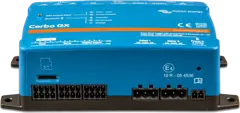 Cerbo GXSystem control centre and gateway to the VRM portal.
What next
You can find the Cerbo GX and Ekrano GX in the product section. If the GX does not show connected devices, use the GX cannot see the device troubleshooting guide. If a firmware update fails — firmware update failed. If the GX itself will not connect to Wi-Fi, see “GX cannot connect to Wi-Fi”.