
01First check
- Restart the phone — this is the first step before you do anything else. Locking and unlocking the screen is not enough; you must really restart the phone.
- Smart product — the housing must have the Bluetooth symbol.
- Range — the product must be within range. Keep the phone as close to the device as possible.
- Only one phone at a time — only one phone can be connected to the product at once.
- Connect with VictronConnect — not with the system Bluetooth menu on the phone.
- Keep Bluetooth on — if you turn Bluetooth off after scanning, the product may still be visible, but you will not be able to connect.
- Current VictronConnect version — use the latest app version.
02Diagnostic steps
1Does the product have a Bluetooth symbol (Smart type)?
VictronConnect connects over Bluetooth only to a Victron Smart product. The device must have a Bluetooth symbol.
Go to step 2.
This product has no Bluetooth. VictronConnect will not connect to it wirelessly.
2Can you see the product in the VictronConnect list?
You may be close enough to see the product, but too far away to connect. Keep your phone as close as possible. If a firmware update has recently failed, the Custom Name may have reverted to the original name and serial number — look for that name, not the previous one.
The product is within scan range. Check whether another phone is already connected (only one at a time). Then go to step 3.
Move closer and confirm that Bluetooth is enabled on the phone. On Android, scanning requires Location — step 4. Also make sure you are searching for the correct name (after a failed firmware update, the Custom Name may have reverted to the factory name).
3Is VictronConnect asking for a PIN, or does pairing fail?
- A unique PIN code is printed on the serial-number label of every product.
- If you cannot find the PIN, the default is 000000 (six zeros).
- Bluetooth pairing data can become outdated after the PIN is changed in the product, or if too many phones have connected to it. The product remembers only the last 10 connected phones.
- Remove the pairing completely in the phone’s system menu (the list of paired Bluetooth devices). Then open VictronConnect and pair again.
- Also remove the pairing on other phones and tablets.
- After resetting the PIN to the default value, connect with code 000000. Change the PIN immediately to a new one.
Remove the pairing on the phone, then connect in VictronConnect. Use the PIN from the label, or — if there is none — 000000. After a PIN reset, use 000000 again, then set a new code.
If the connection is made without a PIN, but still drops out — step 4 (Android) or step 5.
4Do you have Android and is the list empty or does the connection stop at 80%?
- Android 4.2 and earlier is not supported. The earliest Android version required for Bluetooth is 4.3.
- Android 5: known PIN pop-up bug.
- Android 6 and later: no known issues with the operating system itself.
- On Android 5 and later, VictronConnect needs access to Location services to scan nearby Bluetooth products. Location (GPS) must be enabled on the phone.
- Permission: Android settings → Applications → VictronConnect → Permissions and enable Location.
- On Android 12 or later and VictronConnect v5.70 or later, some of these permission steps are not necessary.
- When the connection freezes at 80%, open the notification shade and check whether there is a request for a PIN or pairing — on some phones the window is hidden in notifications.
- Other Android apps may block the PIN window or show it only briefly. In that case, those apps must be uninstalled.
Turn on Location (GPS), grant VictronConnect the Location permission. At 80%, check the notification shade. If the PIN window still does not appear — uninstall the apps that block it.
On iOS there are no such location restrictions. Go to step 5.
5Does it still not connect after the steps above?
- When the connection fails at around 20%, use the latest VictronConnect version, remove the product from the phone’s paired Bluetooth devices list, then reset the PIN code.
- Force close the VictronConnect app. Uninstalling and reinstalling also works. Then reconnect in VictronConnect with code 000000 and change the PIN.
- If that does not help, power-cycle the Victron product. For a solar charge controller, isolate the MPPT from the battery voltage and the panels until no LEDs are lit, then reconnect.
- Try another phone or tablet, preferably Apple — according to the documentation they work without these problems.
- After a successful connection with another phone, VictronConnect will automatically update the firmware in the Victron product with Bluetooth.
Latest VictronConnect, remove pairing, reset the PIN, force close (or reinstall), reconnect with code 000000 and change the PIN, power-cycle, then another phone. For MPPT: no LEDs before you reconnect power.
The connection works. If the software update itself fails, and not pairing — see the separate firmware page below.
Devices this applies to
 Blue Smart IP22 Charger230 V charger, 8–30 A, for indoor use, with Bluetooth, night mode and an option for three outputs.
 Blue Smart IP65Mains charger for 12/24 V with Bluetooth and Li-ion mode, IP65 enclosure.
 SmartSolar MPPT 75/10–100/20Small solar controllers with Bluetooth for campervans, boats and cabins.
 SmartShuntBattery monitor with 300–2000 A shunt, read on your phone or on a GX device.
 BMV-712 SmartBattery monitor with display, alarm and programmable relay.
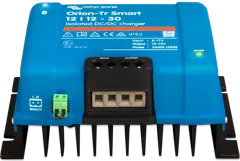 Orion-Tr SmartDC-DC charger or converter 12/24/48 V up to about 400 W, in isolated and non-isolated versions; can be connected in parallel.
What next
When Bluetooth connection already works, but the software update fails, see firmware update failed. The meaning of the LEDs during an MPPT power-cycle is described by the LED decoder.