
01First check
- In most cases the error is caused by a communication problem — check all cable connections.
- For Bluetooth stay as close to the product as possible and check that Bluetooth on your phone is enabled. Sometimes you need to remove the Bluetooth pairing from your phone to connect to the product again.
- Current VictronConnect — the latest app version contains the latest firmware files available at the time of release. You can perform the update offline; an internet connection is not required.
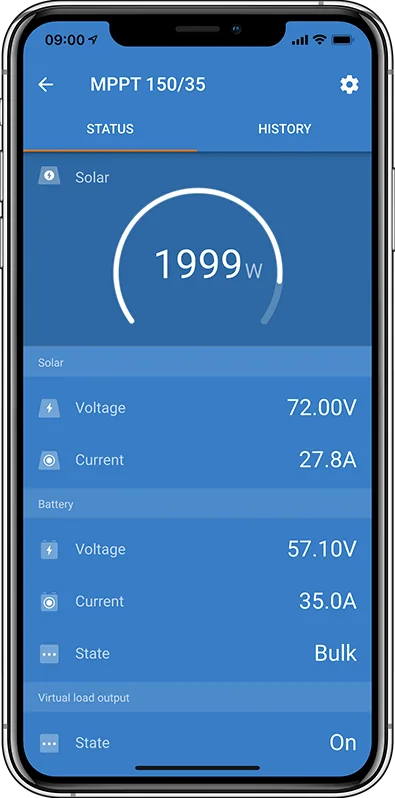
- Mandatory version — after connecting, VictronConnect immediately prompts you to update. An available update may also be indicated by an orange exclamation mark above the settings icon on the Status page.
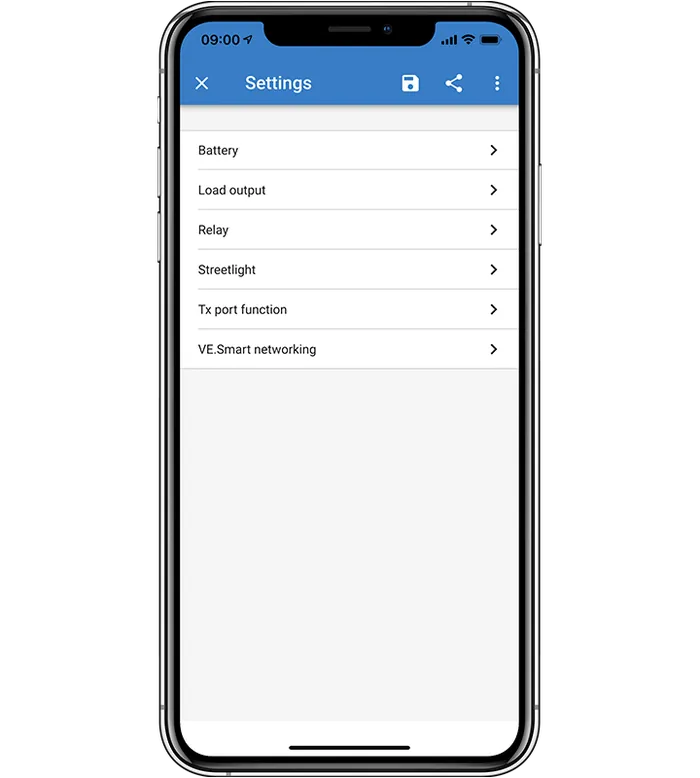
- How to start the update — after tapping the settings icon, a “Update available” banner appears above the options; start the update by tapping UPDATE in the bottom right of the banner. The current version is shown on the Product info page (three dots in the top right of the settings menu); a newer one is installed using the blue UPDATE text.
- Process — the update page shows the current version and the version to be installed, and the progress bar shows progress. Once complete, you return to the device list. Settings and historical data, where applicable, are retained.
- Error code — always provide the code when reporting the issue to the dealer or installer. According to the manual, the product can always be recovered despite errors.
02By product type
1Bluetooth and cables
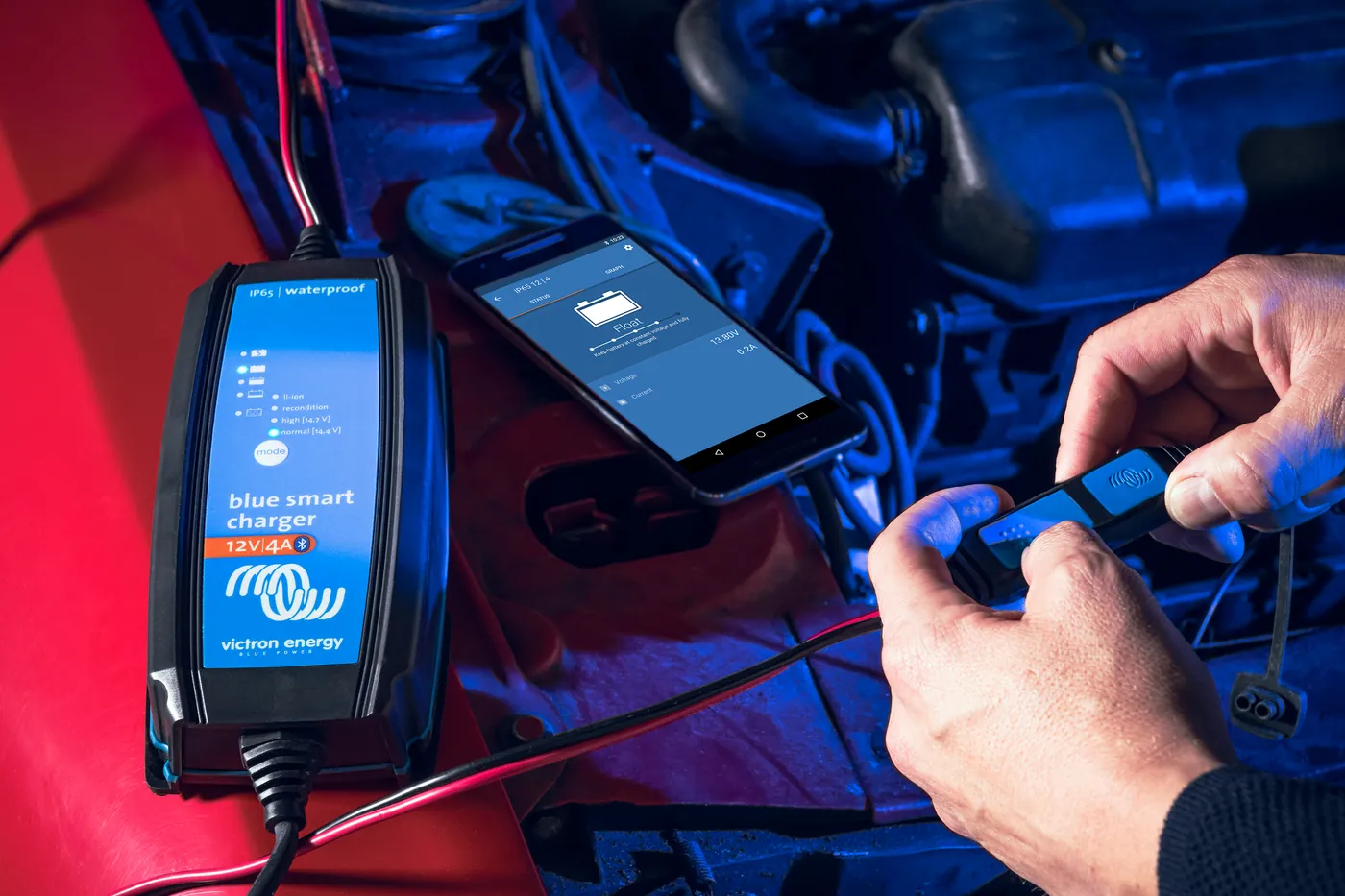
- Always check all cable connections. With a Bluetooth connection, stay as close to the product as possible and make sure Bluetooth on your phone is enabled.
- Sometimes you need to remove the Bluetooth pairing from your phone to connect to the product again.
- Updates can also be performed on Windows and MacOS computers.
- Problems with the Bluetooth connection itself are described on VictronConnect does not connect over Bluetooth.
2VE.Direct (D codes)
D codes apply to VE.Direct products.
- D3 — no VE.Direct products found.
- D4 — an unknown error occurred; try again and check the product settings after the update.
- D26 — update failed, communication lost. The product may be unusable. Check the connection and power supply, try again, and after a successful update check the product settings.
- D29 — unable to start the update, the firmware file is corrupted.
- D31 — update failed, the product is unusable. Try again and after the update check the product settings.
- D90 — unable to start the update, the firmware is not intended for this product.
- D93 — firmware start-up error after the update. Perform a power cycle (off/on); if that does not help, try the update again, and after a successful update check the product settings.
- D94 — the product has been updated, but there was an error reading the previous settings. Check the product settings.
- D95 — the product has been updated, but there was an error restoring the previous settings. Check the product settings.
- D96 — update failed due to version incompatibility. Perform a power cycle (off/on); if that does not help, try the update again, and after a successful update check the product settings.
- D100 — settings cannot be transferred because the app is not active. Manual action required.
3Blue Smart Charger, Smart Lithium, VE.Direct Bluetooth Smart dongle (B codes)
B codes apply to Blue Smart Charger, Smart Lithium and the VE.Direct Bluetooth Smart dongle.
- B2 — Victron BLE service not found. Remove the product from the paired devices list and try again.
- B4 — the product disconnected unexpectedly; pairing information may be invalid. Remove the Bluetooth pairing from your phone and try again.
- B12 — the device was no longer found; it may be out of range. Try again.
- B13 — the product did not start the new firmware.
- B14 — update cannot be started, the firmware is not intended for this product. Make sure you selected the correct update file and try again.
- B99 — the product could not write the firmware to memory. Try again.
- B106 — this firmware is too old; use the latest version and try again.
4VE.Bus — MultiPlus, Quattro (V codes)
- An MK3-USB adapter is required to connect to VE.Bus products. MultiPlus and Quattro updates require a separate Firmware guide.
- The update cannot be performed with a VE.BUS BMS connected.
- The update cannot be performed with a DMC connected.
- You can find the MultiPlus card in products.
V codes apply to VE.Bus products.
- V1 — no product detected. Check all cable connections and try again.
- V22 — the MK2/MK3 did not respond. Check all cable connections and try again.
- V23 — the connected product does not match the model specified in the file. Make sure you selected the correct file.
- V25 — the update cannot be performed with a VE.BUS BMS connected.
- V26 — the update cannot be performed with a DMC connected.
- V53 — file checksum error; the file is corrupt or not a valid VFF file. Make sure you selected the correct file.
5Manual file and other products (XUP)
- In addition to automatic updates, you can manually upload your own firmware file. A manual update is needed when a newer version is available on Victron Professional but not in the current VictronConnect; it also lets you upload a special or unpublished version.
- On a mobile device, start the manual update with the MANUAL UPDATE button. The file list in VictronConnect shows only firmware that matches the connected product.
- On a computer, go to the Product info page, click Update and open the correct file. After the file is opened, a message confirms that it has been added to the library.
- If the device security settings do not allow you to open the file from the browser, open it from the file manager.
- The system file browser shows all firmware files in the folder, not just those compatible with the product — choose carefully. Select the file for the specific product model.
- If the file is incompatible, the “Update Failed” screen shows the reason. The product will not be updated; you can repeat the process with a different file.
- For other products, XUP update files are used.
- X66 — the firmware is not intended for this product (Id). Make sure you selected the correct update file and try again.
- X92 — the update is already running on another interface.
6After the update the device does not work or settings have disappeared
- The product may be unusable after a failed update with loss of communication. Check the connection and power supply. According to the manual, the product can always be recovered.
- Power cycle the device (off/on) and try the update again — the manual recommends this for D93, D96 and when the device does not start after an update. For D93 and D96, check the product settings after a successful update.
- X87 — after the update the device is still in bootloader mode. Try again.
- If the product updated but the settings are wrong: for D94 and D95, check the product settings. For D100, the settings cannot be transferred because the app is not active — manual action is required.
Devices this applies to
 MultiPlusInverter/charger 800 VA–20 kW: PowerAssist, UPS under 20 ms, parallel and three-phase operation.
 Quattro-IIInverter/charger with two AC inputs — mains and generator without an external changeover switch.
 Blue Smart IP65Mains charger for 12/24 V with Bluetooth and Li-ion mode, IP65 enclosure.
 Blue Smart IP22 Charger230 V charger, 8–30 A, for indoor use, with Bluetooth, night mode and an option for three outputs.
 LiFePO4 Smart 12,8/25,6 VLithium iron phosphate batteries with Bluetooth — work only with an external BMS.
 Digital Multi ControlWall panel for MultiPlus and Quattro: switch, shore or generator current-limit knob, LEDs and error codes.
 VE.Bus BMS V2BMS for Lithium Smart batteries in a system with MultiPlus or Quattro — controls the inverter, chargers and loads.
What next
If VictronConnect does not connect via Bluetooth at all, start with VictronConnect does not connect via Bluetooth. Other device codes (apart from the D, B, V and X update codes) can be found in error codes.