
How to connect to Node-RED on the GX
Node-RED runs on the GX device itself. On the local network, the browser connects to it directly, and from outside the home — through the VRM portal. Flows can also fetch data from VRM and save files to the device data partition.
- On the local networkEditor at https://venus.local:1881, dashboard from the “Dashboard 2.0” panel in the editor (path /dashboard).
- Remotely via VRMVenus OS Large menu in the VRM portal: editor, dashboard and Signal K; it runs slowly on a poor connection.
- Data from VRMAccess token, VRM API and production forecasts — Dynamic ESS works on this.
- /data partitionFlows, palettes and context; always at least 30 MB free, below 5% warning #46.
Dashboard: FlowFuse Dashboard 2.0
A dashboard is a browser page with charts, gauges and controls, such as switches and sliders. Victron recommends the FlowFuse Dashboard 2.0 package — current and actively developed.
- Installation. In the editor: right-hand menu → Manage palette → Install tab, search for and install
@flowfuse/node-red-dashboard. The GX device must have working internet access. The palette is installed on the data partition, so it remains after a Venus OS update. - Structure. New nodes appear in the palette on the left. The dashboard has four levels: ui-base (base address, factory setting
/dashboard), ui-page (pages), ui-group (groups on a page) and widgets — chart, gauge, button, switch. - Data from the installation. Connect a Victron input node (for example the battery state of charge) to a widget, and the dashboard switch — to an output node, for example a relay. What is in the Victron palette: Victron nodes.
- Deploy and view. After deployment (Deploy), you can open the dashboard from the “Dashboard 2.0” panel on the right of the editor, and in the VRM portal, in the Venus OS Large menu, an extra tile appears for remote access.
- Relay from the dashboard. First set the relay to Manual mode in the GX menu or in VictronConnect. To make the switch also reflect changes made elsewhere, for example in the GX menu, connect the relay state also to the switch input — that is how the “Relay switching” example from the Victron wiki works.
- How often data arrives. Victron input nodes send a message whenever the value changes. Without the “only changes” option selected, they additionally send the current value every 5 seconds — the chart will then get a point even when nothing changes.
- Old dashboard. The
node-red-dashboardpackage is outdated and, according to the manual, should no longer be used. - Alternative: uibuilder.
node-red-contrib-uibuildergives full control over the appearance, but it has no ready-made widgets — you write the interface yourself in HTML, CSS and JavaScript. More flexible, but much more difficult than Dashboard 2.0.
The Venus OS Large manual advises against the old node-red-dashboard package, but the example flows from the node-red-contrib-victron wiki with a dashboard — “Monitor disk usage”, “Relay switching (from the dashboard)” and “Threshold control” — still require it (the ui_chart, ui_switch, ui_slider nodes and add-ons for the old dashboard). Such flows have to be rebuilt with Dashboard 2.0 widgets or you have to install the old package against the manual’s recommendation.
Remote access via VRM
Three panels — the flow editor, the Node-RED dashboard and the Signal K administration panel — are also available remotely, through the VRM portal.
- VRM setup. The GX device must send data to the VRM portal — how to connect it: VRM monitoring.
- Venus OS Large menu. Log in to VRM, choose the installation and click the Venus OS Large menu. The editor and Signal K tiles appear there after those functions are enabled in the GX, and the dashboard tile appears after it is deployed.
- Login. Node-RED asks for the same password as locally — from Venus OS 3.50, this is the security profile password with the admin user (details).
- It may run slowly. The manual warns that speed depends on the quality of the connection.
- Only through VRM. The Victron manual describes remote access to Node-RED only via VRM; it does not describe port forwarding on the router.
VRM data in flows
Some flows need data that is not on the GX device itself, such as solar production forecasts or irradiance. These are fetched from the VRM portal database via the VRM API.
- Access token. In the VRM portal, in the Access tokens section, add a new token. Once generated, it cannot be read again — save it immediately in a password manager.
- VRM API node. The Victron VRM API node makes it easier to use the API in flows. Full API description: VRM API documentation.
- Forecasts. Use the stats call with one of the attributes in the table; the manual notes that there may be more useful attributes.
| ID | Attribute | Data |
|---|---|---|
| 1220 | vrm_pv_charger_yield_fc | solar charge controller (MPPT) production forecast |
| 1221 | vrm_pv_inverter_yield_fc | PV inverter production forecast |
| 1173 | vrm_solar_irradiance_fc | solar irradiance forecast |
| 1172 | vrm_solar_irradiance | solar irradiance |
Ready-made solution: Dynamic ESS — it fetches from VRM the optimal ESS setpoint, calculated from dynamic energy prices and the solar production forecast. Its flow is also a good example of using the VRM API.
The token is the key to the account. Treat it like a password: before sharing a flow, for example on the Victron Community forum, check whether the token is entered directly in a function, change or inject node.
Memory: /data partition
Palettes, flows, credentials and saved context are stored on the GX device data partition. That means they survive a Venus OS update, but space is limited, and Node-RED and Signal K can fill the partition completely.
- At least 30 MB free — always, according to the Venus OS Large manual.
- Warning #46. When free space falls below 5%, the GX reports #46 Data partition full. The exact value is shown in the Settings → General → Modifications menu.
- Effects of a full partition. Venus OS stops working properly, Node-RED or Signal K does not start — the system is not designed for running out of space.
- No large files on /data. Do not store large photos, videos or logs there. Keep this data outside GX — in a database, cloud, via MQTT or FTP — and reference it by URL.
- Only the palettes you need. Each extra palette takes up space. Remove unused ones with the remove button in Manage palette.
When the partition is already full — in order, from the least drastic:
- Signal K logs. If you use Signal K, the manual recommends starting by deleting its logs, then checking whether the “Keep only most recent data log files” option is enabled in Signal K → Server → Settings (enabled by default).
- Flows and palettes. Remove flows and added palettes. If the editor does not start, the
venus-data-20-node-red-reset.tgzfile on the USB stick deletes all contents of /data/home/nodered/ — all flows and palettes — and lets you start from scratch. Make a backup first:venus-data-00-backup-data-partition.tgzcopies the whole /data partition to the USB stick (how it works). - Factory reset of GX — according to the GX device manual. The drawback is that you must configure the whole device again.
You can also monitor partition usage in flows — the Victron wiki has two examples: “Monitor disk usage” (a chart on the old dashboard, see the discrepancy above) and “Using MQTT to monitor disk space”, which requires enabling the MQTT on LAN (Plaintext) service in the GX menu and shows free space only in the debug window.
Context variables and flash memory
Context variables (context, flow, global) let flows remember values, for example a counter or the last state. By default they are stored only in the GX device RAM — they disappear after a restart or power loss.
To make them survive a restart, you must save them to disk — in the settings-user.js file (see configuration files):
module.exports = {
  contextStorage: {
    default: {
      module: "localfilesystem",
      config: {
        // save every 5 minutes
        flushInterval: 300
      }
    }
  }
}- Do not save too often. The manual warns that frequent writes wear out flash memory — the example saves the context every 300 s, that is every 5 minutes.
- Only small data. Do not keep large or binary data in the context — it ends up on the same small /data partition.
- After changing it, restart Node-RED (restart).
Configuration files — when to edit them
The vast majority of Node-RED installations do not need — and should not — change these files. Venus OS Large is designed so you do not have to drop to the command line. Editing requires root access via SSH (Victron instructions).
| File | What it is for | Edit |
|---|---|---|
/usr/ | base settings, read first | never — overwritten by a Venus OS update |
/data/ | completes the first file; remains after an update | no — it is for Victron |
/data/ | your settings: ports, security, editor, contextStorage; remains after an update | yes, carefully — a syntax error stops Node-RED from starting, and after an update the setting may stop working |
flows.json | all flows (the same as export from the menu) | not manually — risk of corruption |
flows_cred.json | encrypted credentials from flows (logins, passwords) | no — a manual change may break decryption |
.config.*.json | Node-RED settings themselves | no; flow export does not include them |
lib/ | subflow and function library | safe for advanced users |
- One block. Settings in these files must be inside the
module.exports = {}block. Several settings — for example port 1880 and contextStorage — go in the same block, separated by a comma. - settings.js is ignored. The /data/home/nodered/settings.js file is not read, even if you create it — only settings-user.js in the .node-red directory works.
- Images in the dashboard. To make Node-RED serve, for example, the dashboard background, add
httpStatic: "/data/home/nodered/www"to settings-user.js, create that directory, assign it to the nodered user (chown -R nodered:nodered) and place a file there, for example image.png. In the dashboard you refer to it relatively:background-image: url(/image.png);. This also takes up space on /data — only small files.
Restart after changing settings. The easiest way is in the GX menu: Venus OS Large Features → Node-RED — turn it off and on again. From the command line:
# stop
svc -d /service/node-red-venus
# start
svc -u /service/node-red-venus
# restart
svc -t /service/node-red-venus
If something stops working after a change, run Node-RED in safe mode — it starts without running flows (safe mode).
Security and permissions
- Password. From Venus OS 3.50, access to Node-RED is protected by the security profile password (Settings → General → Security Profile) with the admin user; in older versions — the Remote Console password. Details: editor password.
- Encrypted connection. The editor runs over https on port 1881. The certificate is self-signed — hence the browser warning — but the login and password are not sent in plain text over the network.
- Port 1880 only if needed. Some nodes connect only over http. For them you can additionally enable port 1880 on all interfaces — in settings-user.js, then you must restart Node-RED:
This is plain http, without the encryption provided by port 1881 — so enable it only if a node requires it.module.exports = { // also http on port 1880 uiHost: "::" } - EACCES error when saving a file. From Venus OS 2.90, Node-RED runs as the nodered user, not root, so flows can only read and write that user’s files — usually under /data/home/nodered/. Instead of a different path, use for example
/data/home/nodered/storage.txt. - VRM token and passwords in flows. Credentials that nodes save as login data go into the encrypted flows_cred.json. Do not enter a token or password directly in function, change or inject nodes — they would end up in the normal flows.json file and in every export.
Export all flows (menu → Export → all flows) and keep the flows.json file. The export does not include Node-RED settings from .config.*.json files — a full copy of the /data partition is made by the venus-data-00-backup-data-partition.tgz file on the USB stick.
Devices this applies to
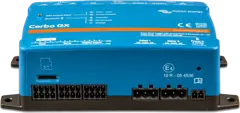 Cerbo GXSystem control centre and gateway to the VRM portal.
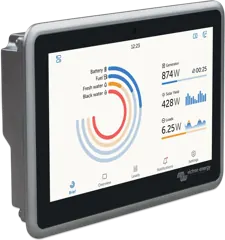 Ekrano GXGX centre with built-in 7″ touchscreen.
Sources
- Venus OS Large image: Signal K and Node-RED — dashboard, configuration files, VRM API, FAQ, access via VRM, full data partitionvictronenergy.com · EN
- node-red-contrib-victron — Example Flows (dashboard relay, disk usage, threshold control)github.com · EN
- VRM API — documentationvictronenergy.com · EN
- FlowFuse Dashboard 2.0 — Getting started (installation, /dashboard path, build)dashboard.flowfuse.com · EN