
01Where you will see the code
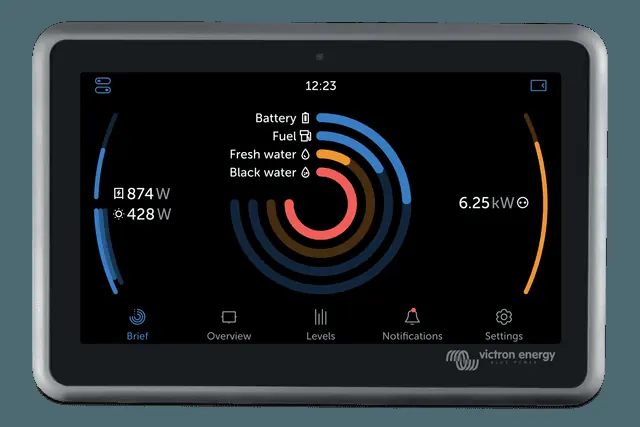
- On the GX device screen — errors and warnings appear as a notification (Notification). Error #42 is also visible in the VRM portal from v2.30.
- VRM connection errors (#150–#159) — in the Settings → VRM → “Connection error” menu. If the status on Wi-Fi is “Failure”, the password may be wrong — select “Forget network” and connect again with the correct password.
- ESS states (#1–#7) — in the GX graphical overview and in VRM, next to the state of charge. These are not errors, just information about why the system is limiting charge or discharge.
- WS500 controller codes — in the controller menu on the GX device, in the “Error” field. GX reports all WS500 codes; we cover the two described in the GX manual (#91, #92) — the rest are in the Wakespeed Communications and Configuration Guide.
- VRM portal codes (1403–1520) — messages from the VRM portal itself (server responses), not from the GX device.
- Codes from other devices — GX also shows codes from connected devices: MultiPlus and Quattro (VE.Bus) and MPPT controllers. If the BMS is disconnected in an ESS system, the MPPT controllers stop and show error 67.
- VE.Bus notifications — in Settings → Devices → [VE.Bus device] → Alarm setup, you can choose whether GX shows only alarms (the default), alarms and warnings, or nothing (not recommended).
GX device codes come from the manual common to Ekrano GX, Cerbo GX, Cerbo-S GX and Venus GX. That manual also classifies MultiPlus-II GX and EasySolar-II GX as GX devices.
02GX device errors
Internal storage corrupted
The GX device’s internal flash memory is corrupted. This part of the memory stores settings, serial numbers and Wi-Fi login data.
Effect: settings cannot be saved — after a restart, everything returns to factory defaults, which may cause further problems.
What to do: the device must be repaired or replaced. This fault cannot be fixed by a software update or an on-site repair — contact the dealer from whom you bought the device.
Applies to: firmware from v2.30 — earlier versions did not report this error. From v2.30 it is visible on the GX screen and in VRM (in the manual FAQ: “Hardware fault”).
Originally: “Storage corrupt” · Victron source · FAQ: Error #42
Data partition full
The alarm appears when there is too little free space left on the data partition. A full partition can disrupt Venus OS operation and prevent services from starting.
Most common cause: data written by additional apps, such as Node-RED or Signal K. You can see the list of installed apps in Settings → General → Support status.
What to do (according to the Venus OS Large page): delete Node-RED flows and installed palettes; in Signal K, delete log files and check whether “Keep only most recent data log files” is enabled (Signal K → Server → Settings). As a last resort, you can restore the GX to factory settings according to the GX manual (with the venus-data.tgz file) — then you will need to configure the device again from scratch.
Source discrepancy: the GX manual gives a threshold of less than 10% free space, while the Venus OS Large page says less than 5%. You can check the exact amount of free space according to that page in Settings → General → Modifications.
Originally: “Data partition full” · Victron source · Venus OS Large — data partition full
Data partition issue
The GX device’s internal storage is probably damaged, causing the device to lose its configuration.
What to do: contact the dealer or installer from whom you bought the device.
Originally: “Data partition issue” · Victron source
DVCC with incompatible firmware
DVCC is enabled, but not all devices in the system have firmware that is compatible with DVCC. The GX device has shown this message since Venus OS v2.40.
What to do: check the firmware versions in the table and update the devices. The manufacturer recommends: when commissioning an installation, load the latest firmware, and when problems occur, start with an update. Do not use DVCC if the requirements are not met.
| Victron device | Minimum firmware version |
|---|---|
| Multi / Quattro | 422 |
| MultiGrid | 424 |
| Multi RS, Inverter RS, MPPT RS | v1.08 |
| GX device | v2.12 |
| VE.Direct MPPT controllers | v1.46 |
| VE.Can MPPT controllers with VE.Direct port | v1.04 |
| Older VE.Can MPPT controllers (with display) | cannot be used |
| Lynx Ion + Shunt | v2.04 |
| Lynx Ion BMS | v1.09 |
| Lynx Smart BMS | v1.02 |
| Lynx BMS NG | v1.10 |
| Orion XS | v1.00 |
CAN-bus batteries: only enable DVCC when the battery compatibility manual lists them as supported for that battery. In systems with Lynx Smart BMS and Lynx BMS NG, DVCC is enabled automatically and cannot be turned off.
Pylontech and BMZ batteries: from Venus OS v2.80, DVCC is enforced for them, so older systems may show this error. The manual recommends: disable automatic updates (Settings → General → Firmware → Online updates → Auto update), roll back to v2.73 (install the chosen version from an SD card or USB stick), then ask an installer to update the firmware of all devices.
BYD, MG Energy Systems and Victron Lynx Ion BMS batteries: from v2.40, DVCC is enabled automatically for supported BMSs, and older systems may be missing the required components. The manual recommends: disable automatic updates, roll back to v2.33 and make sure DVCC is disabled. Check with the installer whether the system has two-wire control (the older alternative to DVCC). If there are no charge and discharge control wires between the BMS, inverter/chargers and controllers, DVCC is required for these batteries — together with the minimum firmware versions.
ESS system: the ESS assistant must be version 164 or later (November 2017) — earlier versions do not work with DVCC.
Originally: “DVCC with incompatible firmware” · Victron source · DVCC requirements
Grid meter not found
In an ESS system with an External Grid Meter selected, the GX device did not detect the meter.
What to do: check the wiring and system configuration.
Applies to: ESS systems with an external grid meter.
Originally: “Grid meter not found” · Victron source
MK3 firmware needs update
You need to update the MK3 driver inside the GX device. The update enables newer features, such as preheating and cooling the generator during automatic start and stop.
How: go to Settings → Devices → MultiPlus/Quattro/EasySolar. A notification about a new MK3 version will appear there — tap it and start the update. If there is no notification, the system is already up to date.
Note: according to the manufacturer’s data, in about 5% of cases the update may briefly restart the system — the inverter/charger will switch off and on again. That is why the user starts this one-off update; later updates are installed automatically, without a restart.
Originally: “mk3 firmware needs update” · Victron source
Could not connect to the GX device
The Marine MFD app on the navigation display (MFD) cannot connect to the GX device.
What to do: restart the GX device and/or the MFD display.
Applies to: integration with MFD displays via the Marine MFD app.
Originally: “Could not connect to the GX device” · Victron source
03Connection to the VRM portal
Unexpected response content
The http/https connection succeeded, but the response is invalid. This means a Wi-Fi login page, known as a captive portal, such as those found at airports, in hotels, marinas and on campsites.
The GX device will not work on a Wi-Fi network that requires such a login page or acceptance of terms and conditions — according to the manufacturer, there is no solution for this.
Original: “Unexpected response text” · Victron source
Unexpected HTTP response
The connection succeeded, but the response does not contain the correct HTTP success code (usually 200). This may mean the connection is being intercepted by a transparent proxy server — examples are given under #150.
Original: “Unexpected HTTP Response” · Victron source
Connection timed out
This may indicate a poor internet connection or a restrictive firewall.
Original: “Connection time-out” · Victron source
Connection error
“Connection error” may indicate a routing issue — the on-screen message gives more detail. In the manual’s example, the router did not give the GX device access to the internet.
“Connection problem” with SSL information: check the date, time and time zone in the GX device — incorrect settings cause SSL errors. Also make sure the router is not showing a disclaimers, login or terms and conditions page (typical of public Wi-Fi networks at airports and in hotels).
Original: “Connection error / Connection problem” · Victron source
DNS error
Make sure a working DNS server is set in the Ethernet or Wi-Fi menu. It is usually assigned automatically by the network’s DHCP server.
Original: “DNS Failure” · Victron source
Routing error — VRM unreachable
The GX device received an ICMP error, meaning there is no route to the VRM server. Make sure the DHCP server assigns a working default route, and with static configuration that the gateway is set correctly.
Original: “Routing error” · Victron source
Unknown error
An error that cannot be assigned to any other category. The problem is then described in the message text.
Original: “Unknown error” · Victron source
04ESS states
Low SoC: discharge disabled
The battery state of charge has fallen to the limit, so ESS is not discharging the battery.
In Optimised and Optimised (with BatteryLife) modes, the system will automatically charge the battery from the grid when SoC falls 5% or more below the “Minimum SoC” value in the ESS menu. Charging stops once Minimum SoC is reached.
Original: “Low SoC: discharge disabled” · Victron source
BatteryLife active
BatteryLife protects the battery from staying at a low state of charge for too long. When solar yield is poor, it raises the SoC lower limit by 5% each day until the energy taken from the battery over a day matches the energy replenished — leaving less energy available for use.
When solar yield increases, the limit returns day by day to the user-set value.
Original: “BatteryLife is active” · Victron source · BatteryLife (ESS manual)
Charging disabled by BMS
The battery BMS has disabled charging. Diagnostic steps: “The BMS has cut off charging”.
Original: “Charging disabled by BMS” · Victron source
Discharging disabled by BMS
The battery BMS has disabled discharging. If the lithium battery is deeply discharged, see “Lithium battery discharged”.
Original: “Discharging disabled by BMS” · Victron source
Slow charge in progress
Part of the BatteryLife function: ESS slowly charges the battery when SoC has been below the current limit for more than 24 hours. It charges until the lower limit is reached, then returns to the “Discharge disabled” state.
Original: “Slow charge in progress” · Victron source · BatteryLife state (ESS manual)
User configured a charge limit of zero
A charge limit of zero has been set in the settings, so the system does not charge the battery. Check the configured charge limits in the GX device.
Original: “User configured a charge limit of zero” · Victron source
User configured a discharge limit of zero
A discharge limit of zero has been set in the settings, so the system does not discharge the battery. Check the configured discharge limits in the GX device.
Original: “User configured a discharge limit of zero” · Victron source
05Wakespeed WS500 alternator regulator
Lost connection with BMS
The WS500 alternator regulator has lost communication with the BMS and is entering the configured emergency mode (get home mode). Once communication is restored, it returns to the charging targets set by the BMS.
Applies to: systems with an integrated BMS — the fault is critical while it lasts and requires immediate action.
Original: “Lost connection with BMS” · Victron source
ATC disabled through feature IN
The BMS signalled charge disconnect through the wire connected to the feature IN input, so the WS500 switched to Off.
Applies to: systems with an integrated BMS — the fault is critical while it lasts and requires immediate action.
Original: “ATC disabled through feature IN” · Victron source
06VRM portal codes
No permission
Message: “You don't have sufficient rights to perform this action.” Your account does not have permission for this action (HTTP API response 403).
Original: “Forbidden” · Victron source
Validation error
The server rejected the submitted data as invalid — the message text gives details from the server (HTTP API response 422).
Original: “Validation error” · Victron source
Too many requests
Message: “You've sent too many requests. Please try again in a few minutes.” Too many requests were sent — try again in a few minutes (HTTP API response 429).
Original: “Rate limited” · Victron source
VRM server unavailable
Message: “The server back-end is not available right now, please try again in a few minutes.” The VRM server is temporarily unavailable — try again in a few minutes (HTTP API response 500).
Original: “Internal Server Error without Status” · Victron source
Request timed out
Message: “One of the requests timed out. Some elements might not load correctly. Please try again later.” One of the requests timed out — some elements may not load. Try again later.
Original: “Gateway timeout” · Victron source
Server error with description
VRM server-side error — the message depends on the fault (HTTP 500 API response).
Original: “Internal Server Error with Status” · Victron source
Something went wrong
Message: “Something went wrong, please try again later.” Try again later.
Original: “error_with_data_message” · Victron source
Unknown error
Message: “Unknown error, please try again in a few minutes.” Try again in a few minutes (HTTP 504 API response).
Original: “unknown_error” · Victron source
Live view disabled — GX device overloaded
The VRM portal has disabled the realtime connection because the GX device is overloaded.
Original: “Realtime connection disabled due to GX device overload” · Victron source
Devices this applies to
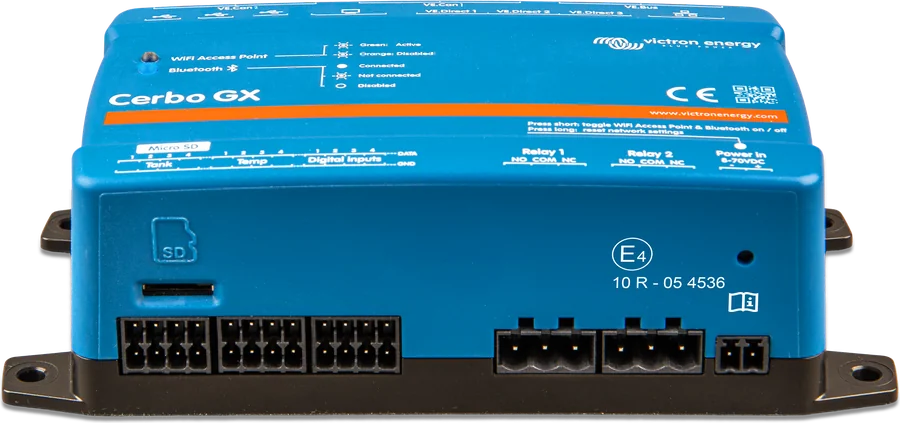
 Cerbo GXSystem control centre and gateway to the VRM portal.
 Ekrano GXGX centre with built-in 7″ touchscreen.
 GX Touch 50/70Optional 5- or 7-inch display for Cerbo GX: system overview, settings, surface or flush mounting.
 MultiPlus-II GXMultiPlus-II with built-in GX device, display and Wi-Fi — VRM without a separate Cerbo.
 EasySolar-II GXMultiPlus-II, 250 V MPPT controller and GX device factory-connected in one enclosure — 3 or 5 kVA.
 GX LTE 4G2G/3G/4G modem for GX devices — internet and the VRM portal where there is no Wi-Fi.
What next
GX device cannot see one of the devices? See the “GX cannot see device” troubleshooting. VRM portal shows no data — “VRM with no data”. Wi-Fi problem — “Cerbo GX and Wi-Fi”. Step-by-step firmware update — “Firmware update”. If the manufacturer indicates a hardware fault (e.g. #42), contact the dealer or installer you bought the device from.
Sources
- GX device manual (Ekrano GX, Cerbo GX, Cerbo-S GX, Venus GX) — Error Codes and FAQ (HTML version, as of 21 September 2026)victronenergy.com · EN
- GX device manual — VRM Portal: connection errors #150–#159victronenergy.com · EN
- GX device manual — DVCC: software requirements and ESS statesvictronenergy.com · EN
- GX device manual — Wakespeed WS500: errors #91 and #92victronenergy.com · EN
- Venus OS Large — Disk space issues / data partition fullvictronenergy.com · EN
- ESS design and installation manual — BatteryLife (sections 4.3.10 and 6.2)victronenergy.com · EN
- VRM Portal manual — VRM error codes (section 18)victronenergy.com · EN