
01First check
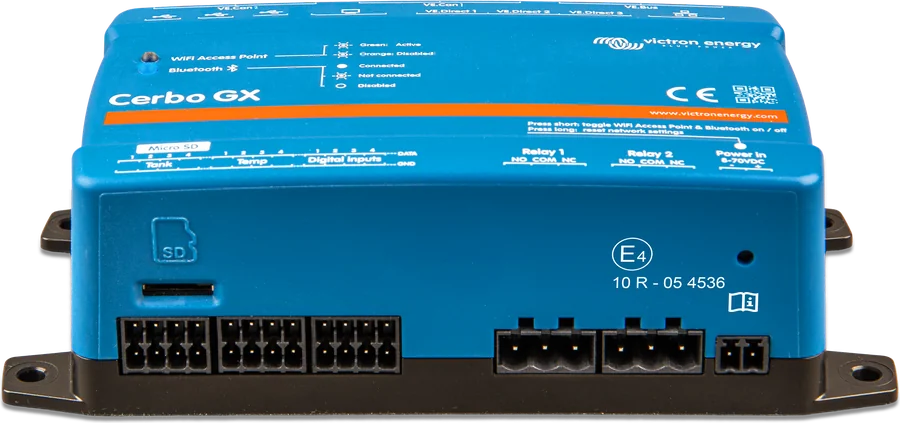
- Is the Ethernet cable not plugged into a VE.Bus or VE.Can/BMS-Can port — before plugging in the cable, do not confuse the GX device’s Ethernet port with the VE.Bus or VE.Can/BMS-Can ports.
- Is Ethernet not overriding Wi-Fi — Ethernet always takes priority, regardless of whether Wi-Fi and LTE are available. The device does not check whether the selected connection actually has internet access.
- Is the network 2.4 GHz — built-in Wi-Fi supports only 2.4 GHz networks. 5 GHz networks may be detected, but the connection will fail.
- Is the Wi-Fi signal strength at least 50% — the documentation states this as the minimum for reliable operation.
- Are you not relying on WPS — WPS (WiFi Protected Setup) is not supported.
- Is there DHCP — in most cases, manual IP configuration is not required. The Ekrano GX default setting is automatic IP assignment via DHCP.
02By connection type
1Ethernet
- Connect a network cable between the router and the Ekrano GX Ethernet LAN port.
- Do not confuse the GX device’s Ethernet port with the VE.Bus or VE.Can/BMS-Can ports.
- Once the cable is plugged in, Settings → Connectivity → Ethernet confirms the connection.
- Wi-Fi is inherently less reliable than Ethernet. Use Ethernet wherever possible.
- In Settings → Connectivity → Ethernet, enable the option allowing Ethernet to be used for internet access (Allow using Ethernet for internet access) on the interface that is to provide internet access.
- In most cases, leave automatic IP (DHCP). If manual configuration is necessary, choose the appropriate template.
- IPv6 is supported only through automatic configuration. Manual IPv6 configuration is not available.
2Built-in Wi-Fi
- Ekrano GX has built-in Wi-Fi and connects to WEP, WPA and WPA2 secured networks.
- Only 2.4 GHz. A 5 GHz network may be visible, but the device will not connect to it.
- The Wi-Fi menu shows all available networks. Select a network and enter the password if it has not been saved before.
- WPS (WiFi Protected Setup) is not supported — you cannot pair the network using the WPS button on the router.
- Wi-Fi signal strength should be at least 50%.
- When several known networks are available, Ekrano GX automatically connects to the one with the strongest signal. When the signal drops significantly, it switches to a stronger known network if one is available.
- In Settings → Connectivity → WiFi, enable the option allowing Wi-Fi to be used for internet access (Allow using WiFi for internet access) if this Wi-Fi connection is to provide internet access.
- You can connect a supported external USB Wi-Fi dongle, for example to improve range when installed in a cupboard — see the list in step 4.
3Ethernet–Wi-Fi–LTE priority
- GX devices support simultaneous Ethernet, Wi-Fi and LTE connections (via the GX LTE 4G accessory). You can be connected to Ethernet and Wi-Fi at the same time.
- Order: Ethernet is always preferred, regardless of Wi-Fi and LTE availability. Wi-Fi is used when Ethernet is unavailable, regardless of LTE. LTE is used only when both Ethernet and Wi-Fi are unavailable.
- Priority depends only on interface availability, not on whether the connection actually has internet access. The device does not check internet connectivity when choosing the interface.
- Enable the internet option on the interface that is to provide internet access (Settings → Connectivity → Ethernet or WiFi). This setting applies to Automatic (DHCP) and Manual configuration. It does not apply to the LTE interface.
- When you disable the option, the interface remains on the local network but is not used for internet traffic. Technically, its default gateway disappears. Without it, the interface communicates only within the local subnet and has no internet access.
4External USB Wi-Fi dongle
You can connect a supported external USB Wi-Fi dongle, for example to improve range when installed in a cupboard. Other Wi-Fi dongles may work, but they have not been tested and the manufacturer does not support them.
| Part number | Model | Notes from the documentation |
|---|---|---|
| BPP900100200 | CCGX WiFi Module Simple (Nano USB) | compact, low cost |
| BPP900200300 | Asus USB-N14 | higher cost, better reception than Nano USB; supported from firmware v2.23 |
| BPP900200400 | WiFi module long range (Netgear AC1200) | highest cost, best reception; Wireless AC, G and N (2.4 GHz and 5 GHz) |
| BPP900200200 | Gembird WNP-UA-002 | slightly higher cost, better reception |
| BPP900200100 | Startech USB300WN2X2D | older, still supported |
| BPP900100100 | Zyxel NWD2105 | older, still supported |
| BPP900200400 | Netgear A6210-100PES | older, still supported |
The same part number BPP900200400 is assigned in the documentation to two names: WiFi module long range (Netgear AC1200) and Netgear A6210-100PES. We do not determine which name is current — we give both as in the source.
5Mobile internet and USB tethering
- Mobile internet: GX LTE 4G accessory (USB modem for 2G, 3G and 4G) or a mobile router. You can also share internet from a phone via USB tethering.
- GX LTE 4G is a mobile modem for the Victron GX range of monitoring products. It gives the system mobile internet and connectivity to the VRM portal. Internet is for the GX device only — it does not share it with laptops, phones or other devices.
- Ekrano GX does not support USB mobile broadband dongles, except for the official Victron GX GSM and GX LTE 4G accessories.
- Installation and configuration details for GX LTE 4G are in the GX LTE 4G Manual. Guidance for LAN, Wi-Fi or GX GSM also applies to GX LTE 4G.
- The manufacturer recommends a professional mobile router designed for unattended operation. Avoid cheap consumer routers intended for temporary or personal use. More expensive professional routers are more reliable and reduce the risk of downtime.
- Documentation examples: Proroute H685 4G LTE and the Pepwave Industrial 4G Router range.
- You connect Ekrano GX to the mobile router with a LAN cable or the router’s Wi-Fi network. A mobile router can share mobile internet with multiple devices over Ethernet or Wi-Fi, and automatically switch between the mobile link and Wi-Fi if one fails.
03Data usage
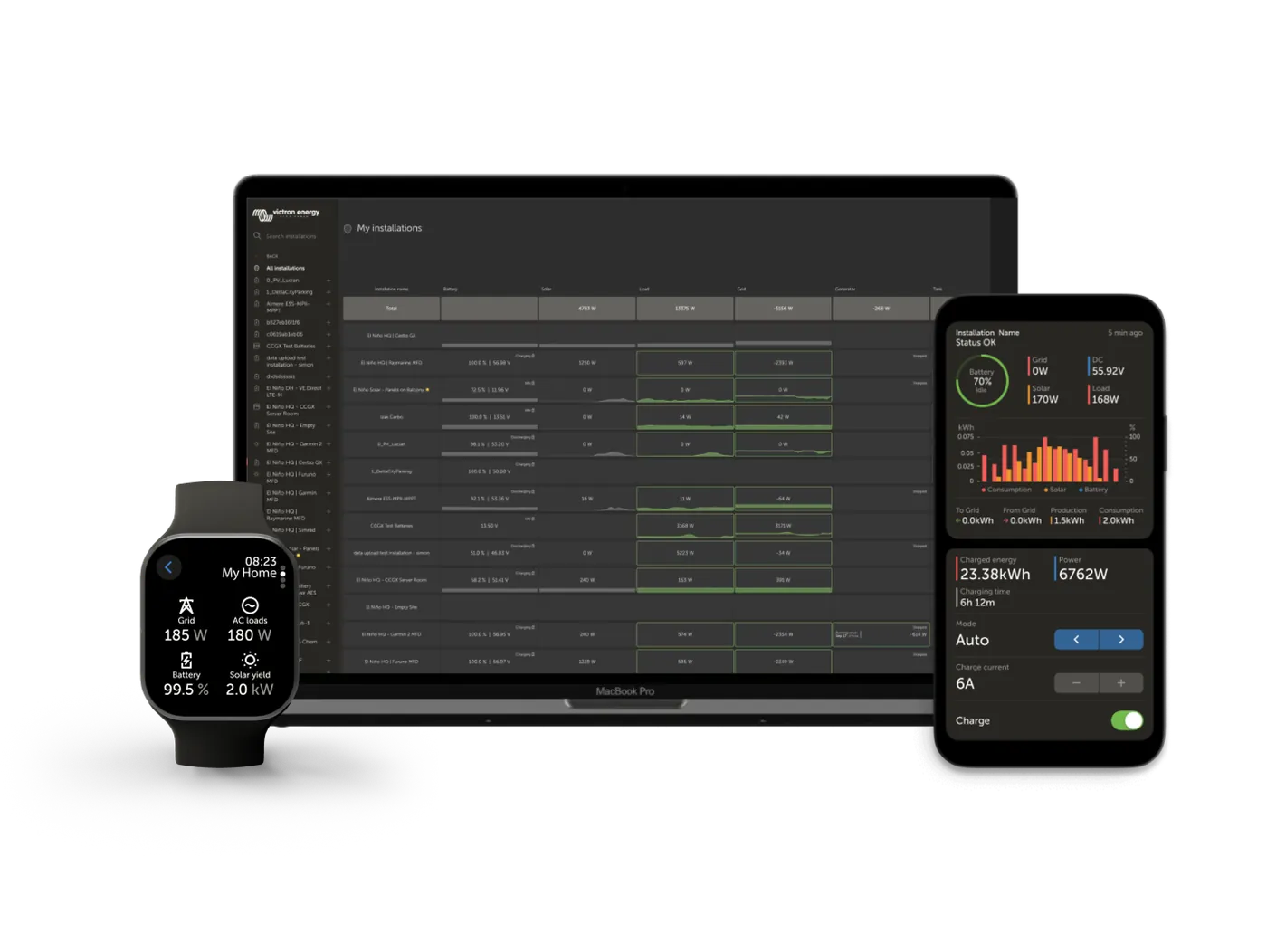
When internet is expensive (satellite link, GSM roaming), it is worth limiting traffic. Let the system run normally for a few days and monitor the RX (received) and TX (sent) counters in the mobile router. Systems with more connected products generate more traffic. Frequent state changes, for example from inverter mode to charger mode, increase the number of transmitted messages — especially in some Hub-1 and Hub-2 systems.
- You can set VRM mode to read-only; the documentation refers you to the access settings for Remote Console and the Controls panel in VRM.
- You disable remote support in Settings → General → Access & Security → Remote support.
- You reduce the VRM log interval in Settings → VRM → Log interval to the lowest acceptable frequency.
- State changes (for example from charging to inverter operation or from bulk to float) and alarms still cause extra transmissions.
- Choose a plan with a data cap or prepaid to avoid expensive overage charges. Consider automatic notifications as you approach the limit. Some mobile operators have their own data usage monitoring tools.
Devices this applies to
 Cerbo GXSystem control centre and gateway to the VRM portal.
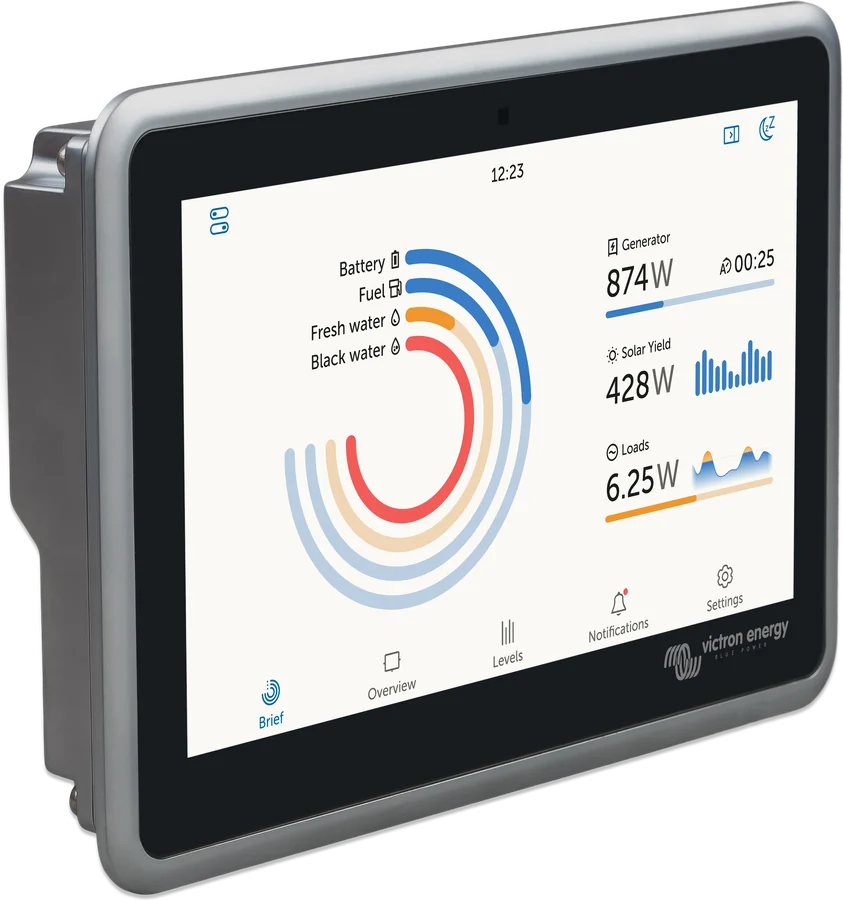
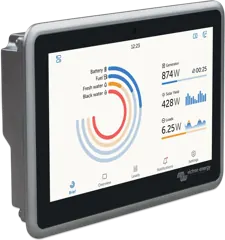 Ekrano GXGX centre with built-in 7″ touchscreen.
What next
An internet connection is needed for full VRM portal functionality: Ekrano GX collects data from connected products and sends it to VRM. With an active connection, it also checks for software updates regularly — depending on the settings, they may be downloaded and installed automatically. The first setup is described in the Cerbo GX and Ekrano GX pages. The link works, but the portal does not show data? See “VRM does not show data”. GX does not see the controller, monitor or MultiPlus? See “GX does not see the device”.