
01First check
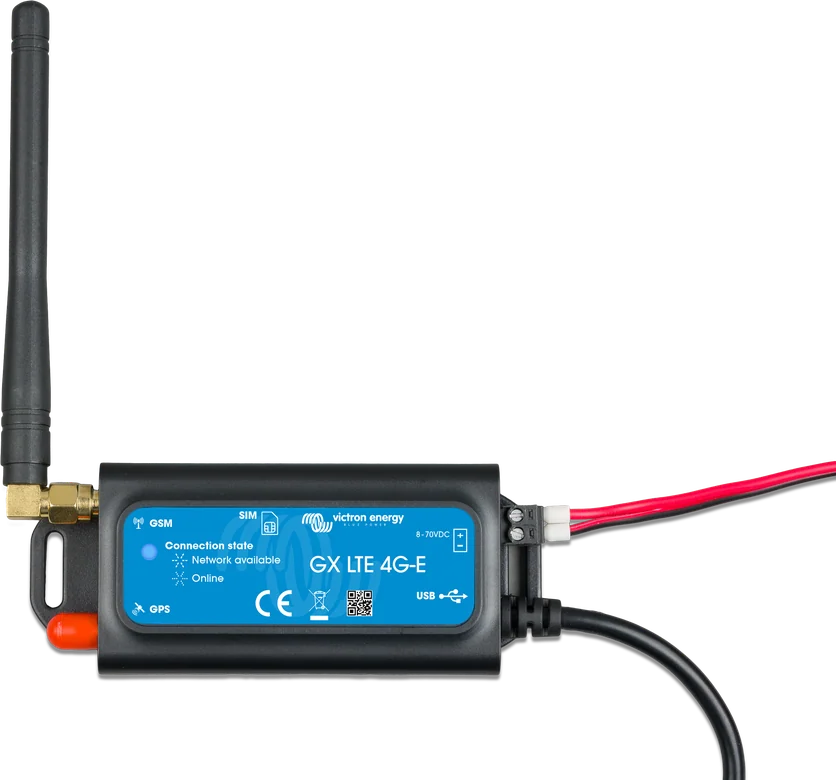
- Blue LED on the modem shows which stage the connection is at (table below).
- Settings → GSM modem menu on the GX device — here you can see the SIM card status, signal strength, operator name and internet status. All modem configuration is done through the GX device.
- GX software — the modem requires Venus OS v2.60 or later.
- When asking for help, give every step you carried out and its result — that is what the manual asks for.
| Blue LED | Meaning | Step |
|---|---|---|
| off | no power | 1 |
| steady on | modem powered, not yet registered on the network | 3–5 |
| flashing slowly | registered on the mobile network, no internet connection | 6 |
| flashing rapidly | internet connection established | 7–8 |
GX LTE 4G provides internet only to the GX device — you cannot share it with laptops or phones. When more devices need internet (common on yachts and campervans) or a reliable backup link is needed, the manual recommends a mobile router with this function.
02Step-by-step diagnosis
1Is the blue LED lit or flashing?
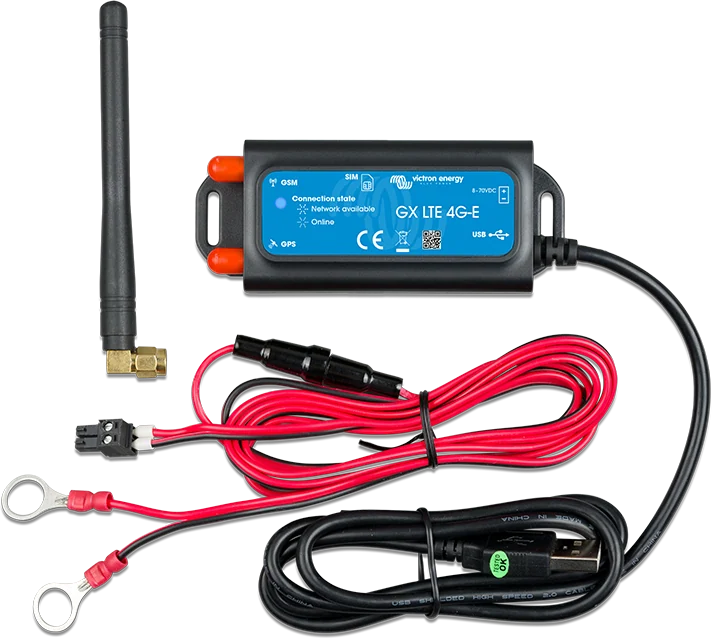
- Power supply: 8–70 V DC. The kit includes a 1.4 m cable with M10 eyelets and a 3.15 A time-delay fuse (5 × 20 mm) — check that the fuse is intact.
- Pay attention to the polarity marked on the sticker on the front of the modem.
- The modem’s power ground must be common with the GX device ground — usually the battery negative when both are powered from the battery.
- With your own cable: cross-section 0.5–1.5 mm², 500 mA fuse at 12 V, 250 mA at 24 V or 100 mA at 48 V.
Go to step 2.
Check the voltage, fuse, polarity and ground.
2Is the modem visible in the Settings → GSM modem menu?
The modem connects to the GX device USB port with the included cable (fixed 1 m cable with USB-A plug). If all USB sockets are occupied, use a USB hub. The modem must be visible in the Settings → GSM modem menu. Also check the Venus OS version (at least v2.60).
Go to step 3.
Check the USB connection and the GX device software.
3Is the SIM card status “Ready”?
| State | Meaning and what to do |
|---|---|
| Ready | The card is correctly inserted and registered on the network. |
| SIM not inserted | No card is inserted, or it is fitted incorrectly — the tray may protrude slightly. The tray sits slightly recessed in the enclosure: pull it out with a pen or another pointed object and push it fully in. |
| PIN required | The card requires a 4-digit PIN. Enter it in Settings → GSM modem → PIN — the same one set in the phone or provided by the operator. |
| PUK required | The card is locked after incorrect PIN entries; an 8-digit PUK is needed to unlock it. |
| SIM failure | The card does not respond — it may be damaged. |
| SIM busy | The card is busy. |
| SIM wrong | Unsupported card type. |
The modem accepts Mini-SIM cards (it supports 1.8 V and 3 V cards). A card without a PIN works with no further configuration; however, the manual recommends setting a PIN (in the phone) to make theft and misuse of the card more difficult.
Go to step 4.
Follow the table.
4Is the signal strength sufficient?
One signal bar is enough to send data to VRM; two or three are needed for Remote Console to work. An external antenna usually improves the received signal by 15–25 dB.
- Install the modem in a place that is not blocked by metal. In a closed metal locker, car or van, consider an external antenna.
- The supplied antenna screws into the SMA connector marked LTE; the GPS connector is for the optional active GPS antenna.
- Check that the model matches the region: GX LTE 4G-E (GSM100100400) is for Europe, the Middle East, Africa, Korea and Thailand — LTE bands 1, 3, 5, 7, 8, 20, 38, 40 and 41. The -A version is for North America, and -SA for Australia, New Zealand and South America.
5Is the operator name visible in the “Carrier” field?
If not, check the signal strength (step 4). If the signal is good, contact the SIM card operator or insert the card into a phone and check that it works and that the service (subscription, data plan) is active.
6Does the internet show “Online”?
The manual gives three reasons why a modem correctly registered on the network does not switch to “Online”:
- No APN — set the APN name in Settings → GSM modem → APN. Some networks require manual configuration, especially while roaming; the operator will provide the details.
- Roaming — the modem is on a network other than its home network and roaming is turned off. Enable it in Settings → GSM modem → Allow roaming. The roaming icon in the status bar is for information only.
- Signal too weak — enough for network registration, but not to open an internet connection (step 4).
7Is Ethernet or Wi-Fi also connected?
Ethernet and Wi-Fi have priority over the mobile connection — even when they do not have good internet access. GX does not detect this and does not switch to the modem on its own. A mobile network icon without data transfer in the status bar may indicate exactly this — according to the manual, this can be intentional because Ethernet or Wi-Fi is available.
If Ethernet is used only to connect devices on the local network (without the internet), and the internet is to come from the modem: on the GX device in Settings → Ethernet set “Gateway” to 0.0.0.0 — by choosing “IP configuration: Manual” and entering the gateway manually, or by changing the DHCP server settings on the network. More about connection priorities: “VRM does not show data”.
8The internet works, but VRM is not receiving data or the connection keeps dropping?
- In Settings → VRM Portal, check whether the time of the last connection is up to date. VRM connection errors are described by codes #150–159 and the page “VRM does not show data”.
- When the modem does not keep the connection, enable the “Reboot device when no contact” option in the GX device’s VRM menu — the GX (and with it the modem) will restart if it cannot send data to VRM for the set period.
- Note for campervans and boats: out of network range, this option causes unnecessary restarts. The manual therefore recommends turning it off or setting it, for example, to 2 hours and accepting a restart every 2 hours while travelling.
03Not a fault
- Mobile network icon without data transmission, when Ethernet or Wi-Fi is working — the modem waits as a connection that the GX uses only when these are unavailable.
- No automatic switch to LTE, when Ethernet has no internet — that is how the GX works (step 7).
- Roaming icon — information only.
- Laptop or phone does not use the modem’s internet — GX LTE 4G provides internet only to the GX device.
- GX restarts out of range — when the “Reboot device when no contact” option is enabled (step 8).
04When it is a hardware fault
The manual does not describe faults in the modem itself. If the LED does not light despite correct power supply (8–70 V, fuse intact, correct polarity and common ground with the GX), the modem is not visible in the GSM modem menu despite up-to-date Venus OS, or the “SIM failure” status persists even with another, working card — contact the seller or installer. Provide the model (e.g. GX LTE 4G-E), Venus OS version, SIM card status, signal strength, operator name and internet status from the GSM modem menu, and the result of each step.
Devices this applies to
 GX LTE 4G2G/3G/4G modem for GX devices — internet and the VRM portal where there is no Wi-Fi.
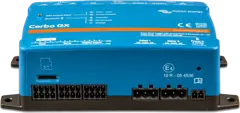 Cerbo GXSystem control centre and gateway to the VRM portal.
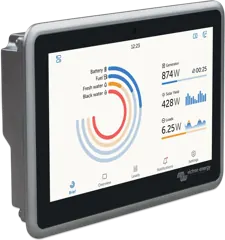 Ekrano GXGX centre with built-in 7″ touchscreen.
Sources
- GX LTE 4G — ch. 5: troubleshooting guide, maintaining connection, working with Ethernet (HTML version, as of 21 September 2026)victronenergy.com · EN
- GX LTE 4G — ch. 4: SIM card status, status bar, GPSvictronenergy.com · EN
- GX LTE 4G — ch. 3: installation, LED, PIN, APN, Reboot device when no contactvictronenergy.com · EN
- GX LTE 4G — ch. 2: GX compatibility, SIM card, mobile router instead of modemvictronenergy.com · EN
- GX LTE 4G — ch. 1: regional versions and LTE bandsvictronenergy.com · EN
- GX LTE 4G — ch. 6: technical specificationsvictronenergy.com · EN